Pages
A page is a board page whose address, content and surroundings you compose in Site Builder — a landing page, a staff handbook, a guide — instead of a topic list. Its content is written as a template edited in place on the page, banners and widgets can sit above, below and beside it, and everything about it — its text, its SEO fields, its rules — stages as a draft until you press Publish.
You reach pages from the staff bar in manage mode: Add Page opens the form for a new page, and Edit Page opens it for the page you are standing on. The same form carries every setting a page has; this page walks through it section by section, then the on-page template editor, the five positions and publishing.
Ask the assistant
"Create an About page with an intro, a short list and a contact button" — the assistant drafts the page and writes its content, inactive until you publish. See The assistant.
Deleting a page
To delete a page, ask the assistant to delete it; the editor has no delete button for pages yet. A delete takes effect at once and cannot be undone: the page's draft, its navigation entry, its content and its positions are deleted with it.
Creating a page
- Press Add Page in the staff bar. The form opens on its first block: a Title, the URL visitors will use, and the Parent section.
- The URL is suggested from the title until you edit it, and accepts nested
paths such as
about-usorproducts/features. - Pick the Parent section: Top level (main navigation bar) makes the page a tab of its own, and any other entry in the tree — another page, a forum, a menu link — nests it under that entry. Not in navigation keeps the page's address out of every menu.
- Open the sections below the picker — navigation, description, SEO and the rest, each covered below — and fill what the page needs.
- Press Create Page. The page is created as a draft: it has no live version yet, visitors get a "page not found" until you publish it, and the page opens in manage mode with a Page not published pill on its content bar.
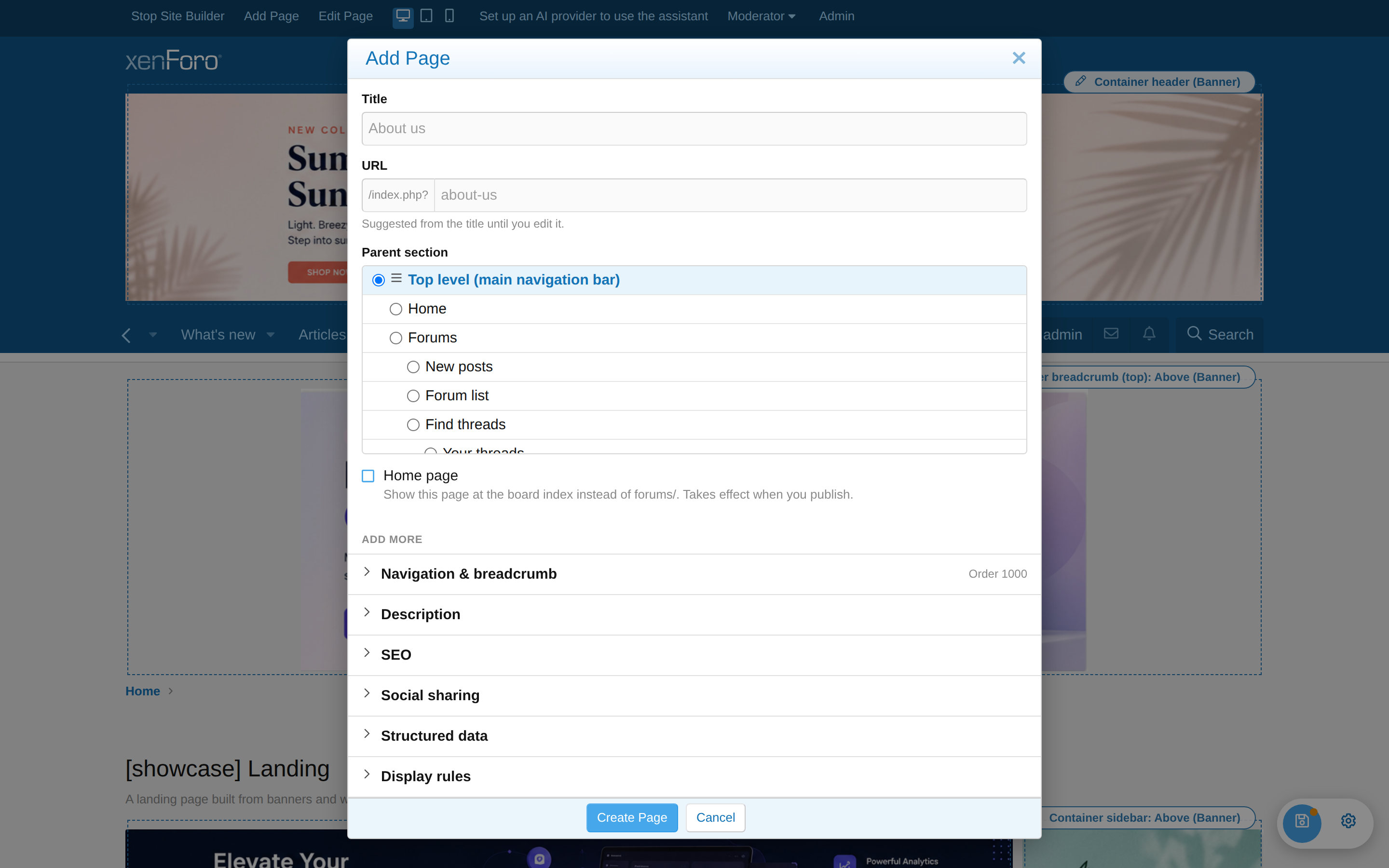
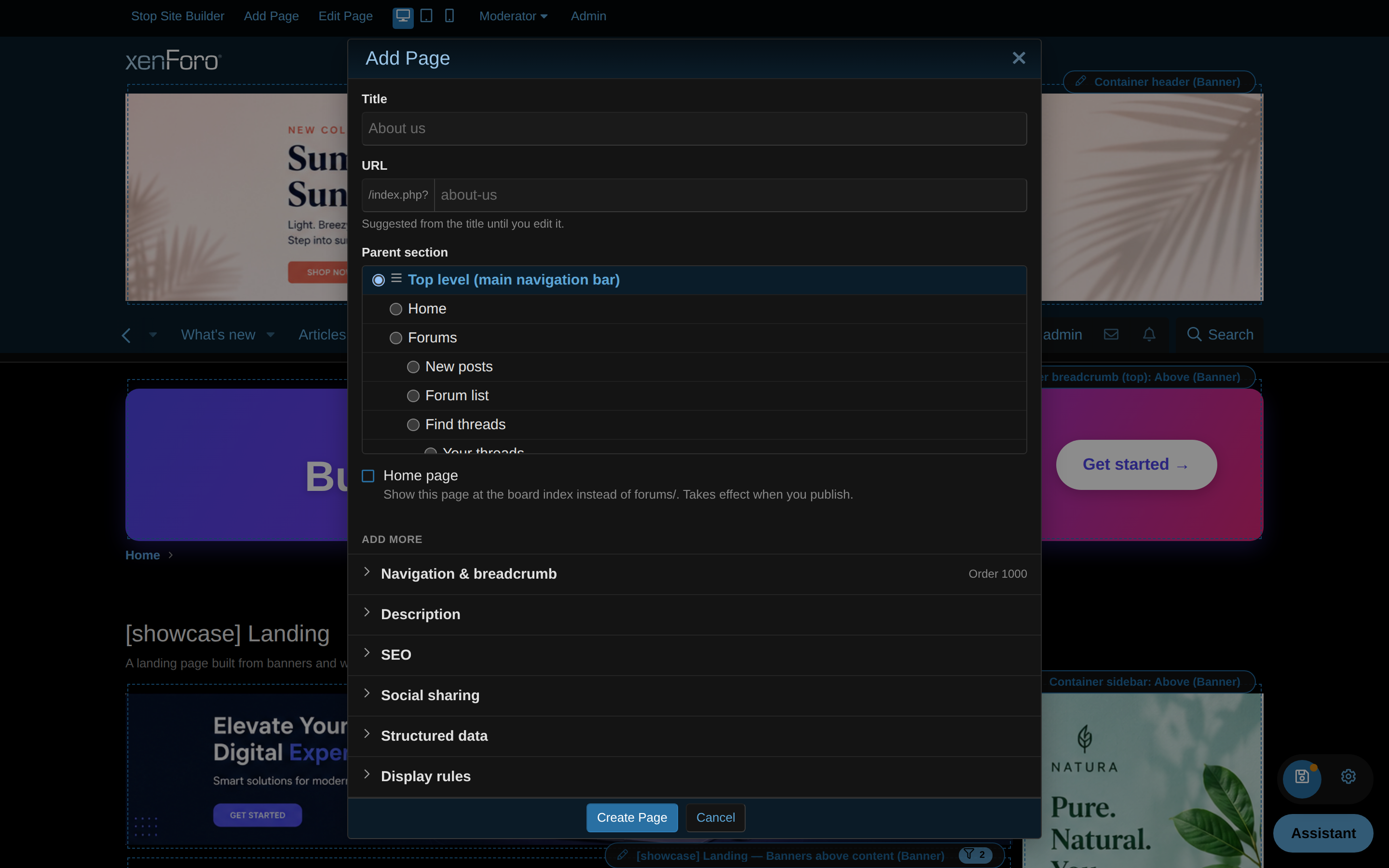
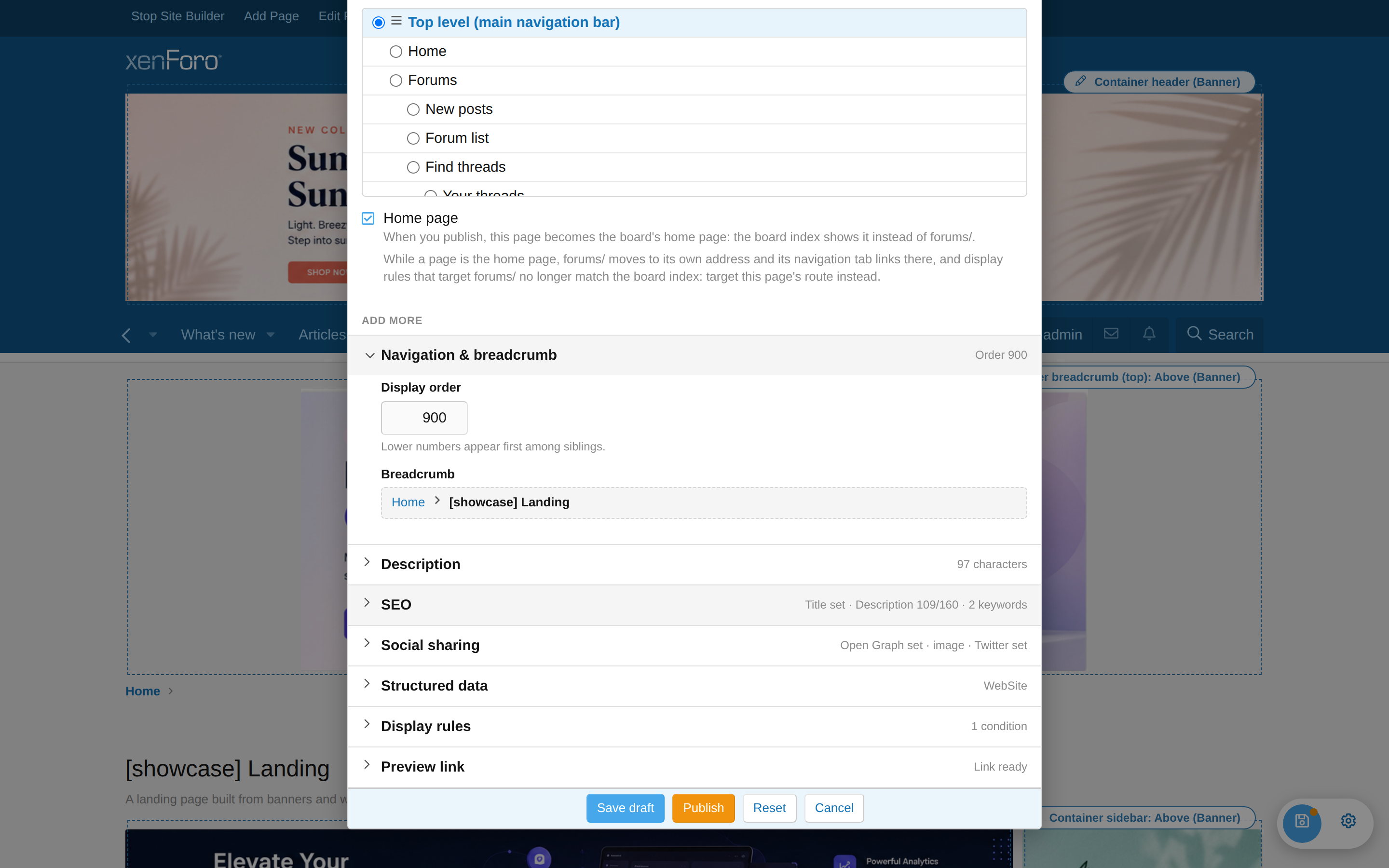
Edit Page opens the same form for the page you are standing on, with Save draft staging the changes where the new page had Create Page. When there is something to publish — a draft, unsaved edits, or a page that has never gone live — a second button sits beside it: Save and publish with unsaved edits on the form, Publish otherwise, and it stages and puts the page live in one press. While a draft exists, Reset discards the page's unpublished changes.
Navigation & breadcrumb
Where the page's entry sits among its siblings, and the breadcrumb it shows:
- Open Navigation & breadcrumb.
- Display order — type where among its siblings the entry sits. Lower numbers appear first among siblings.
- The Breadcrumb line beneath previews the trail the page shows at the top of the board; a page outside the navigation shows no breadcrumb of its own.
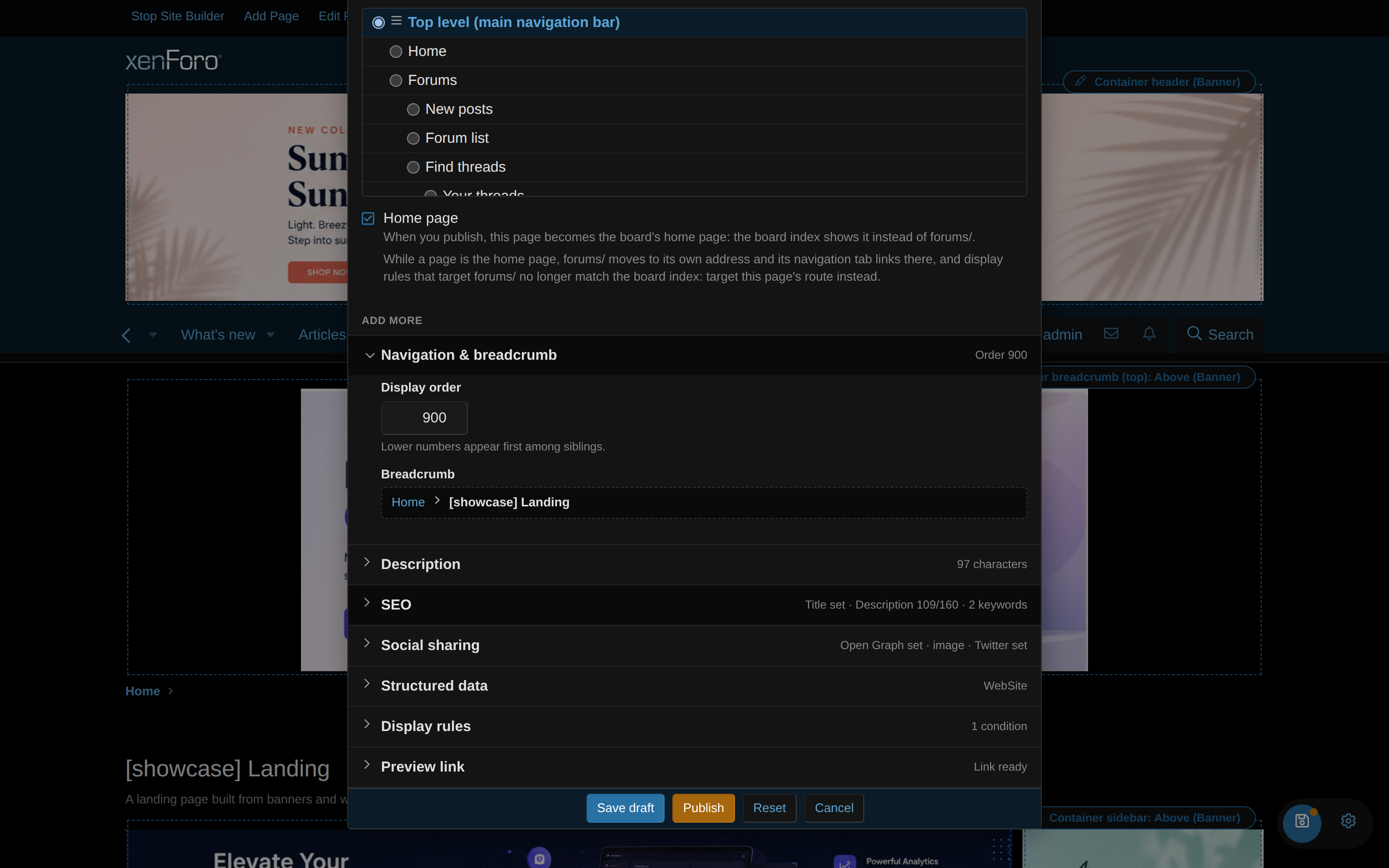
The navigation tab that highlights and the breadcrumb that starts the trail follow the Parent section the page was created with — change it any time from Edit Page.
Home page
A published page can be the board's home page: the page the board index
(index.php, or / with friendly URLs) shows instead of the forum list.
- Open Edit Page on the page.
- Tick Home page, under the parent section picker. The line beneath says what the board index will show once you publish, and names the page that is the home page now, if any.
- Press Save and publish. Like every setting of a page, the choice waits in the page's draft until you publish.
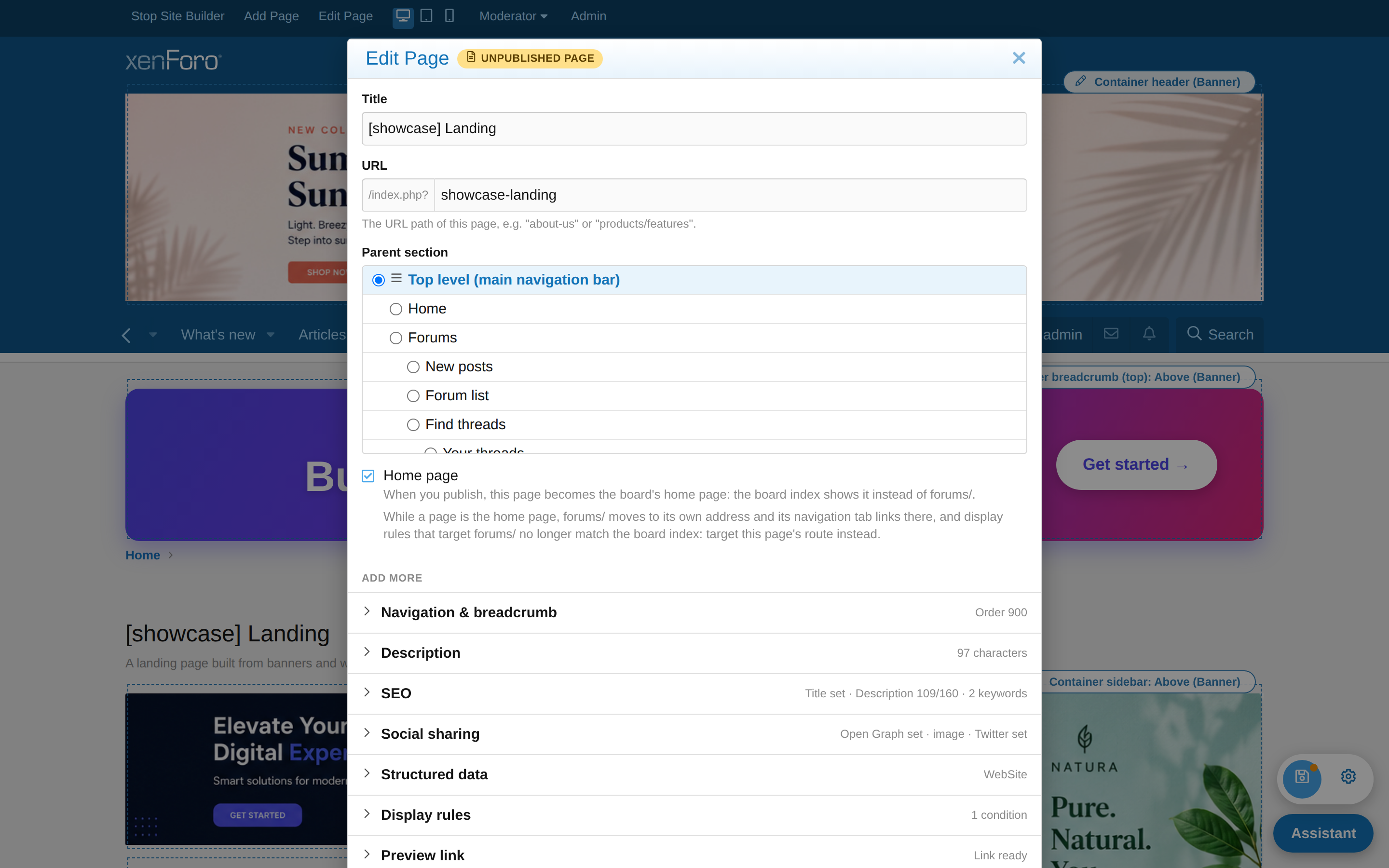
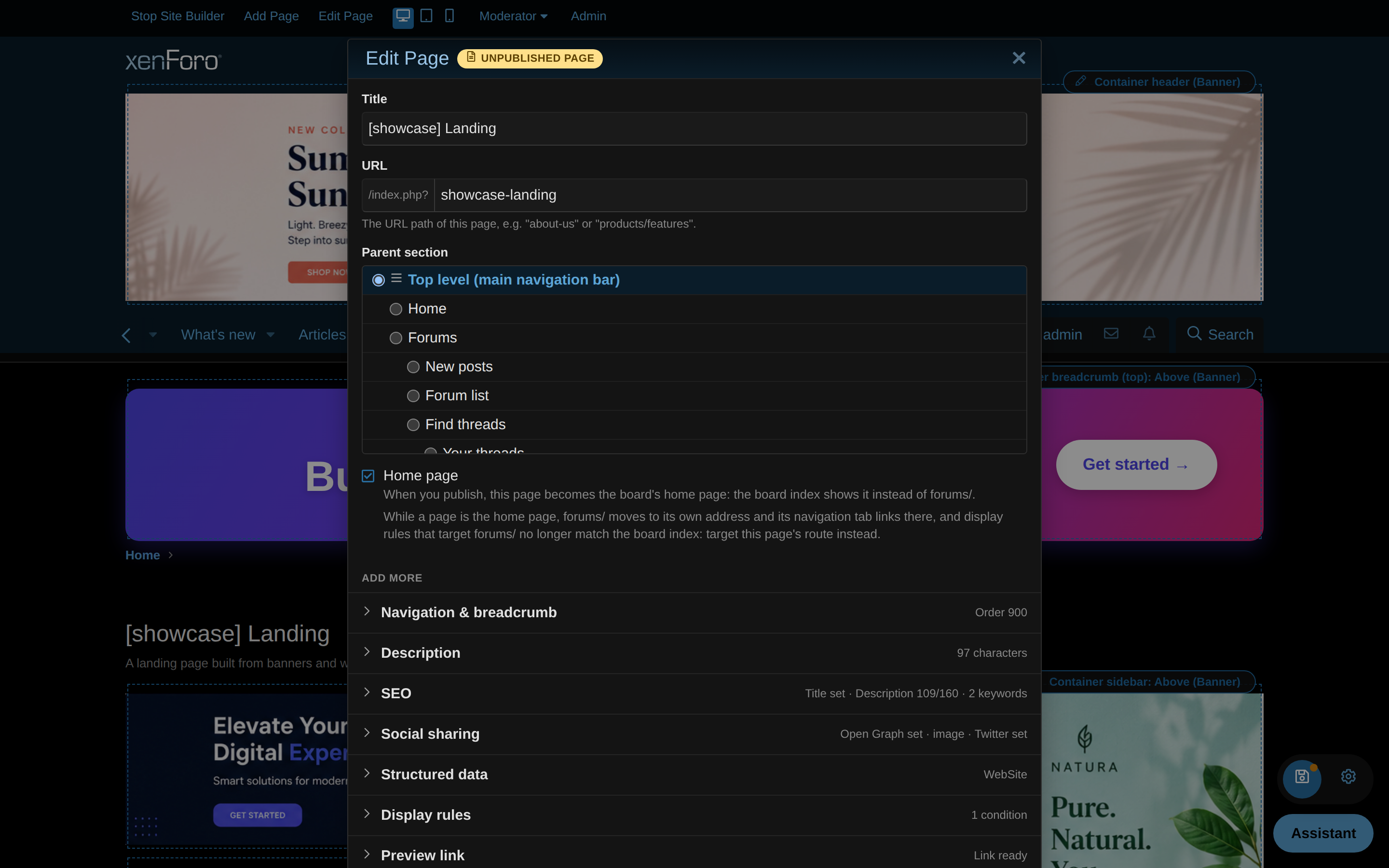
- One at a time. Publishing another page as the home page replaces the current one. The form header of the page that is the home page carries a Home page badge.
- The page keeps its own address. It still opens at its own URL, and both addresses name the board index as the canonical URL, so search engines see one page.
- Your Index page route option is kept. Site Builder never changes the Index page route option in the admin control panel (Setup → Options → Basic board information). Untick Home page and publish, or delete the page, and the board index shows that route again.
- The forum list moves to its own address. While a page is the home page,
the route the board index used to show (
forums/unless you changed the option) is reached at its own address: the Forums tab and every link to the forum list point to/forums/. - Display rules follow the page. A rule that targets the page's route
matches at the board index too. A rule that targets
forumsno longer matches the board index while a page is the home page — target the page's route instead. - The page's display rules still apply. A visitor the page's rules do not show it to is sent to the forum list (a temporary redirect) instead of an error, so the board index always answers. Staff in manage mode always see the page.
- No section in the navigation. On the home page no navigation tab is selected and no breadcrumb shows, unless the page is a top-level navigation entry of its own.
- Structured data. "Fill from the page breadcrumb" on the home page writes a one-step trail with the board root. A breadcrumb block filled before the page became the home page keeps its old URLs until you fill it again.
Ask the assistant
"Make the About page the home page" — the assistant stages it in the page's draft; it takes effect when the page is published.
Description
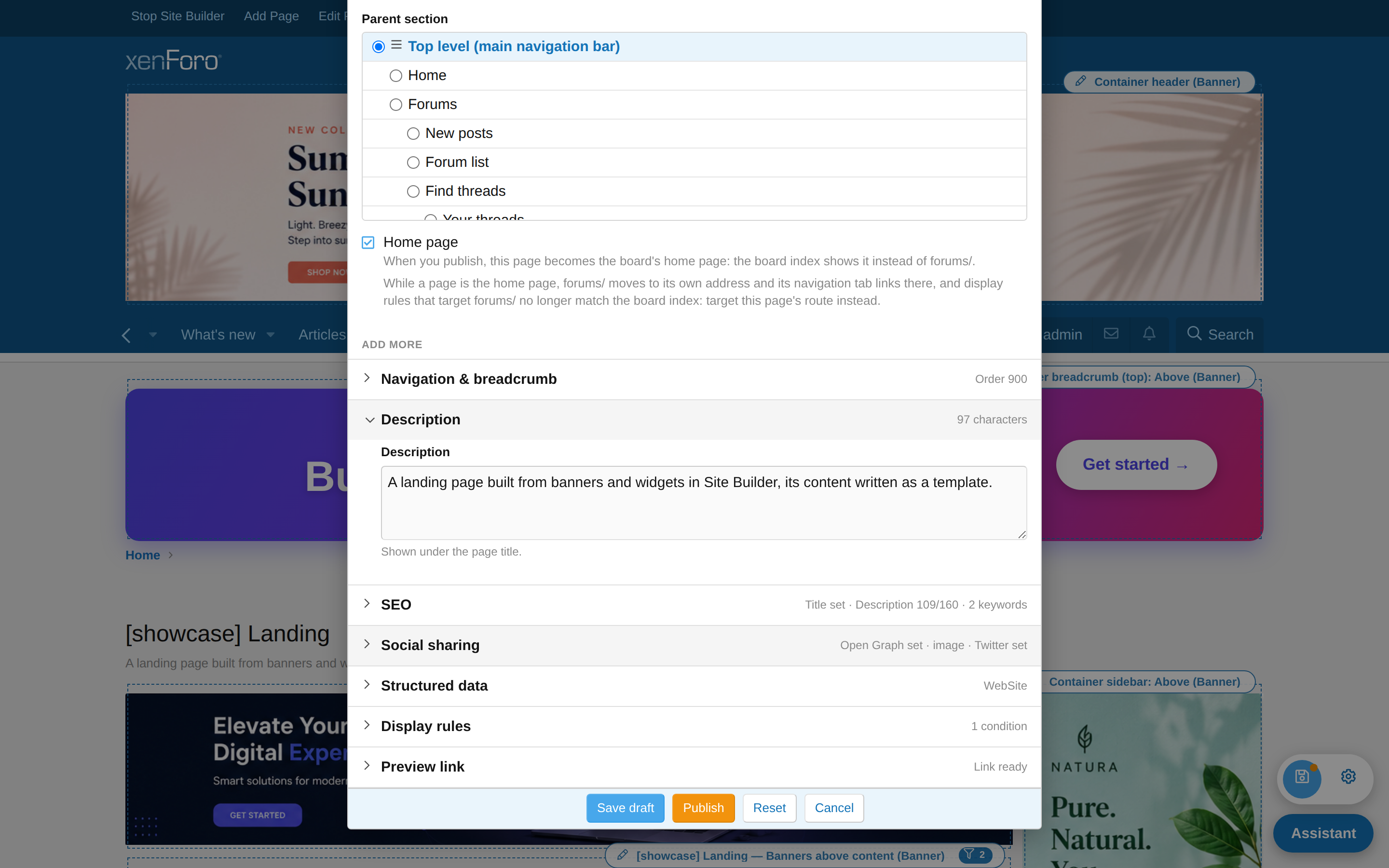
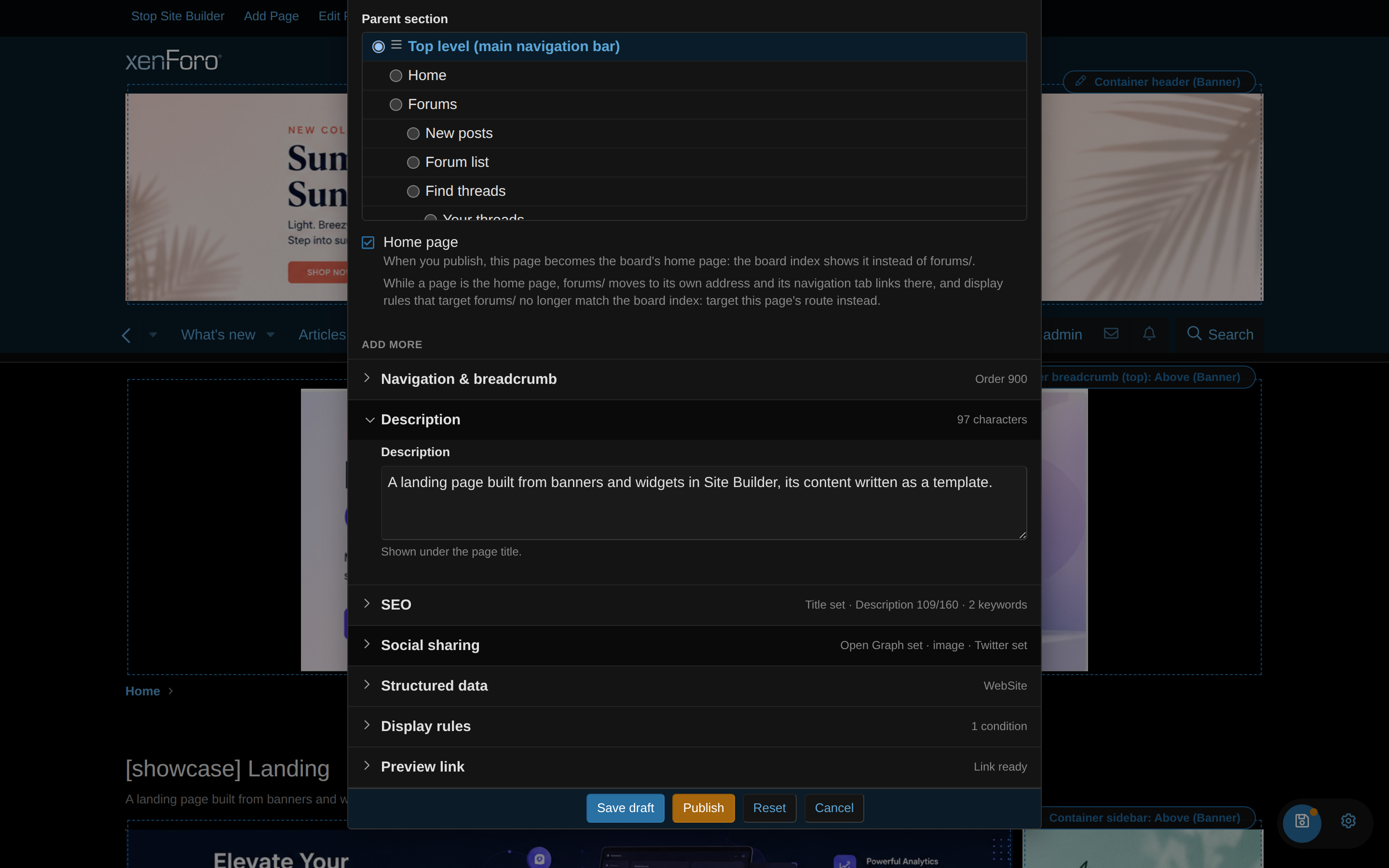
An optional line shown under the page title on the board.
- Open Description and type the line.
- Save the form — the line stages in the page's draft like every other change.
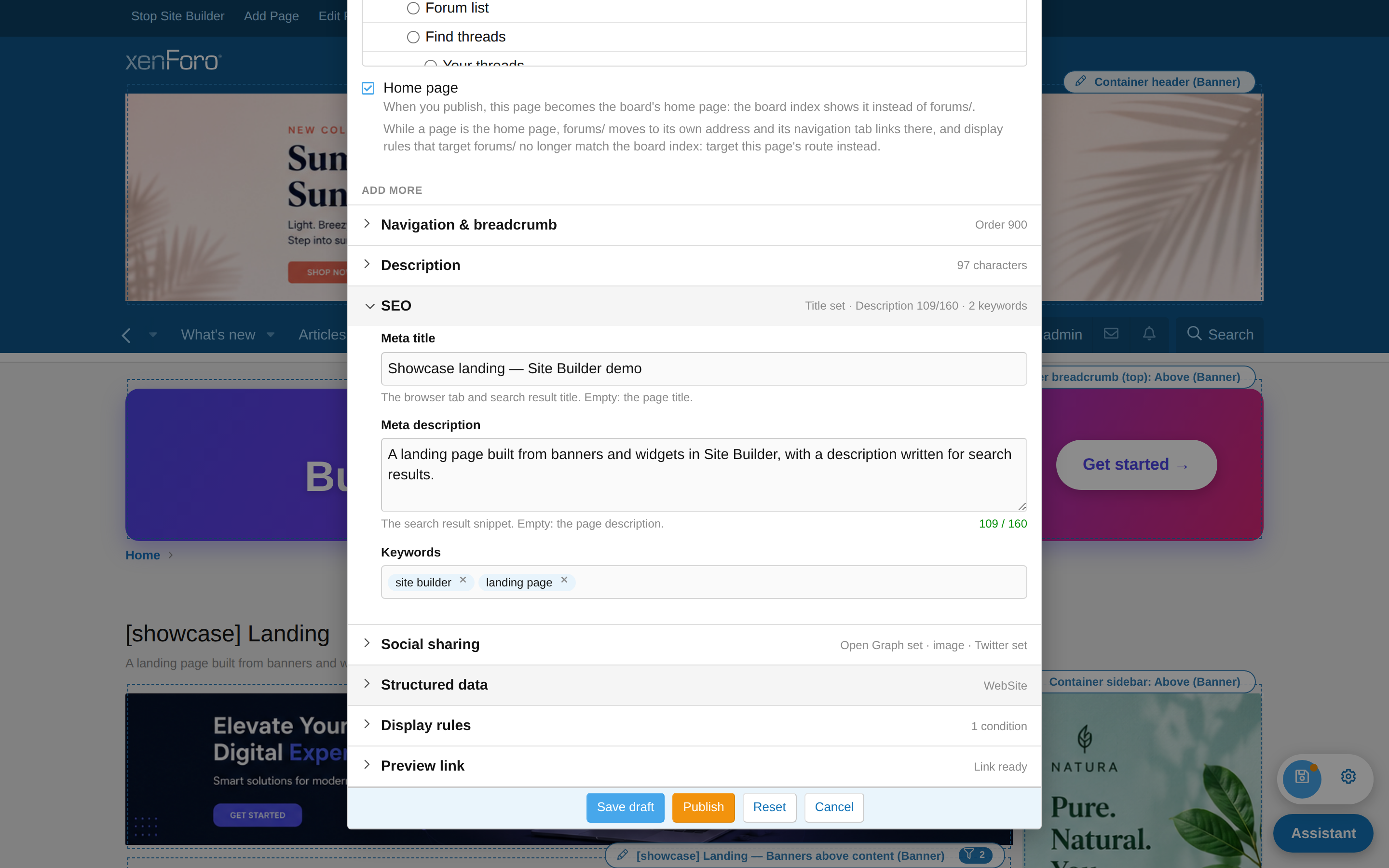
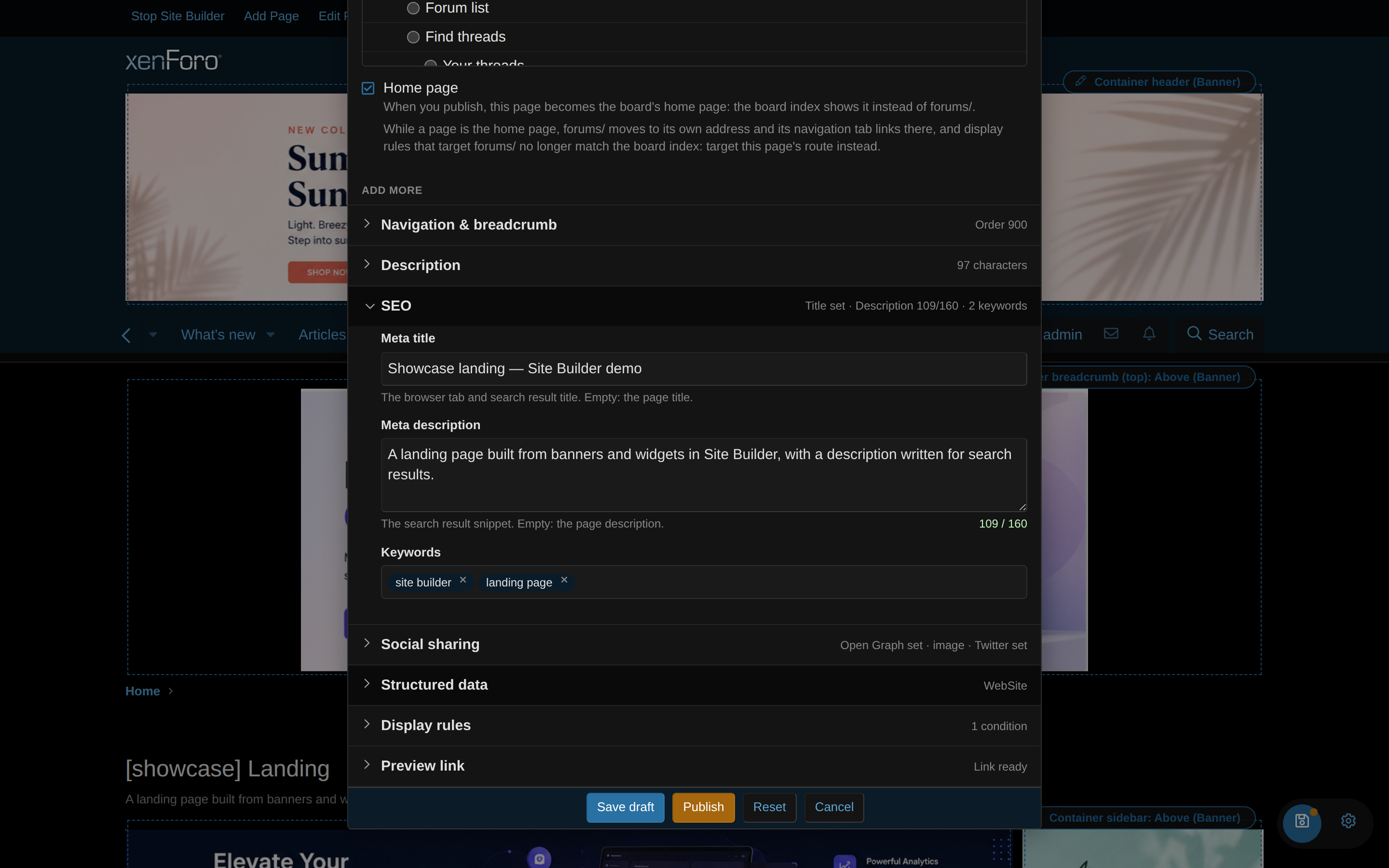
SEO
The fields search engines read:
- Open SEO.
- Meta title — the browser tab and search result title. Leave it empty and the page's own title is used.
- Meta description — the search result snippet. Leave it empty and the page's description is used. The counter beneath shows how many of the recommended 160 characters you have used; under 50 or over 160 it warns, and the page saves all the same.
- Keywords — type one and press <kbd>Enter</kbd>; each keyword gets its own chip.
Social sharing
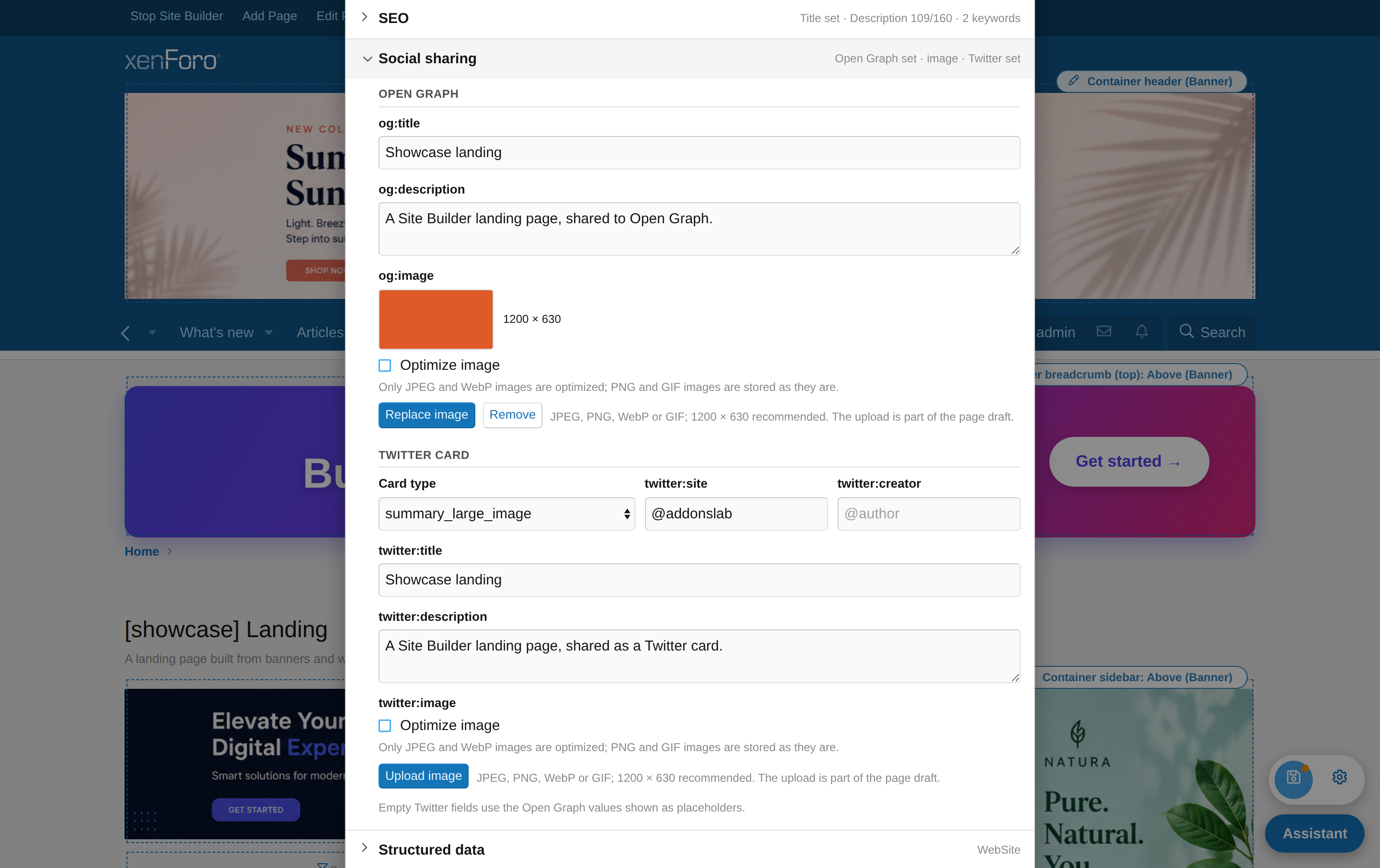
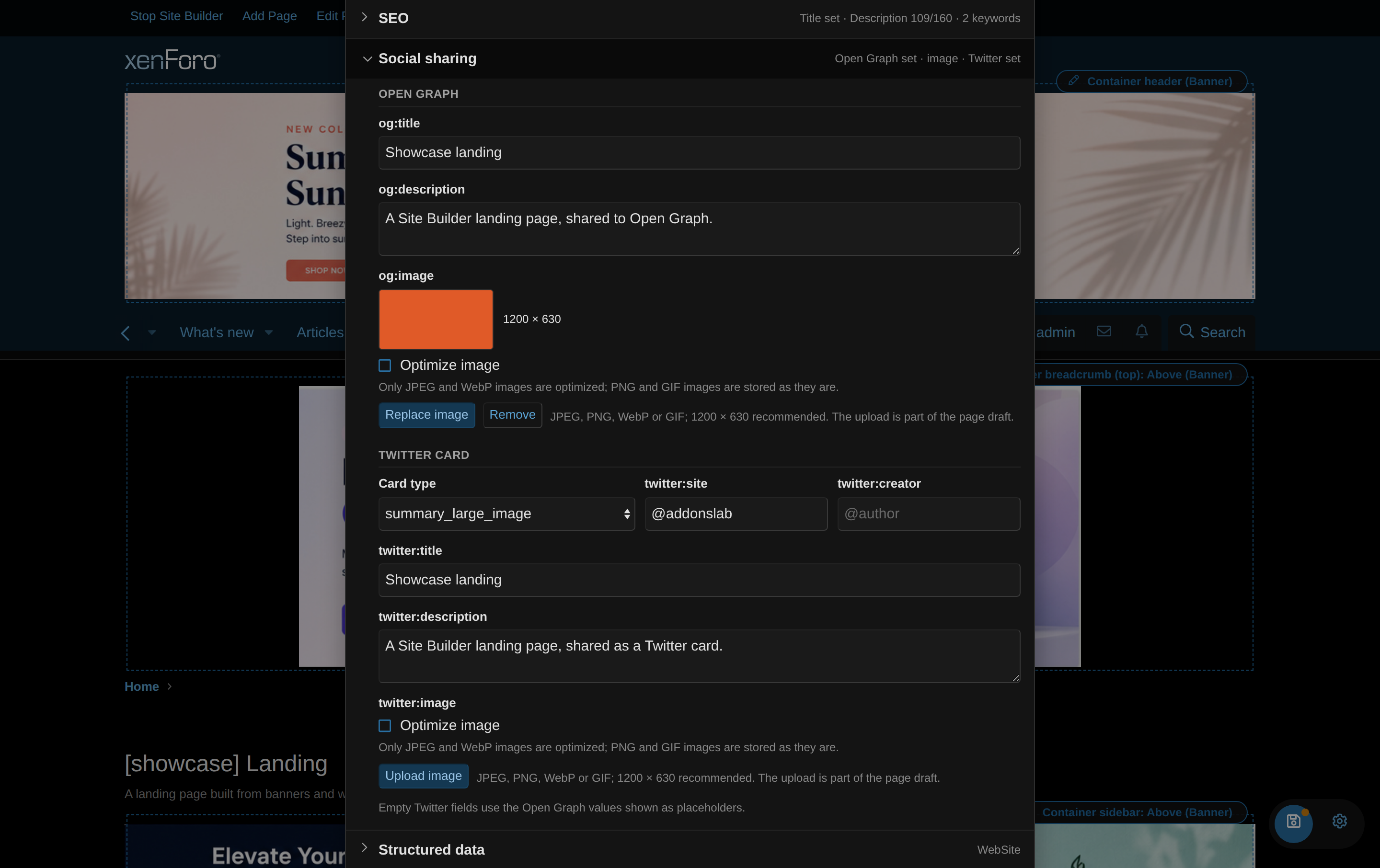
What a link to the page shows when it is shared:
- Open Social sharing.
- Fill the Open Graph fields — title, description and image — which most networks read.
- The Twitter card falls back to the Open Graph values, shown as placeholders when its own fields are left empty; fill them to override.
- The card type picks between a small summary and a large image, and the site field takes an @handle of up to 15 letters, digits or underscores.
- Upload the image: JPEG, PNG or GIF — WebP too, where your server's image library supports it — at the recommended 1200 × 630. The upload is part of the page's draft, like everything else on the form: it goes live when the page is published.
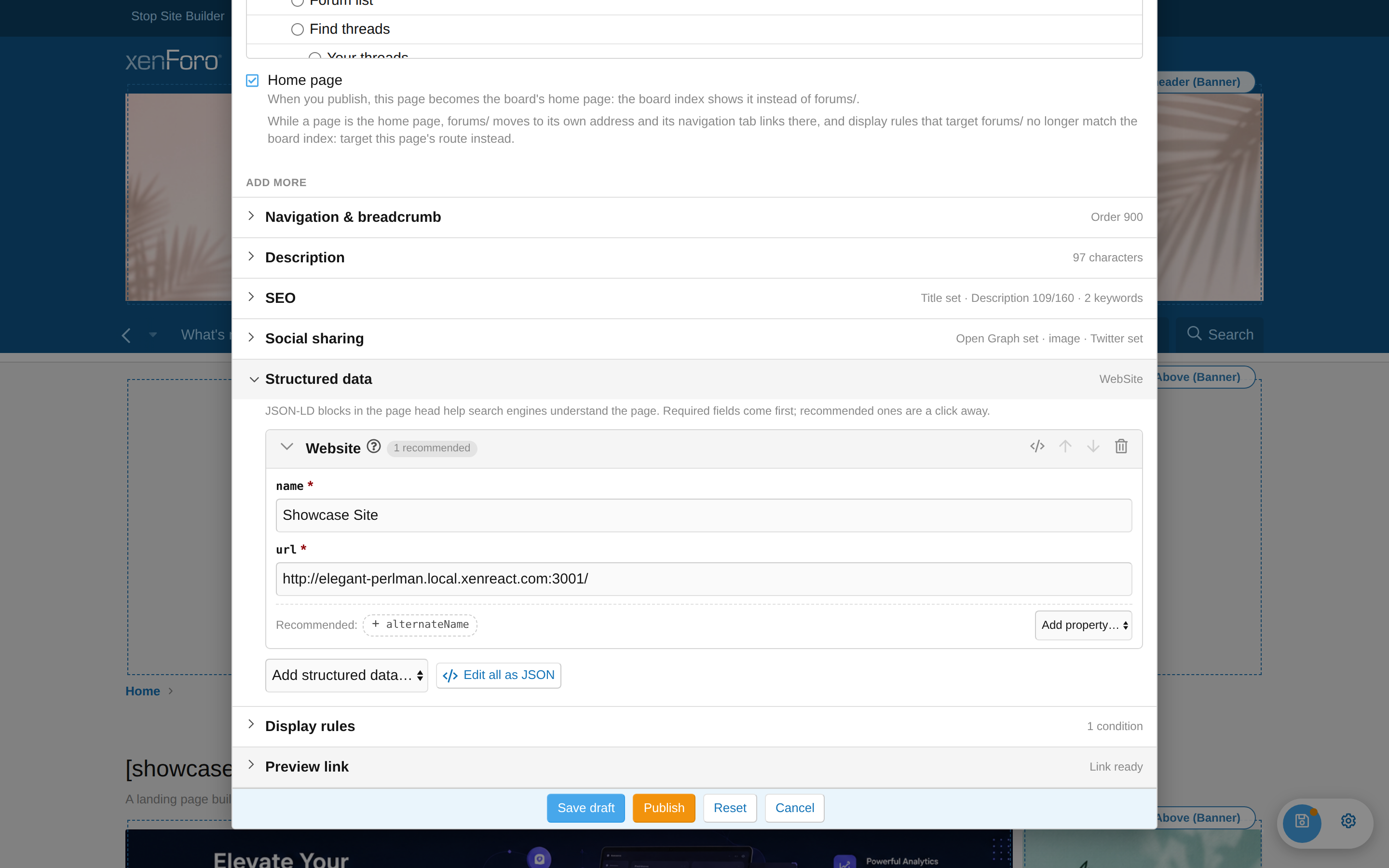
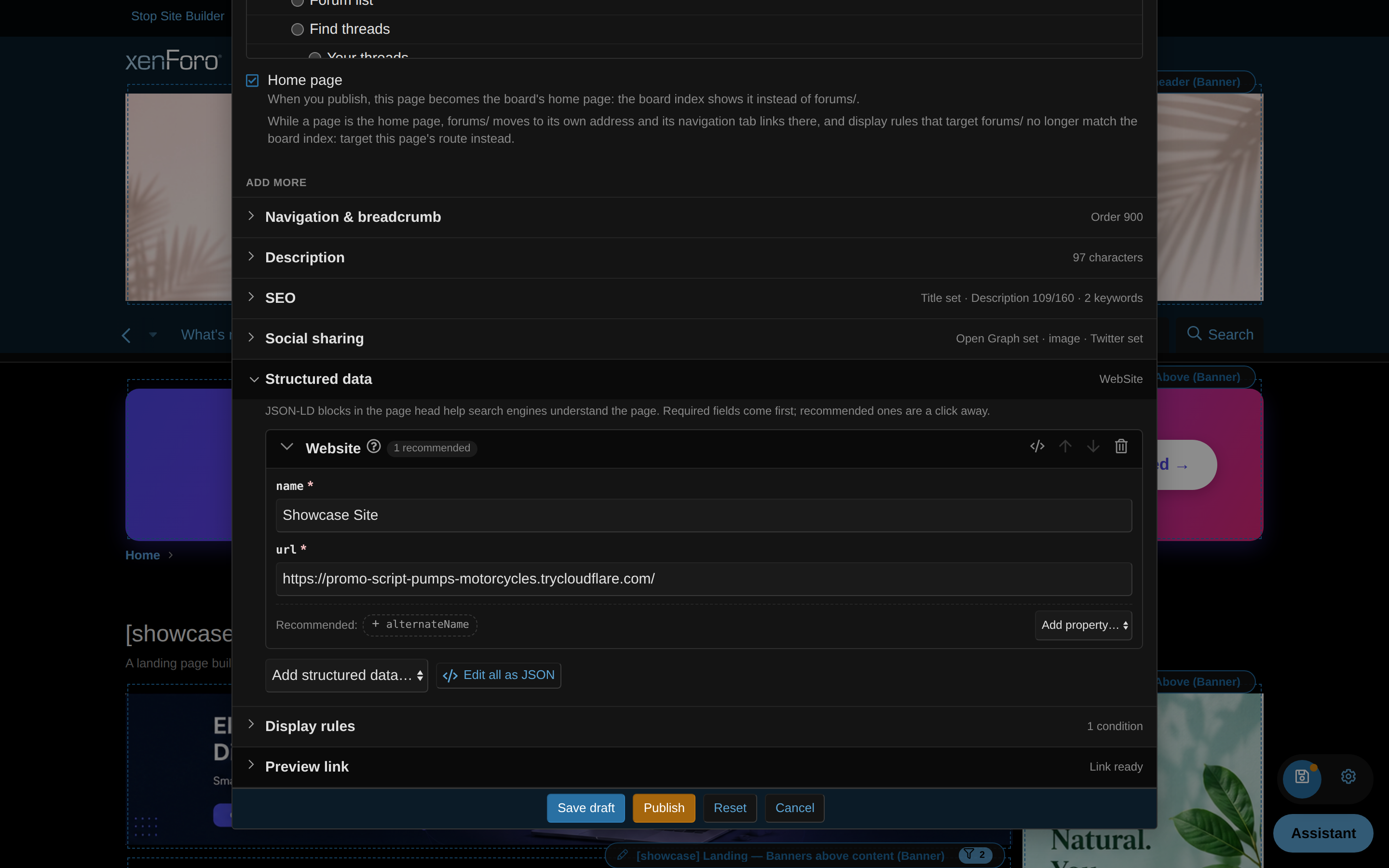
Structured data
JSON-LD blocks in the page head help search engines understand the page.
- Open Structured data.
- Add structured data… picks a type — an article, an organization, a breadcrumb list.
- Fill the type's required fields first; the recommended ones are a click away.
Preview link
Until a page's draft is published, the Preview link is how anyone — a colleague reviewing your draft, a client approving the text — sees it. The form offers the section only while the page has a draft: saving a change to the form (Create Page or Save draft), the content template or the social image all create one, and a draft carries its preview link from the moment it exists.
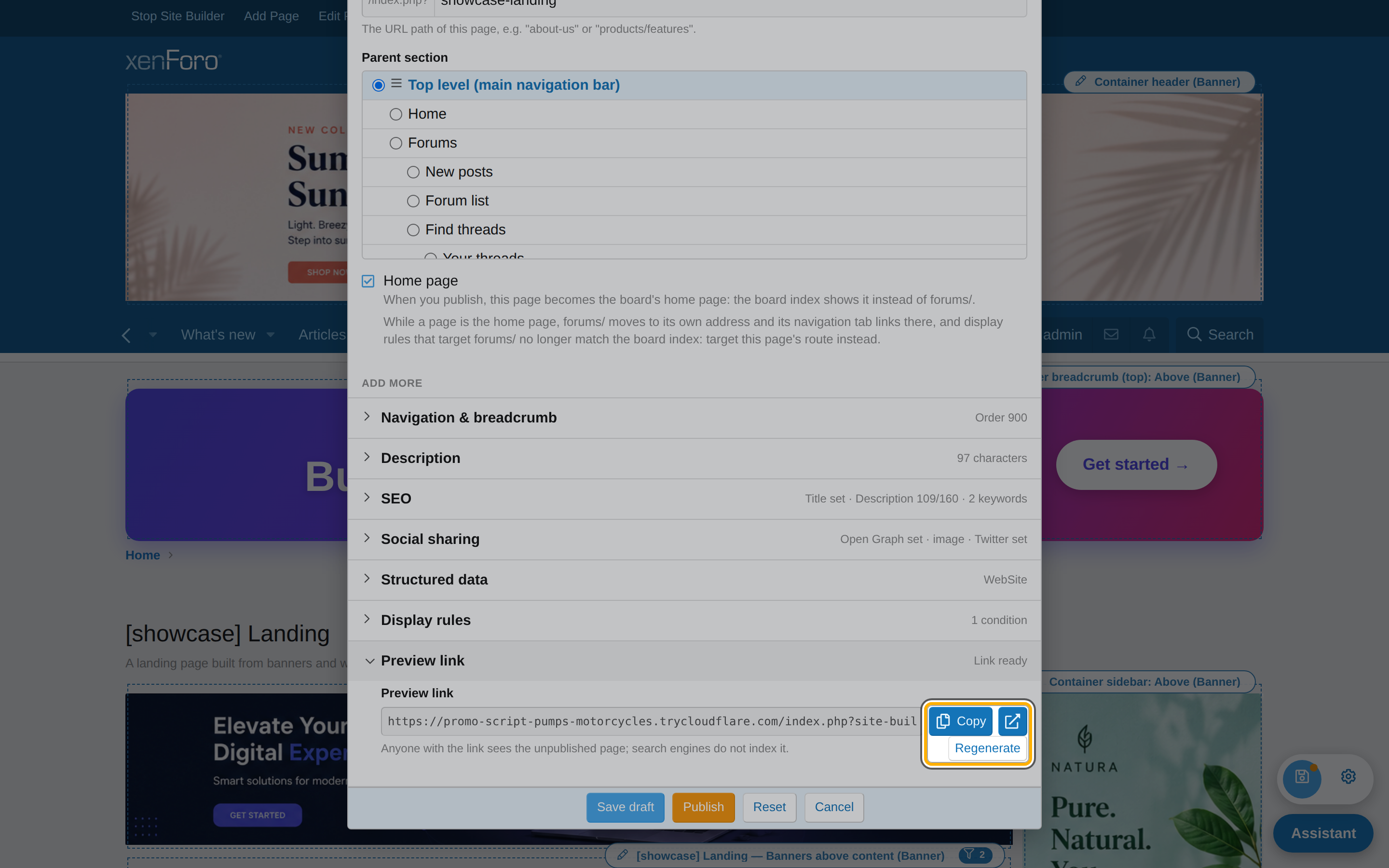
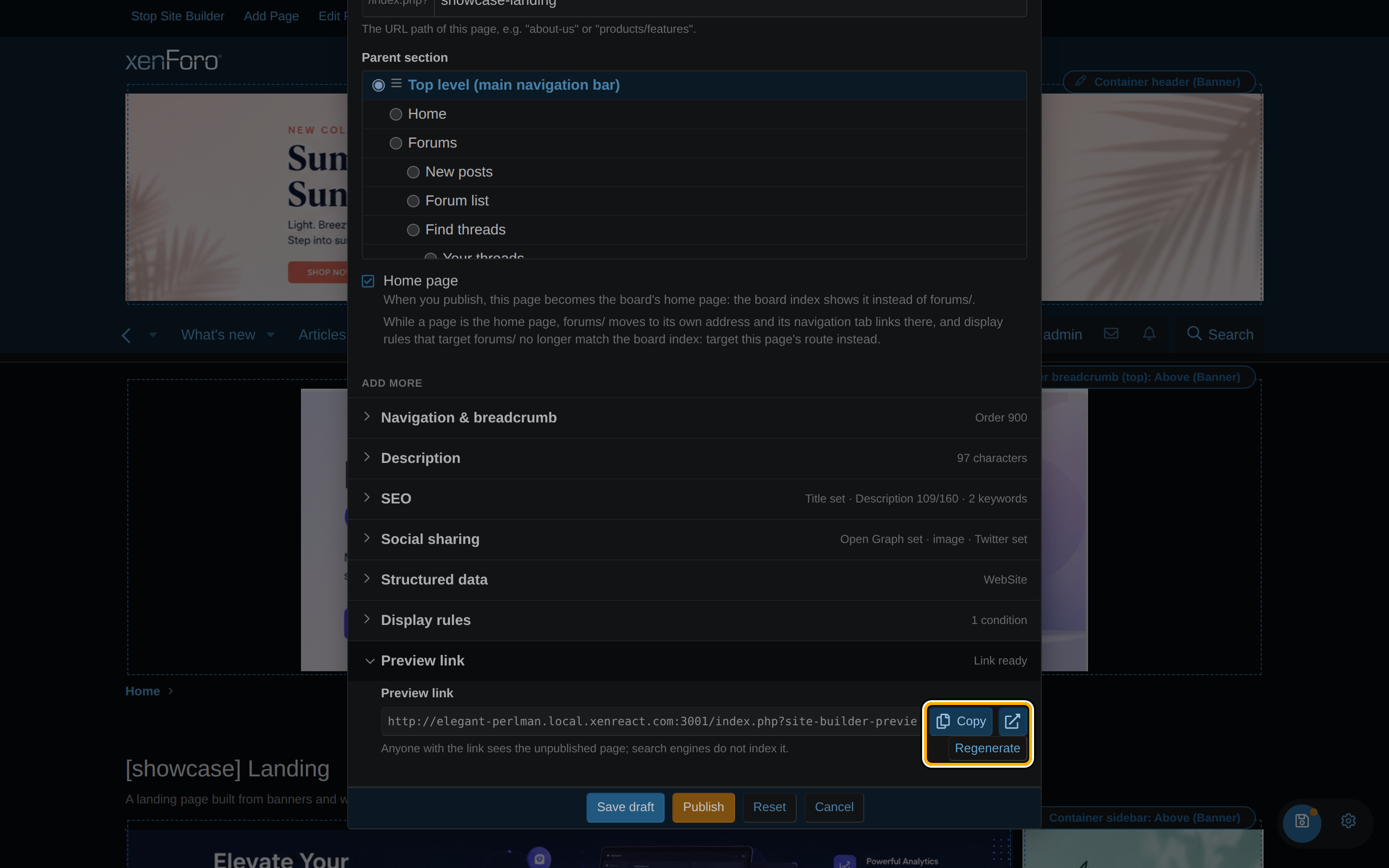
- Open Preview link.
- Copy the link and send it. Anyone with the link sees the unpublished page; search engines do not index it.
- The arrow beside it (Open in a new window) opens the link in a new window, and Regenerate retires the old link and issues a fresh one.
Display rules
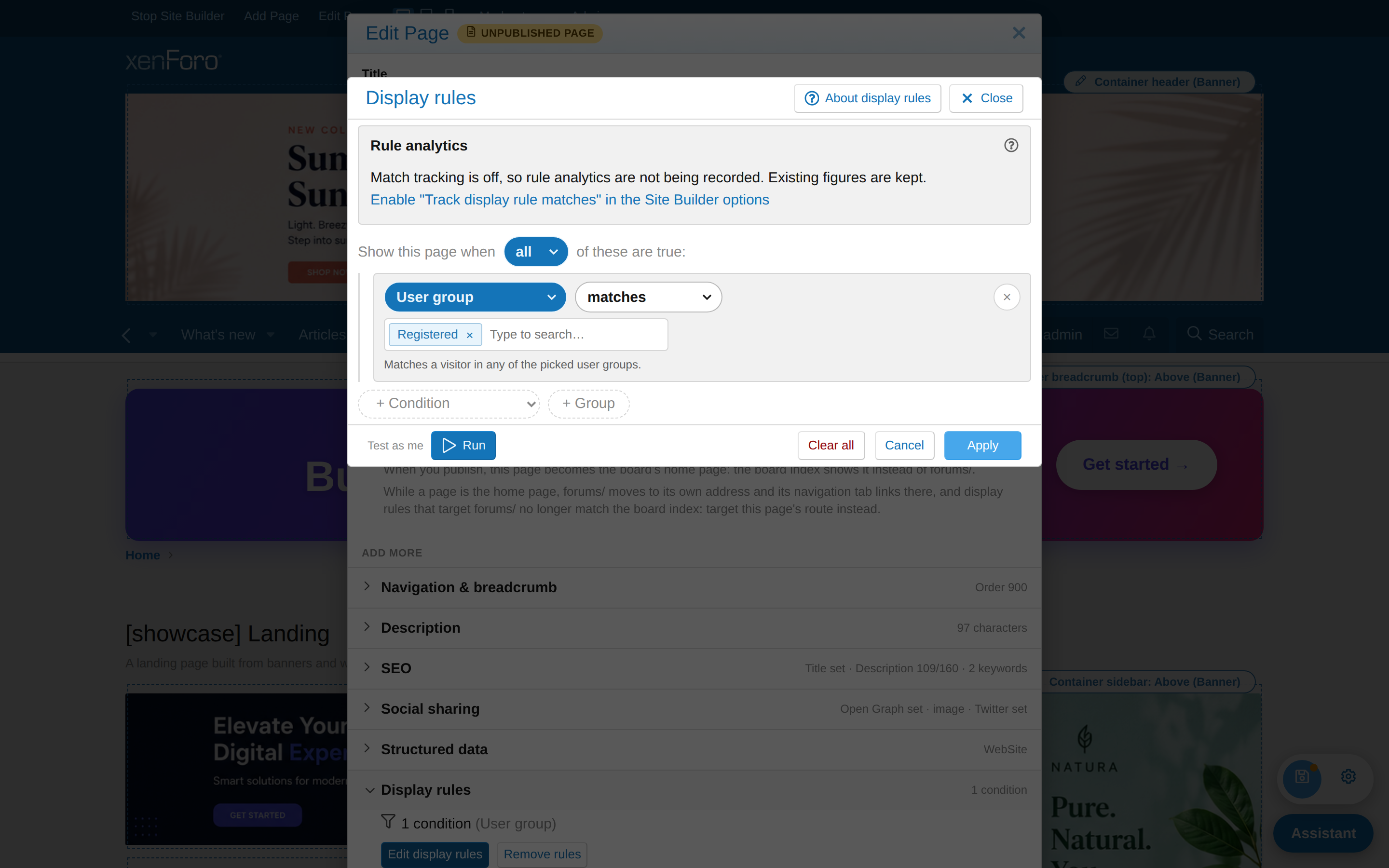
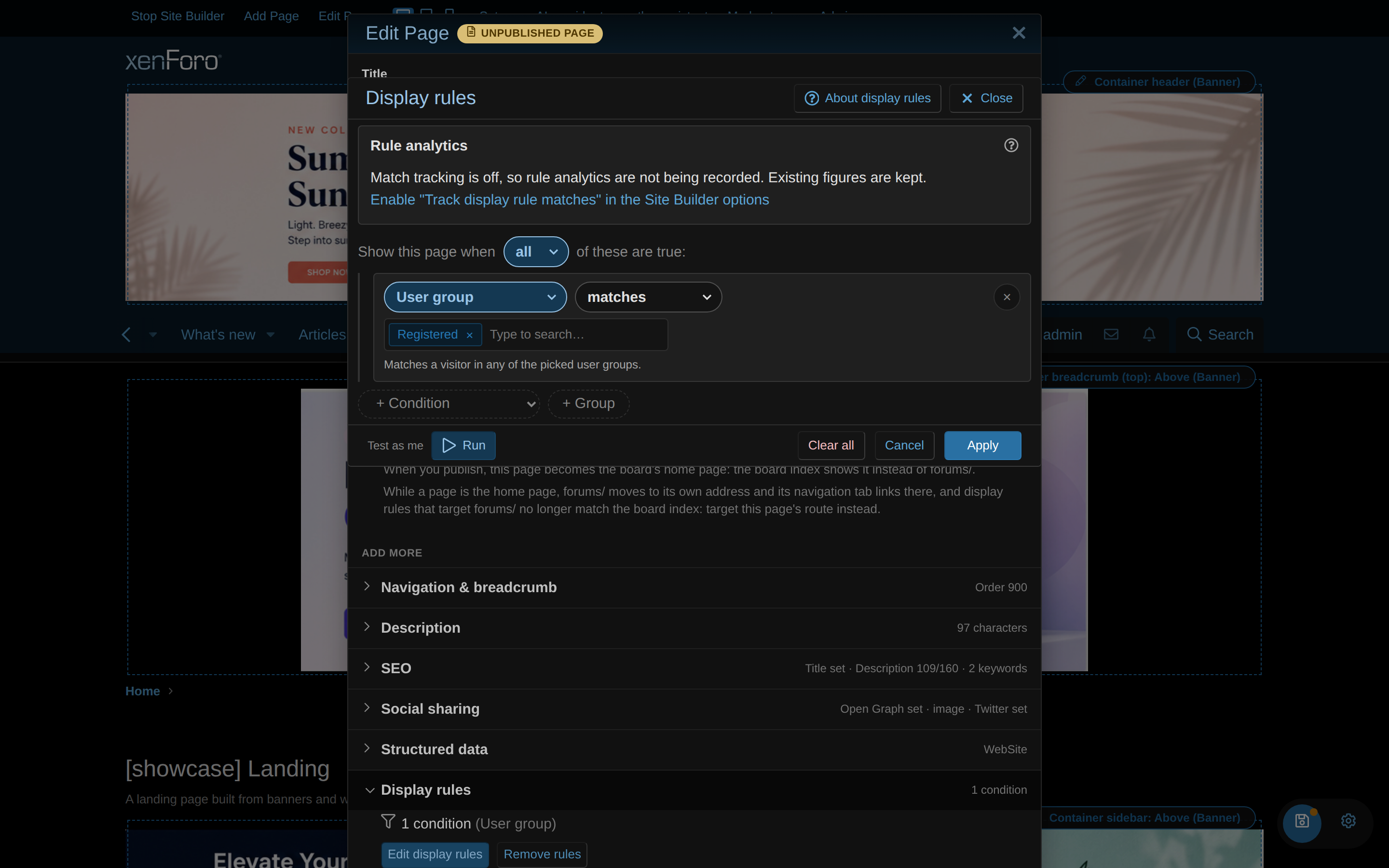
By default the page shows itself to everyone who can view the board. Display rules change that:
- Open Display rules and press Edit display rules.
- Add conditions in the same rule builder every other Site Builder target uses — show the page to chosen user groups, on one device, in a country.
- Apply hands the conditions back to the form; Save draft (or Create Page) stages them with the rest of the page. The rules are saved with the page and publish with it.
The content template
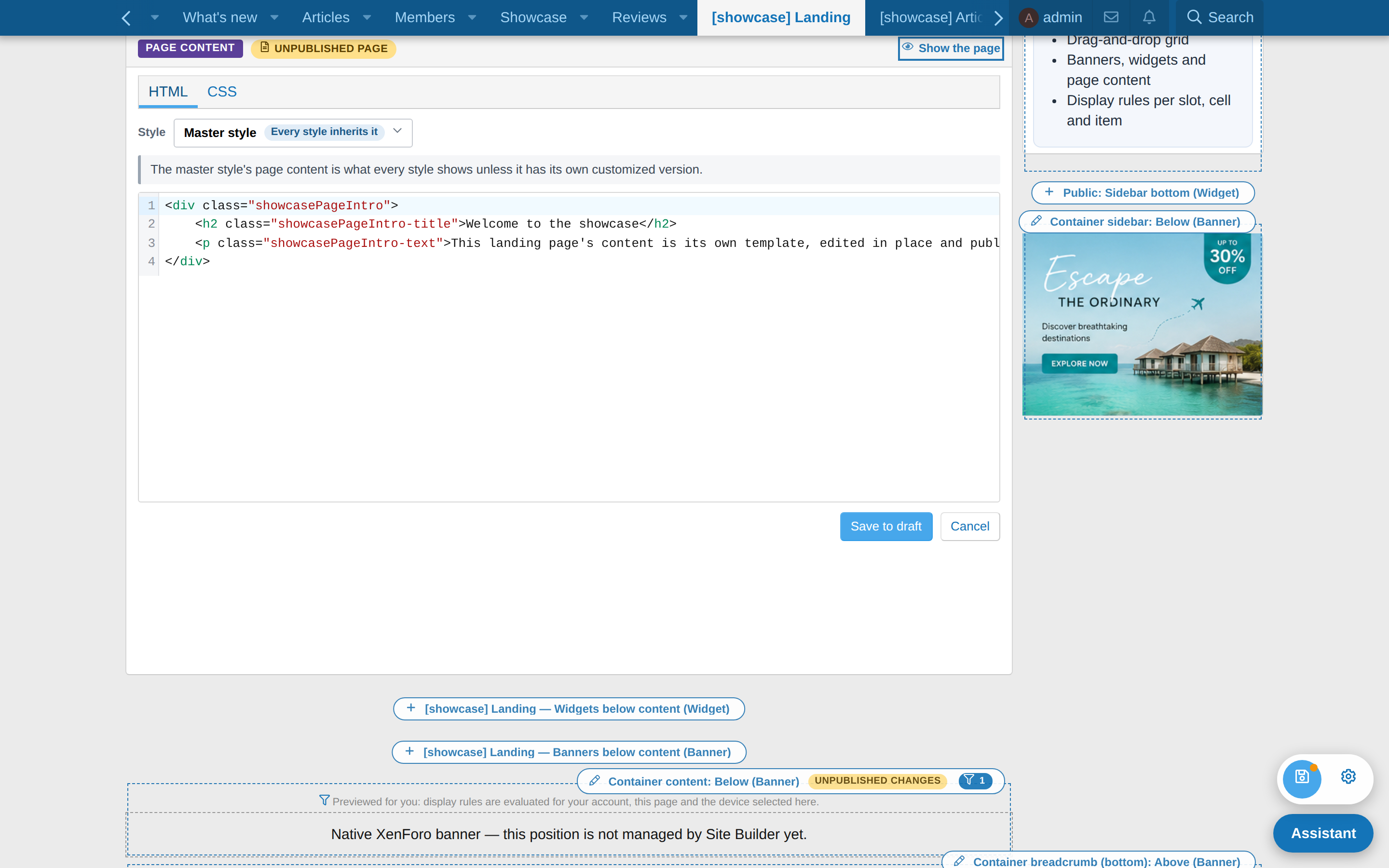
A page's content is its own template, edited on the page:
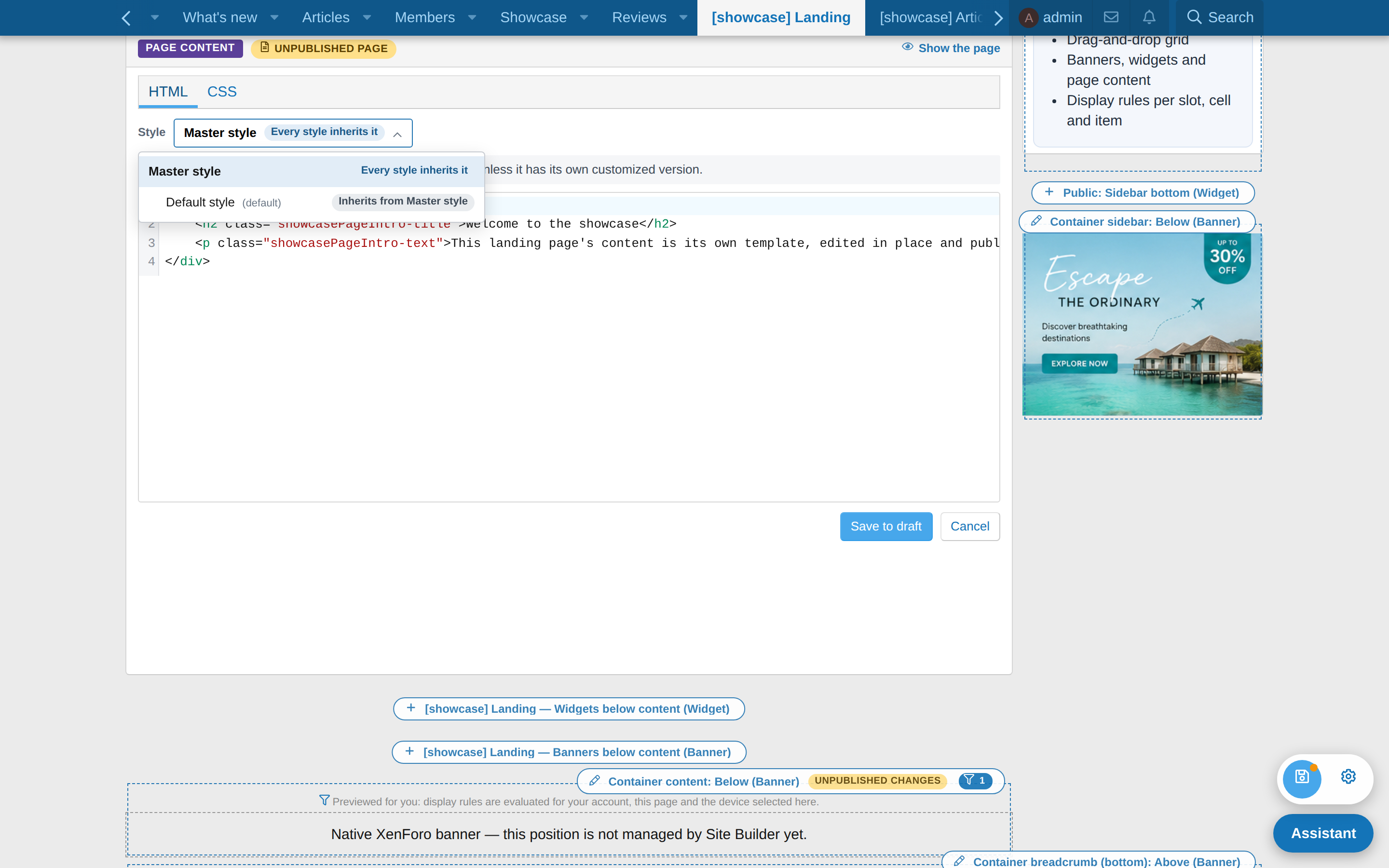
- Press Edit template on the content bar above the page body. The editor replaces the page body.
- Write the HTML — XenForo's template syntax included — and press Save to draft to save it into the page's draft.
- Show the page puts the editor away to read the page as it stands.
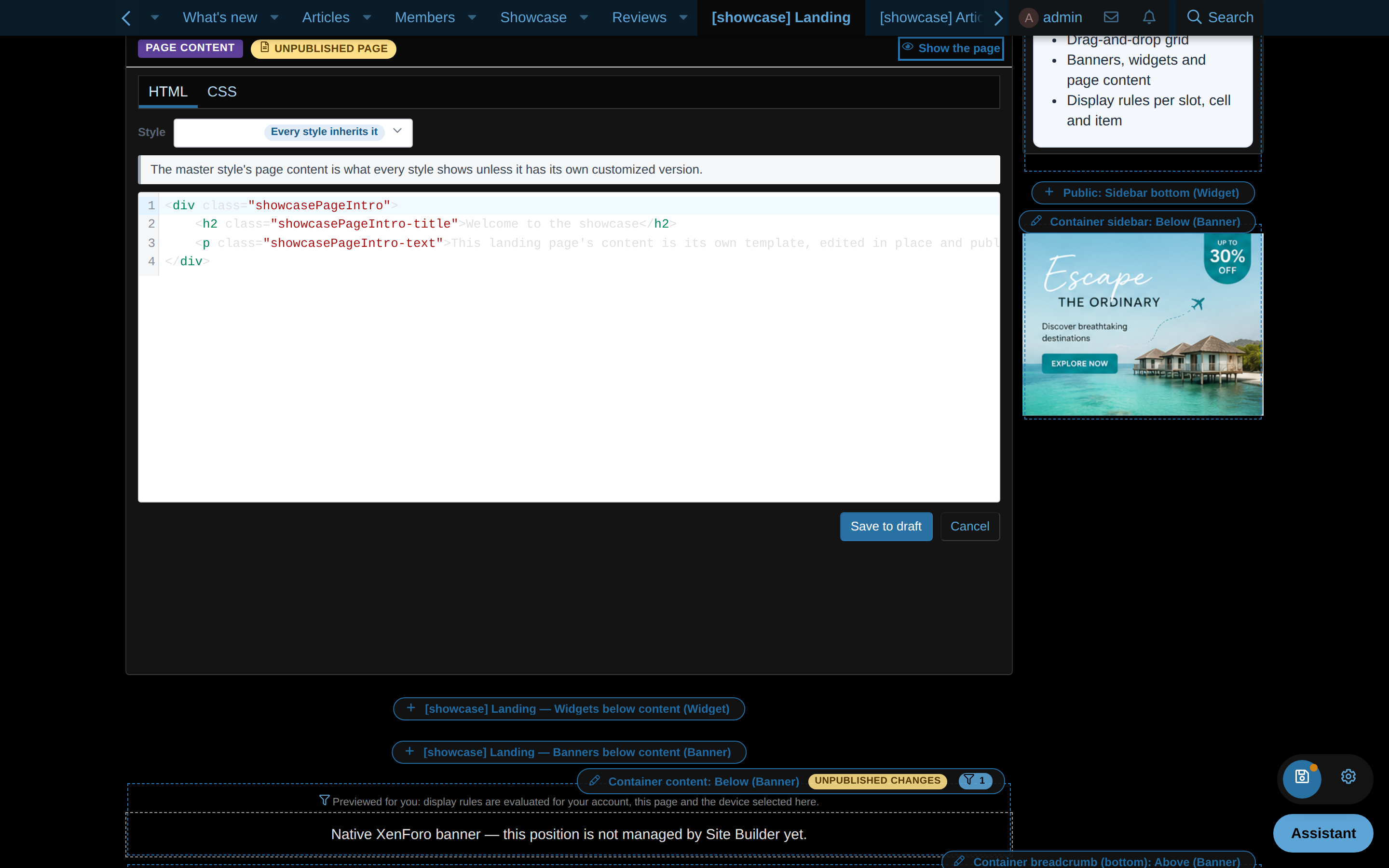
The template is a per-style template, like any XenForo template:
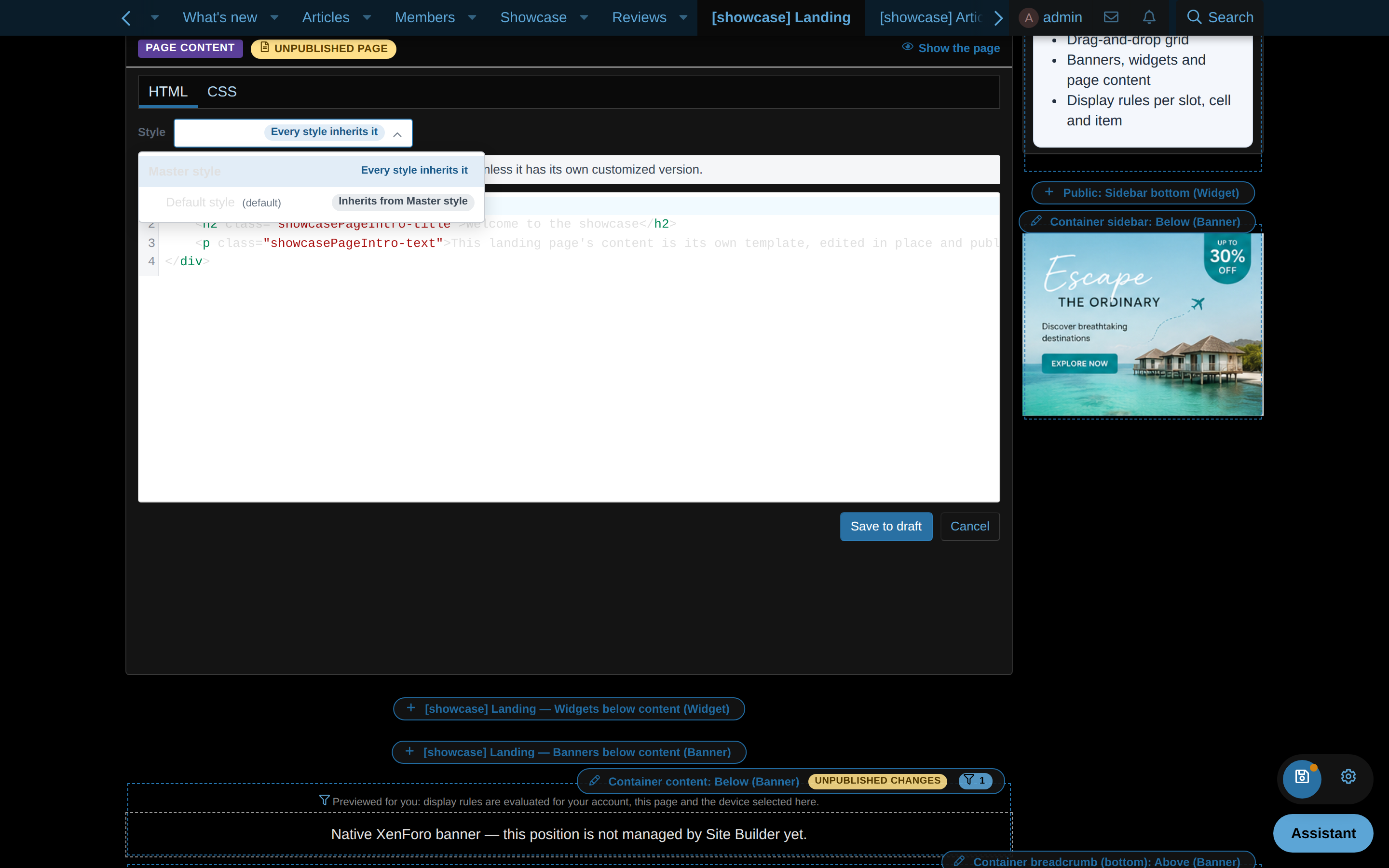
- Open the style picker in the editor's bar.
- It lists each style and what it does — a style with no copy of its own inherits from its parent, up to the master style every style inherits.
The page's stylesheet
Beside the HTML tab, the editor has a CSS tab: the page's own
stylesheet, written in Less like any XenForo stylesheet — style properties
such as @xf-linkColor and XenForo's mixins work in it. It loads on this page
only, and it stages in the draft with the content template until you publish.
- It is per-style too: pick a style in the style picker and press Customize in this style to give that style a stylesheet of its own.
- A stylesheet that does not compile is not saved: the editor names the line and the error, and the draft keeps the stylesheet you had. The line is counted in the stylesheet as XenForo renders it, so where template syntax above it adds or removes lines, look a few lines around it.
- It is not restricted. Like the page's HTML, it is written by an administrator, so it may use any selector and load any URL — unlike a position's custom CSS, which is scoped to the position.
- If the stylesheet is changed outside Site Builder while the page has a draft (a style import), Publish reports a conflict for it, as it does for the content template.
The five positions
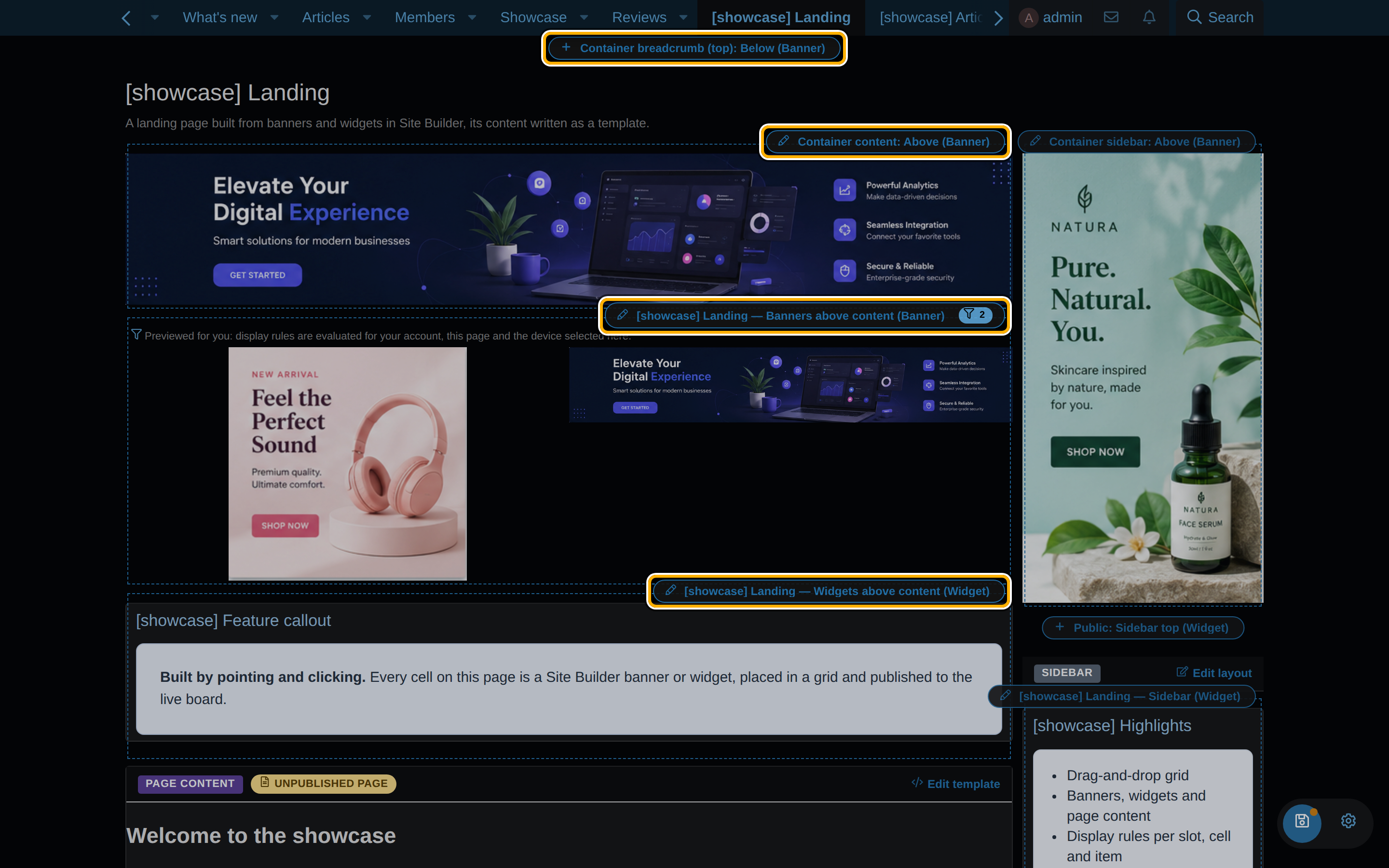
Around the content, a page adds five positions of its own — Banners above content, Widgets above content, Widgets below content, Banners below content and the Sidebar — alongside the board's usual positions (the container rows and breadcrumb that every page shows). Each is a position you fill with banners and widgets, and in manage mode each shows its cells in place, with its own header:
- Find the position's header on the page — its name, its edit chip, and a Manage this position with Site Builder link for the board-wide rows.
- Place and arrange as you would anywhere else; what you place stages in the page's draft and publishes with it.

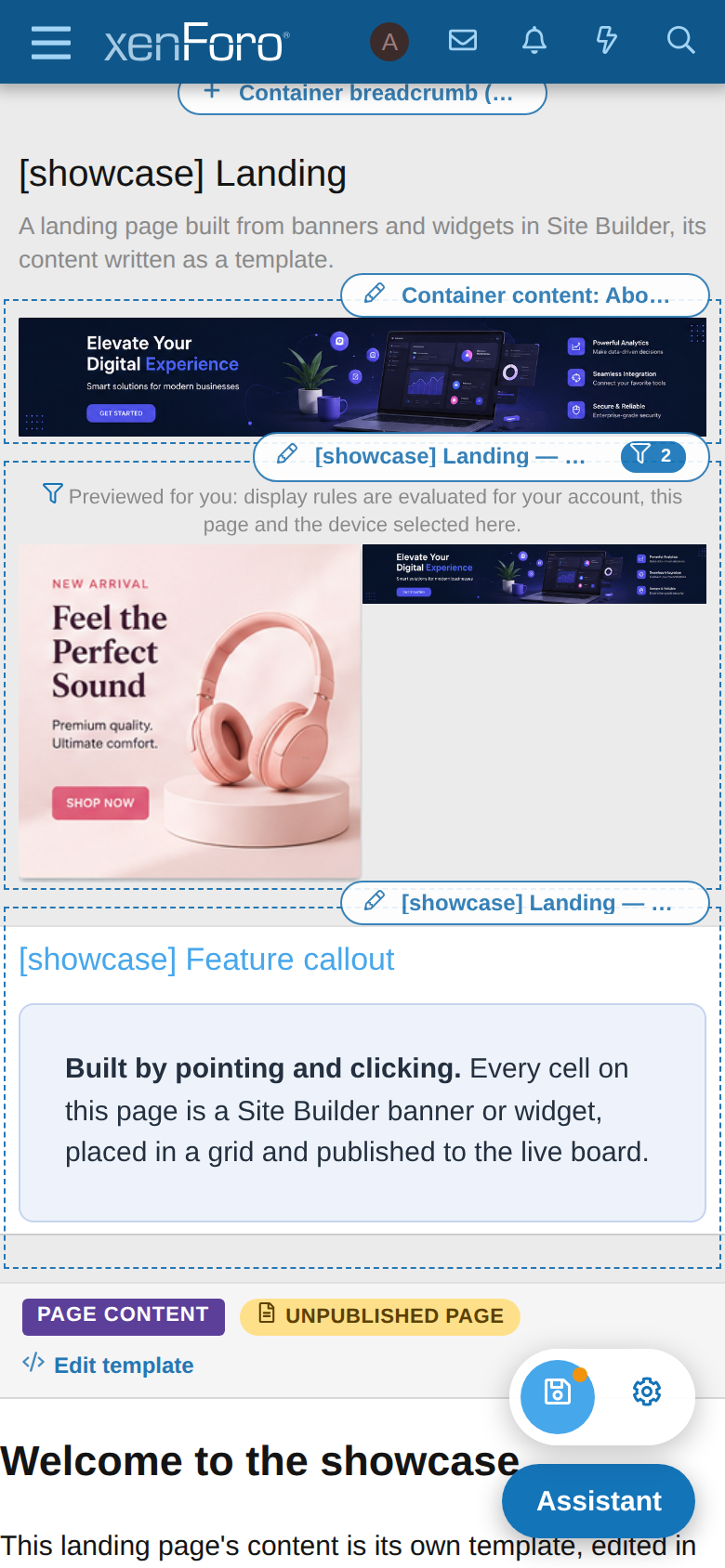
On mobile the positions stack with the content:
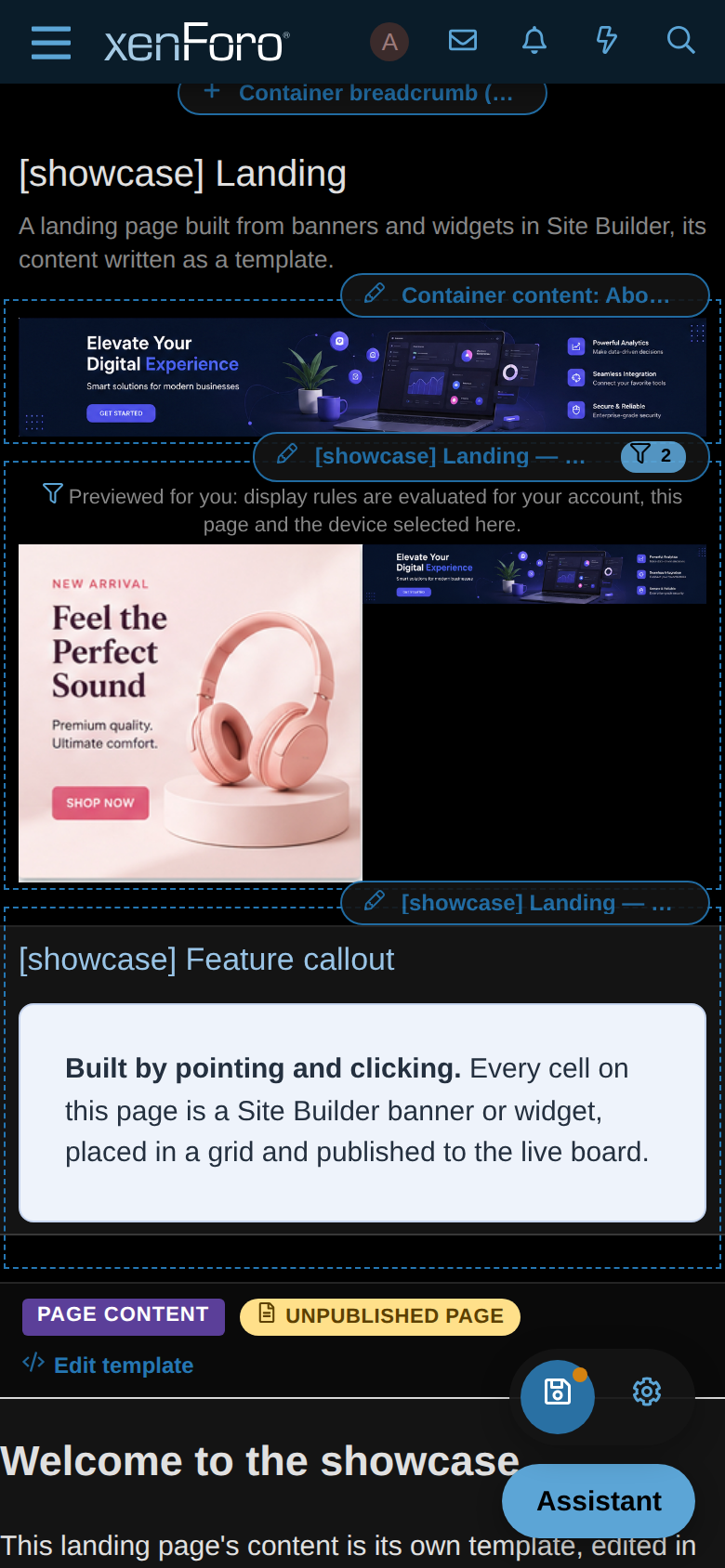
The sidebar is its own position on the right; a widget placed there appears in the board's sidebar.
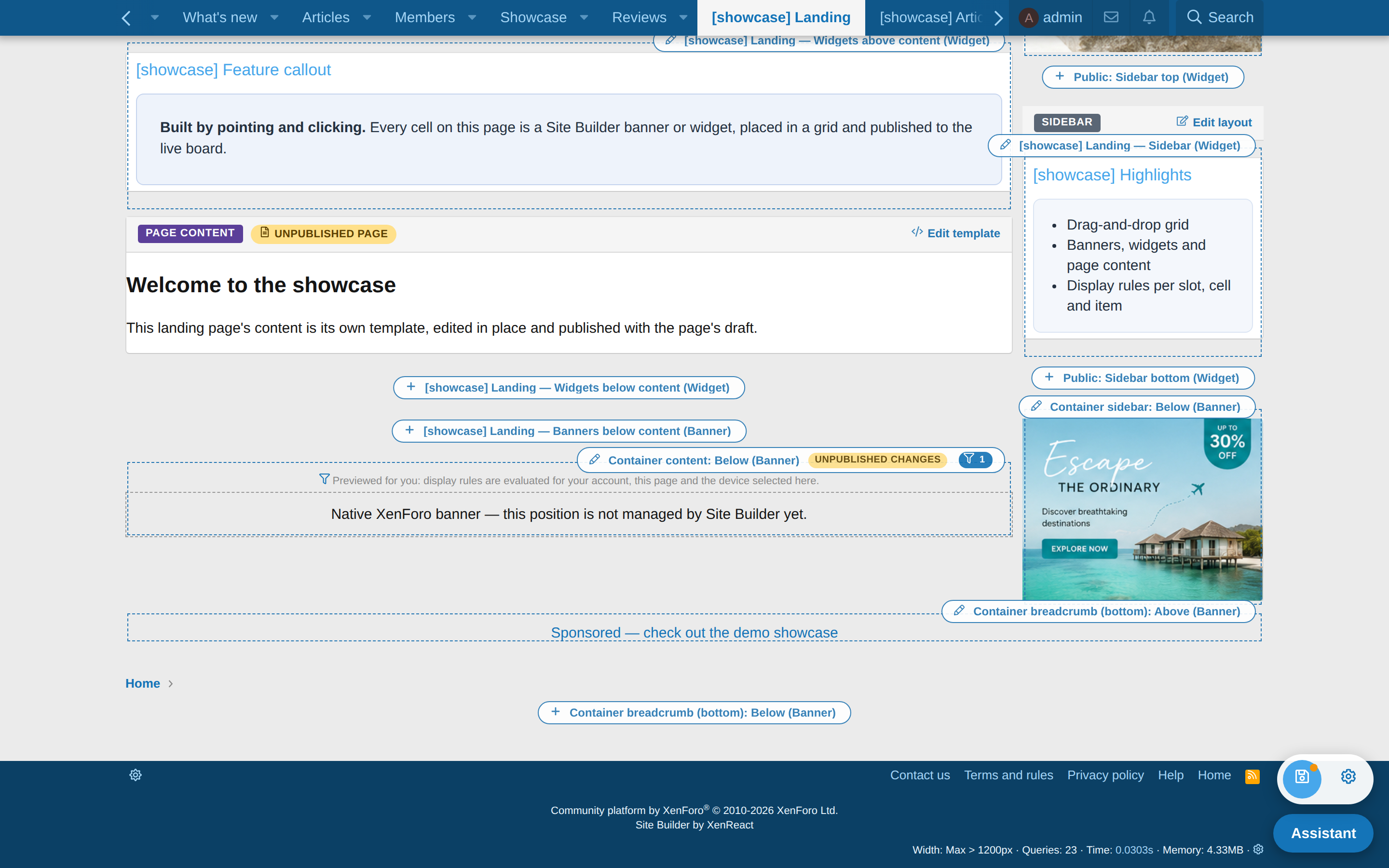
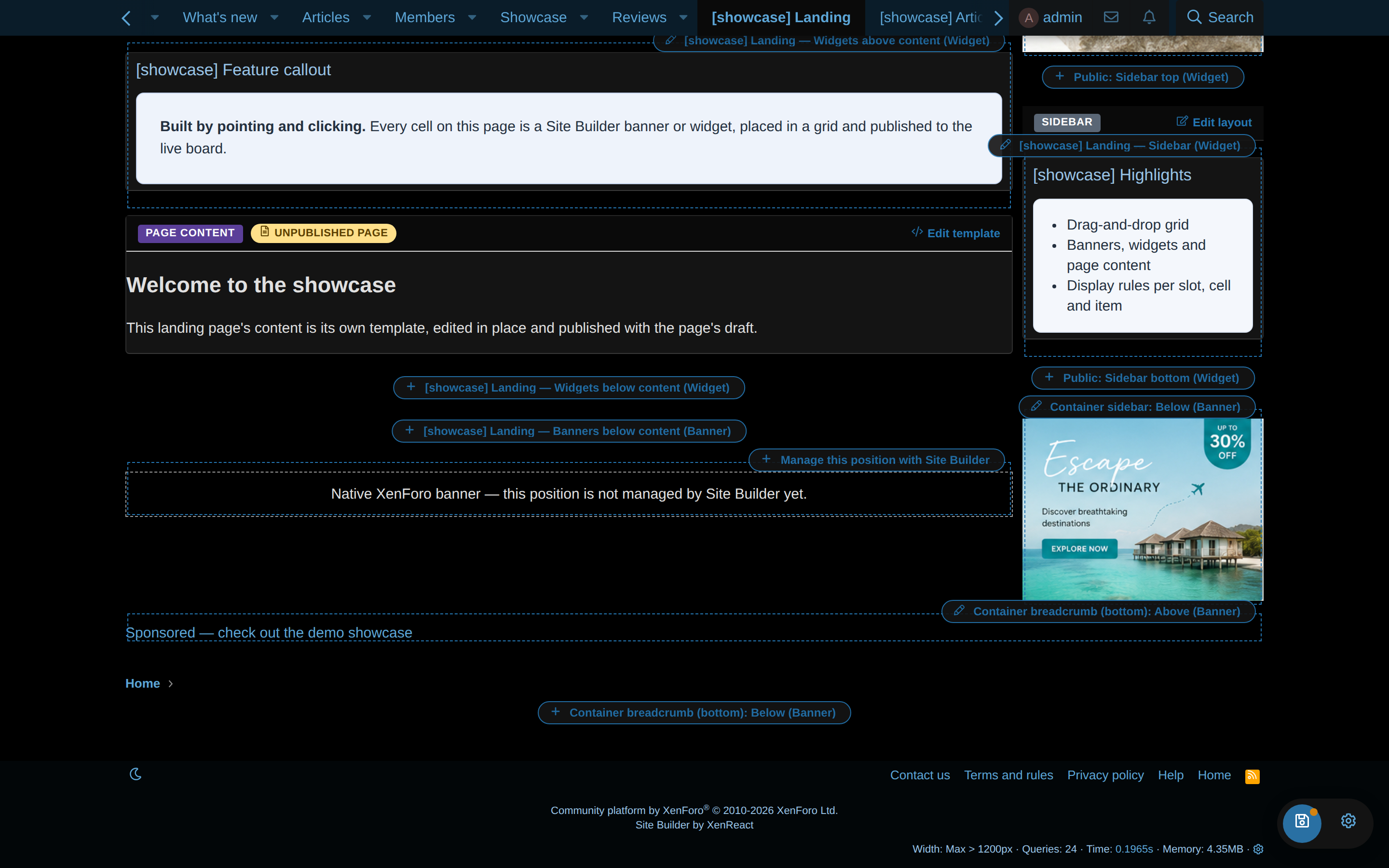
While you edit, a position's display rules are applied for your own account, this page and the selected device.
Publishing
Everything on this page — the form's fields, the template, the positions' banners and widgets, the rules — waits in the page's draft:
- Press the save icon — a floppy disk (Publish this page) — on the floating bar at the bottom corner of the page. A dot on it marks unpublished changes.
- The dialog lists what is about to go live, section by section.
- Press Publish.
The first publish makes the page visible to visitors and, if it is in the navigation, gets its navigation entry. Later publishes list the changes that go live — the styles whose content template changes, the settings that changed, the positions whose content does. When everything is already live, the save icon is greyed out and its tooltip reads No unpublished changes.
The bar's other icon, the cog (Page settings), reopens the form for the page you are standing on — a second way in beside Edit Page.