The assistant
The assistant is a chat bar in the corner of the board. You ask for a change in your own words, the assistant makes it, and the change waits in a draft until you publish it — exactly as if you had made it by hand.
The assistant is off until you set up a provider.
What you can ask
- Banners — "draft an HTML banner above the content with a headline and a button. Use this image and URL..."
- Widgets — "put the newest-posts widget in the sidebar."
- Pages — "create an About page with an intro and a contact button that opens an email to ..."
- Layout — "split this position into two columns", "give the two cells equal widths", "hide this cell on phones."
- Display rules — "show this banner only to logged-in members."
- Drafts — "publish the banner", "undo the last change in this position."
- Answers — "what is in the sidebar?"
What it can access
The assistant works with Site Builder content only: banners, widgets, pages, layouts and display rules. It has no access to your files or your database.
Everything it does, you could do yourself with the editor's controls, and every action passes the same permission checks as an action you make by hand.
Who can use it
Only administrators with the Site Builder admin permission. Members and guests never see the assistant and cannot use it.
Setting up a provider
The assistant needs an AI provider. It works with any Anthropic-compatible endpoint. Three providers are set up on install, inactive and without an API key: Anthropic, z.ai and OpenRouter.
- In the admin control panel, open Site Builder → AI Providers.
- Edit one of the three and paste the API key from your account with that provider. Or add your own provider with the base URL of another Anthropic-compatible endpoint.
- Tick Active and save.
- Open the provider's Models (n) link and make sure at least one model is active. You can turn models on and off there, or add new ones.
The next time you enter manage mode, the assistant is on the board. Until a provider is set up, the staff bar shows a Set up an AI provider to use the assistant link to that page.
Admin describes the provider and model settings in detail.
Opening the chat
In manage mode, press the Assistant button in the corner of the board.
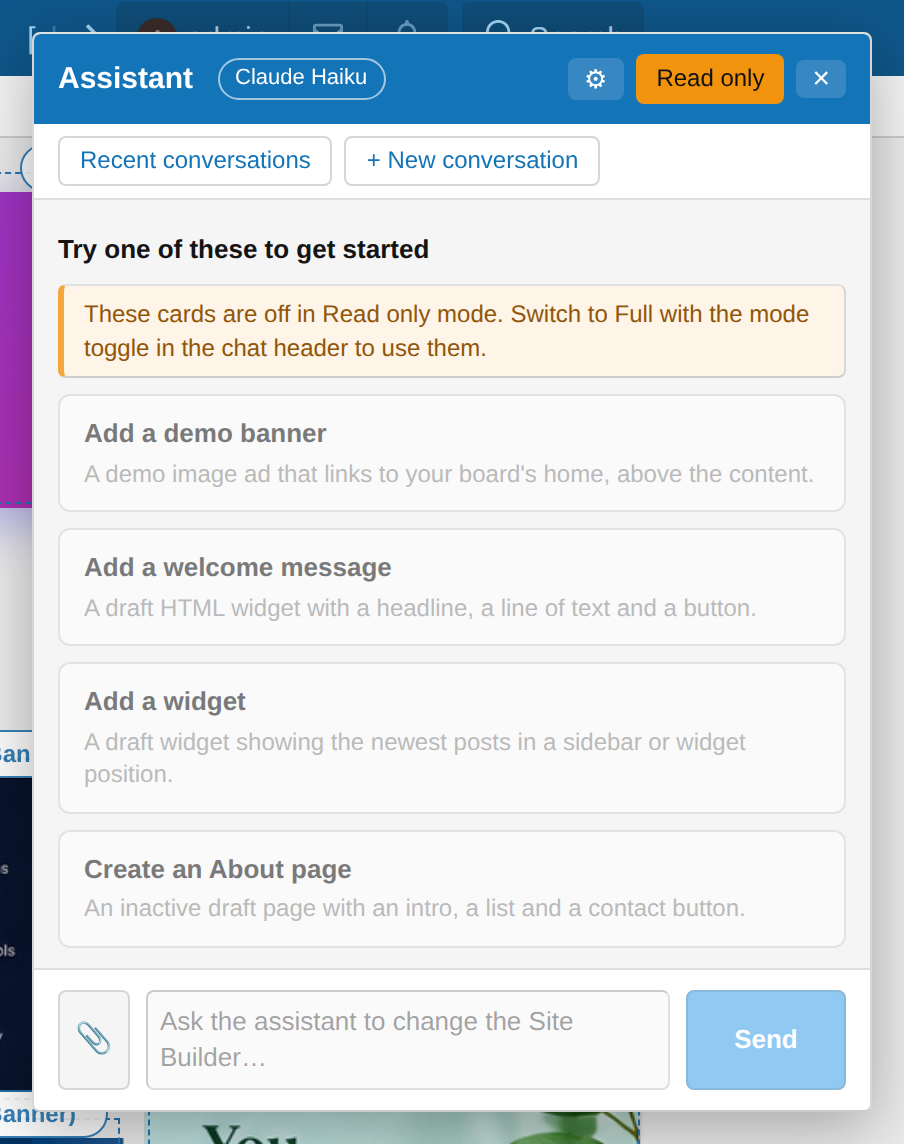
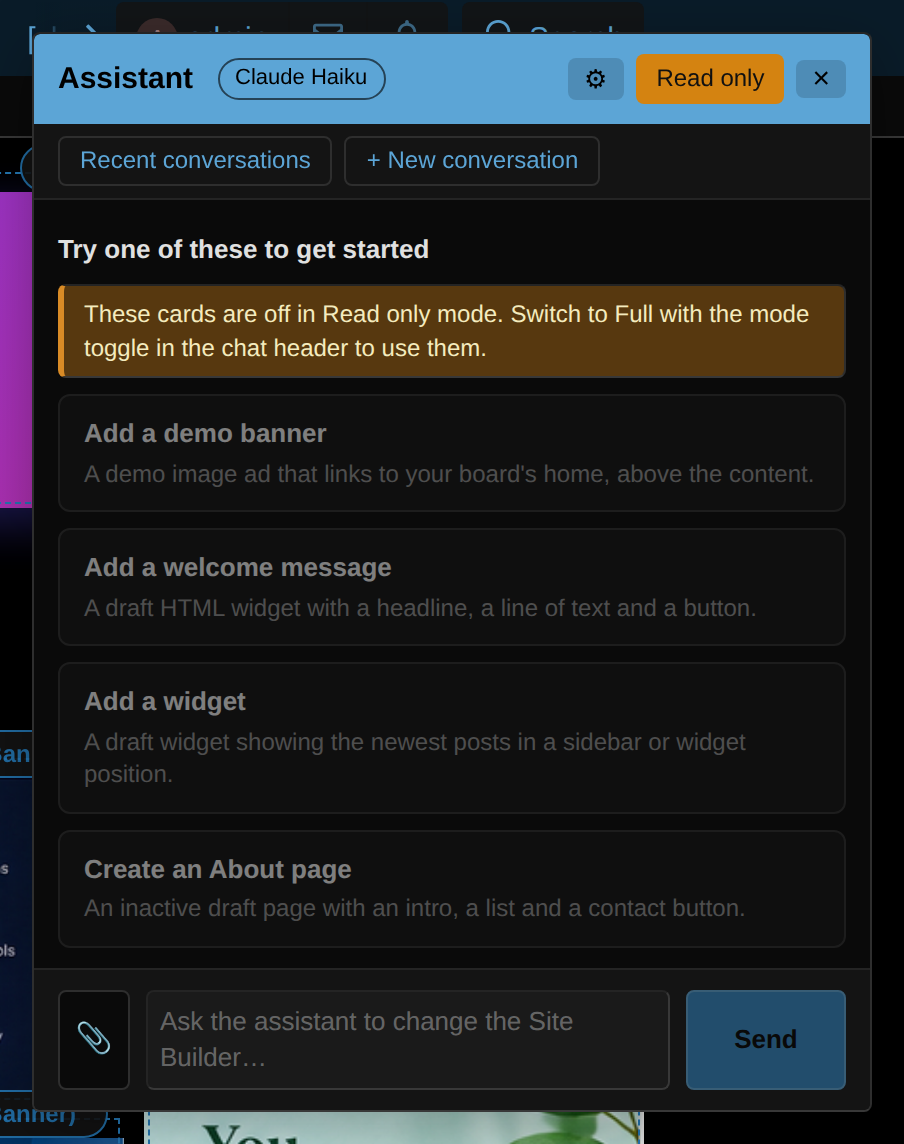
The header has three controls:
- The mode toggle. The chat opens in Read only mode: the assistant can read the board and answer questions, but changes nothing. Switch to Full to let it draft changes.
- Recent conversations lists your earlier conversations. Conversations are saved, so you can reopen one later, from any browser.
- + New conversation starts a new one.
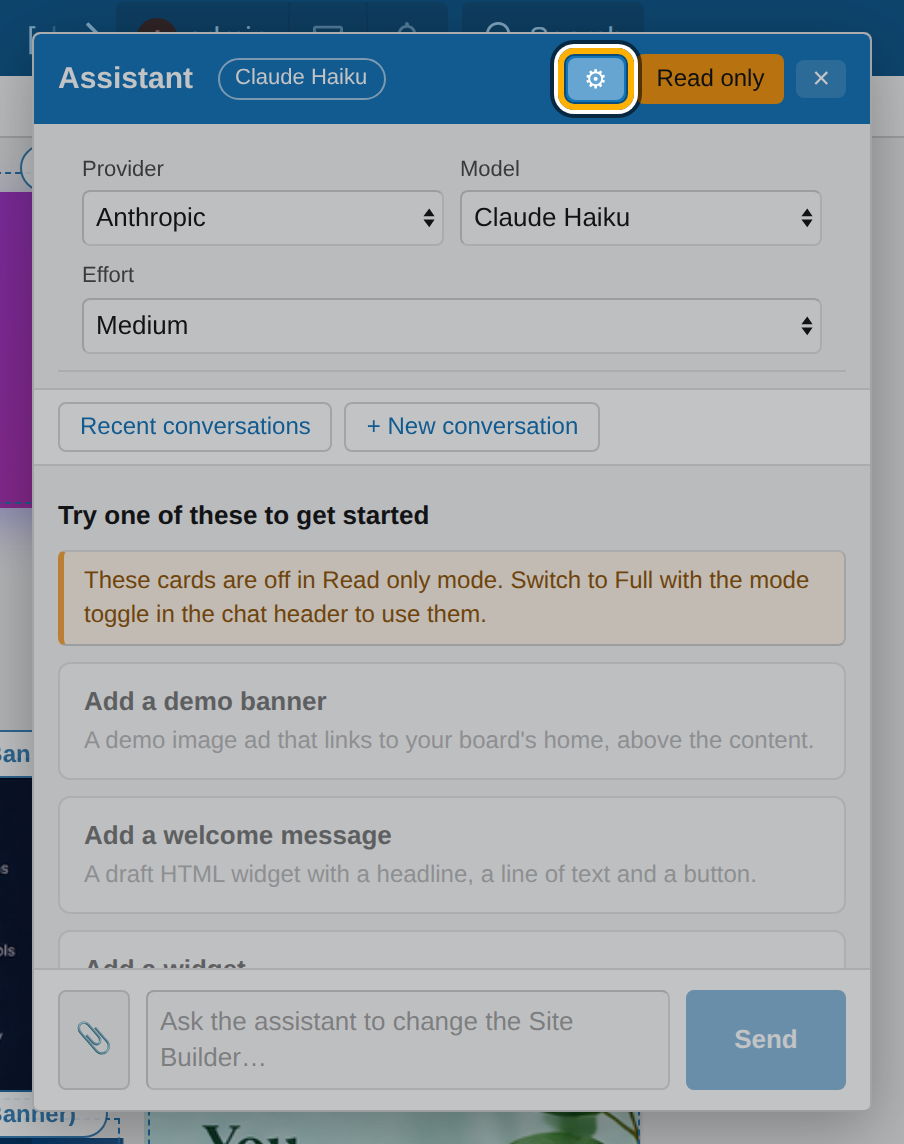
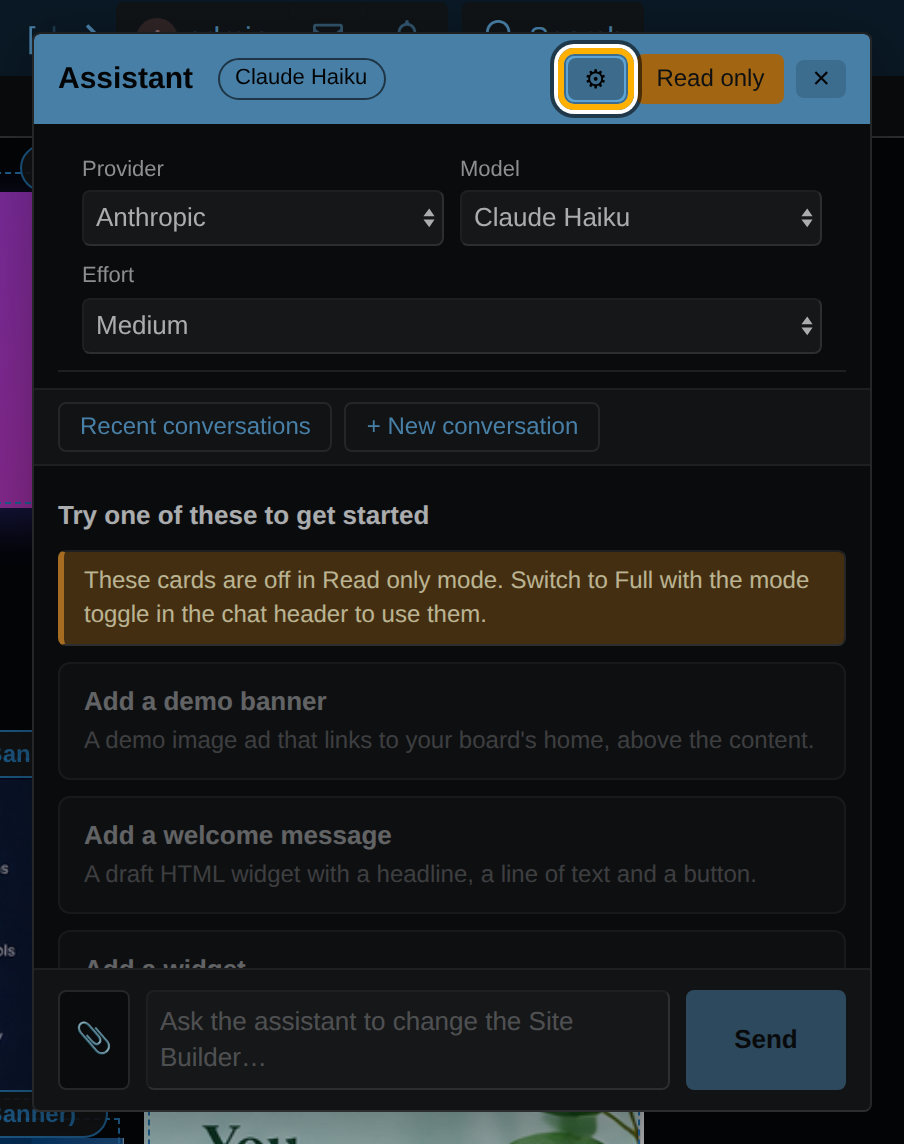
The gear (Assistant settings) opens the settings: which provider and model the assistant uses, and how much effort it puts into an answer.
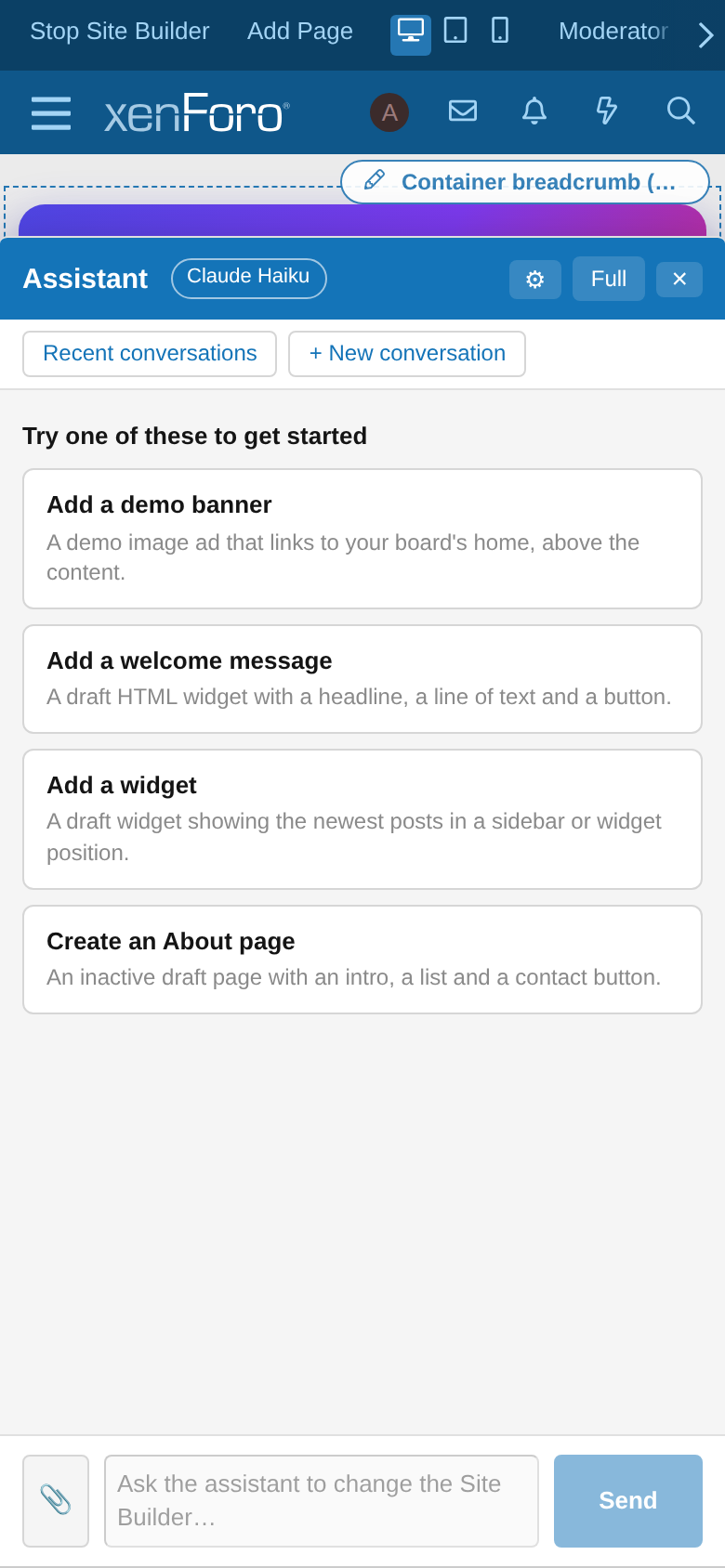
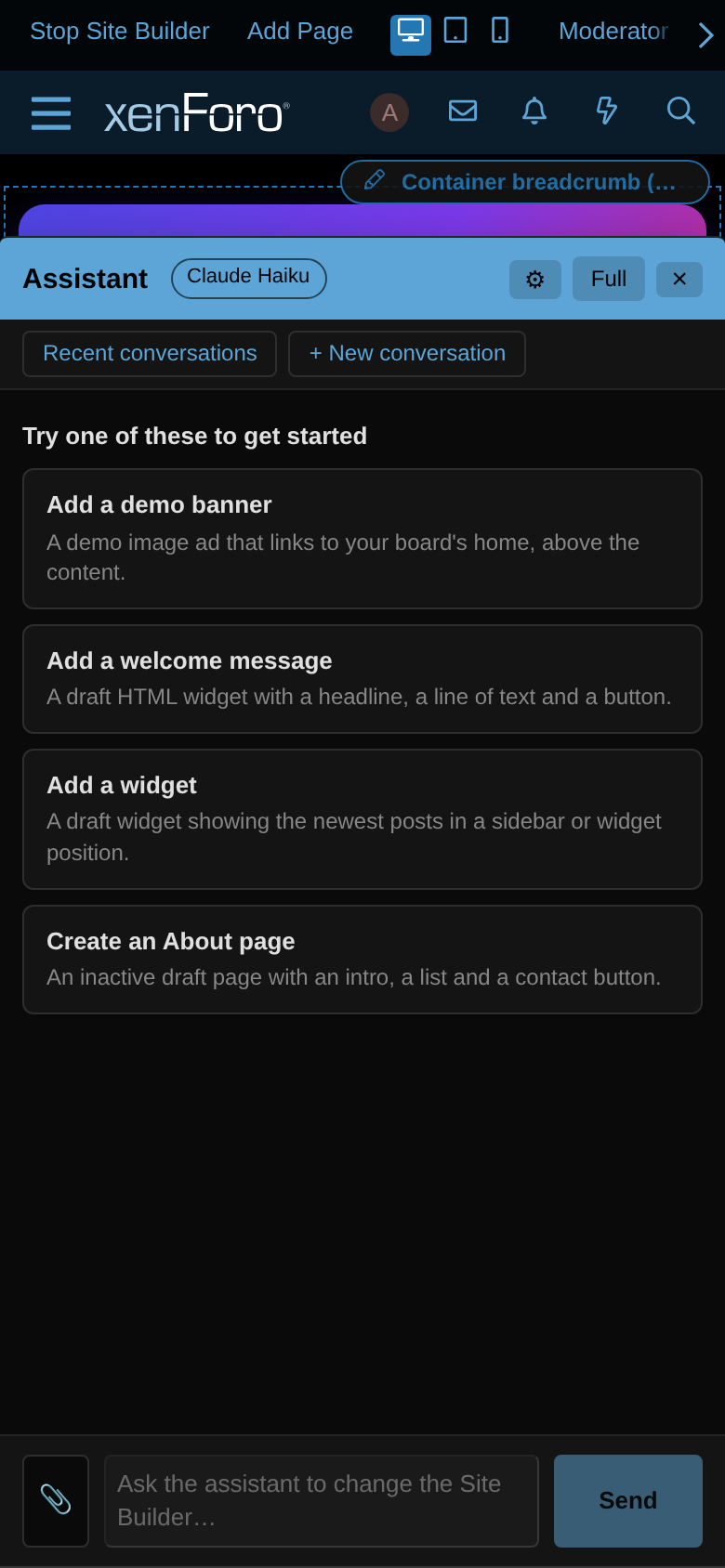
The assistant works on mobile too:
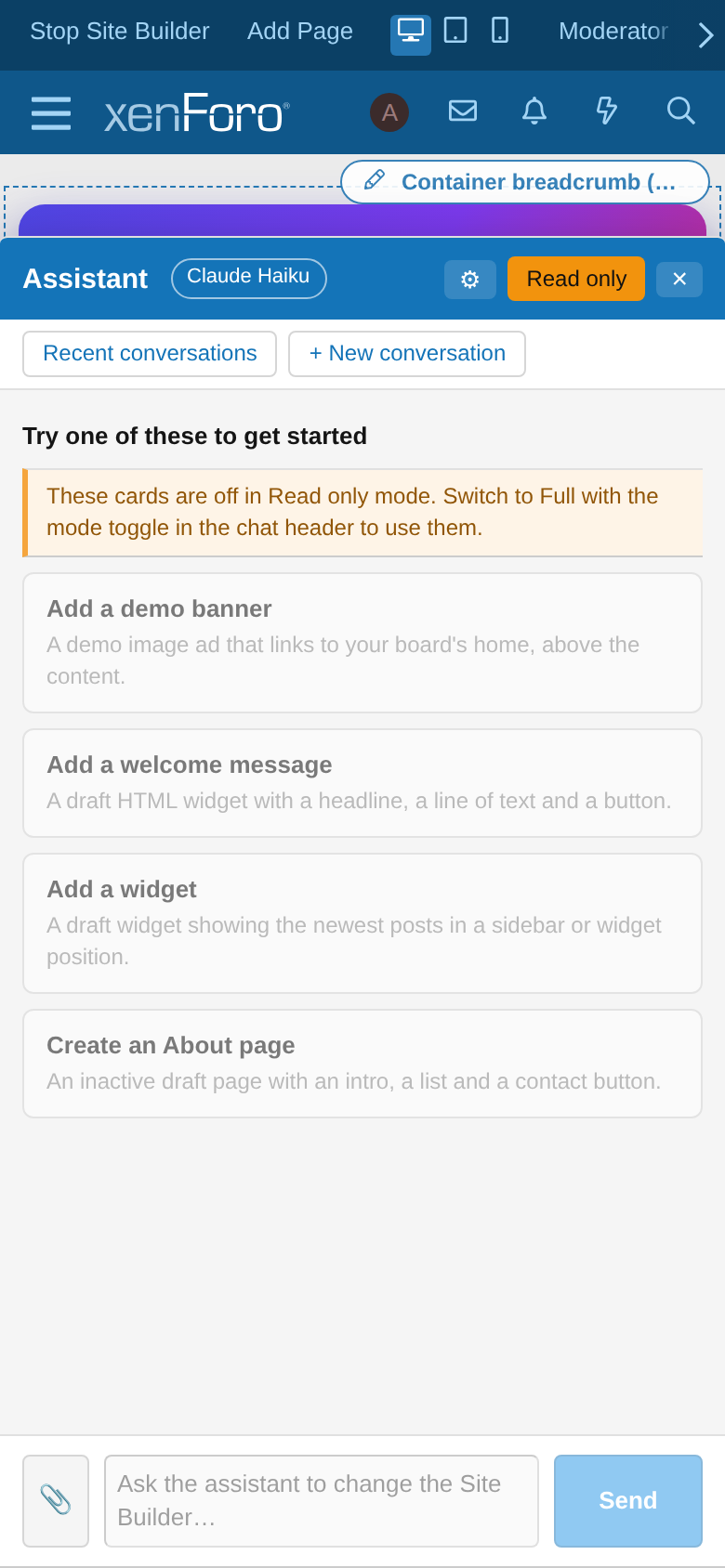
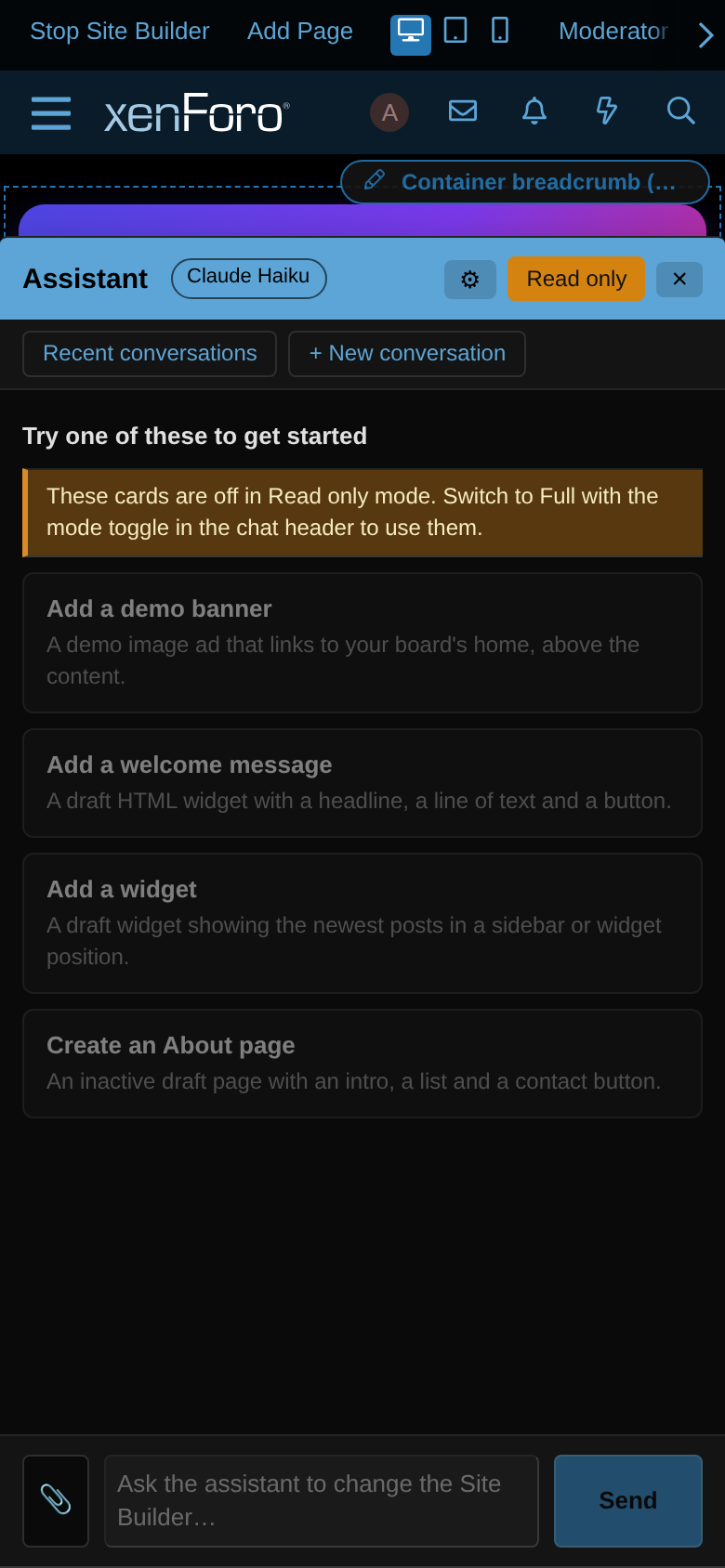
The starter cards
A new conversation offers four starter cards — ready-made requests you run with one press. They need Full mode.
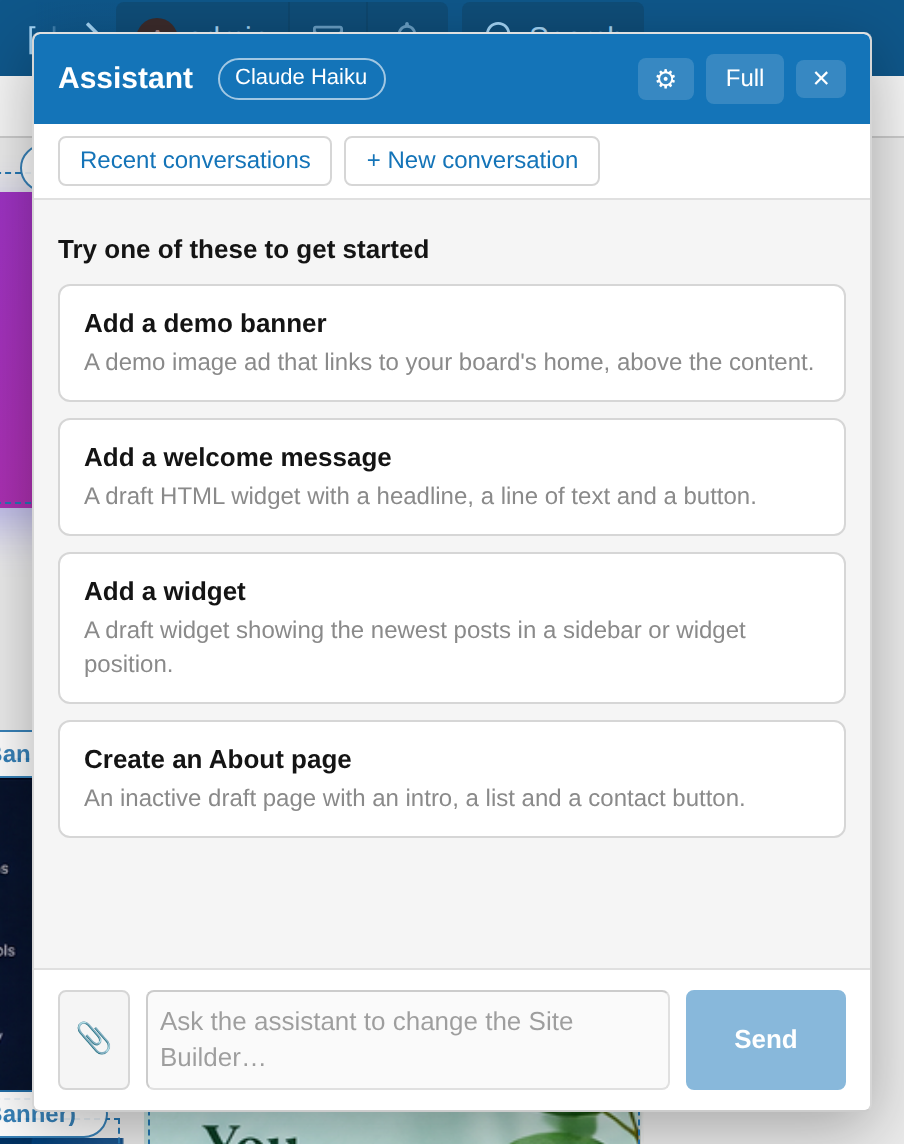
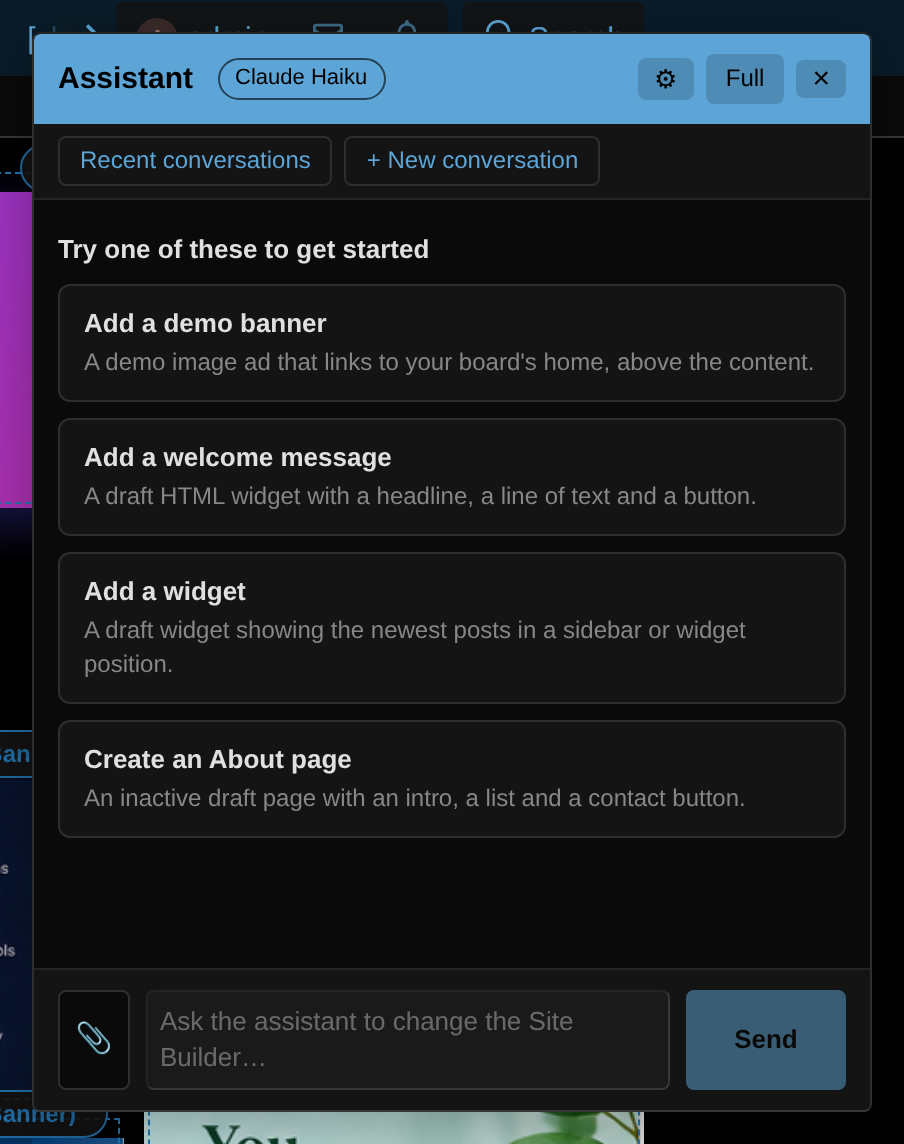
- Add a demo banner — a demo image ad that links to your board's home, above the content.
- Add a welcome message — an HTML widget with a headline, a line of text and a button.
- Add a widget — the newest-posts widget beside the content.
- Create an About page — a page with an intro, a list and a contact button.
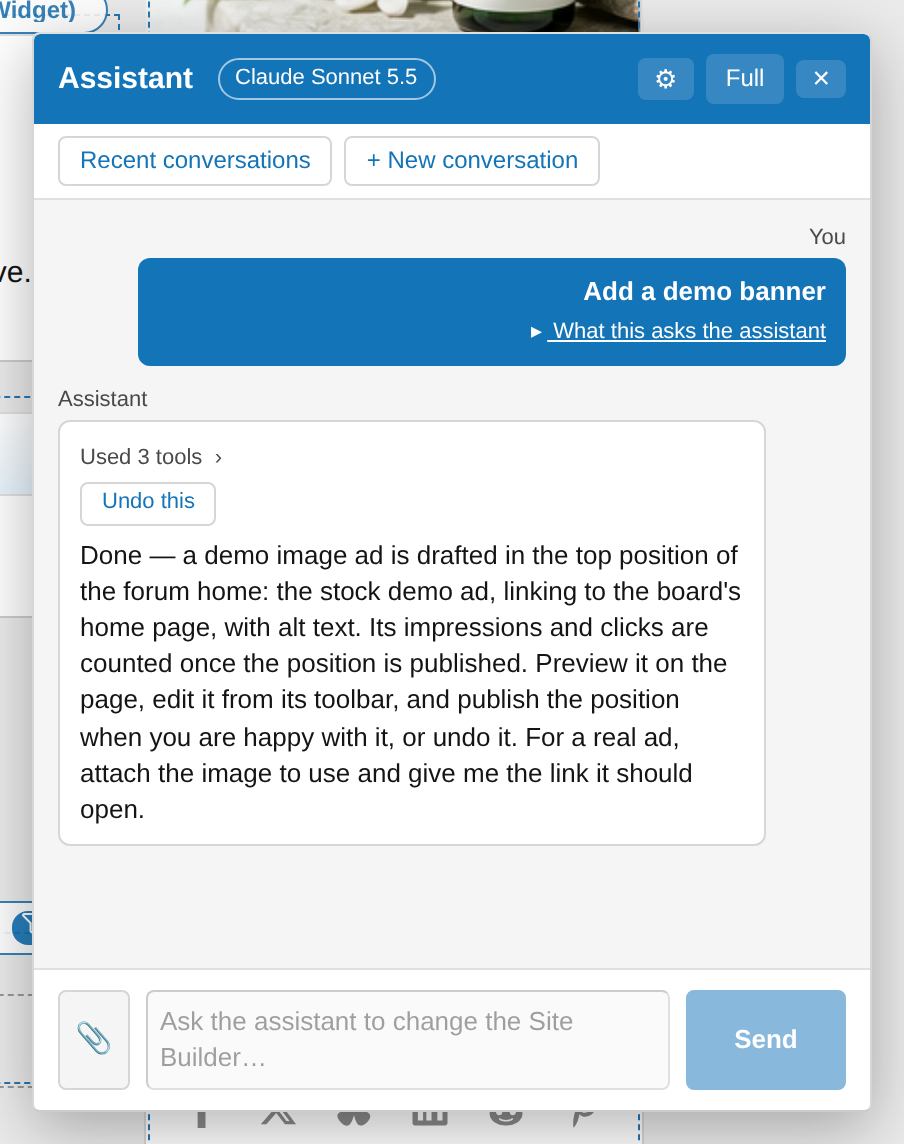
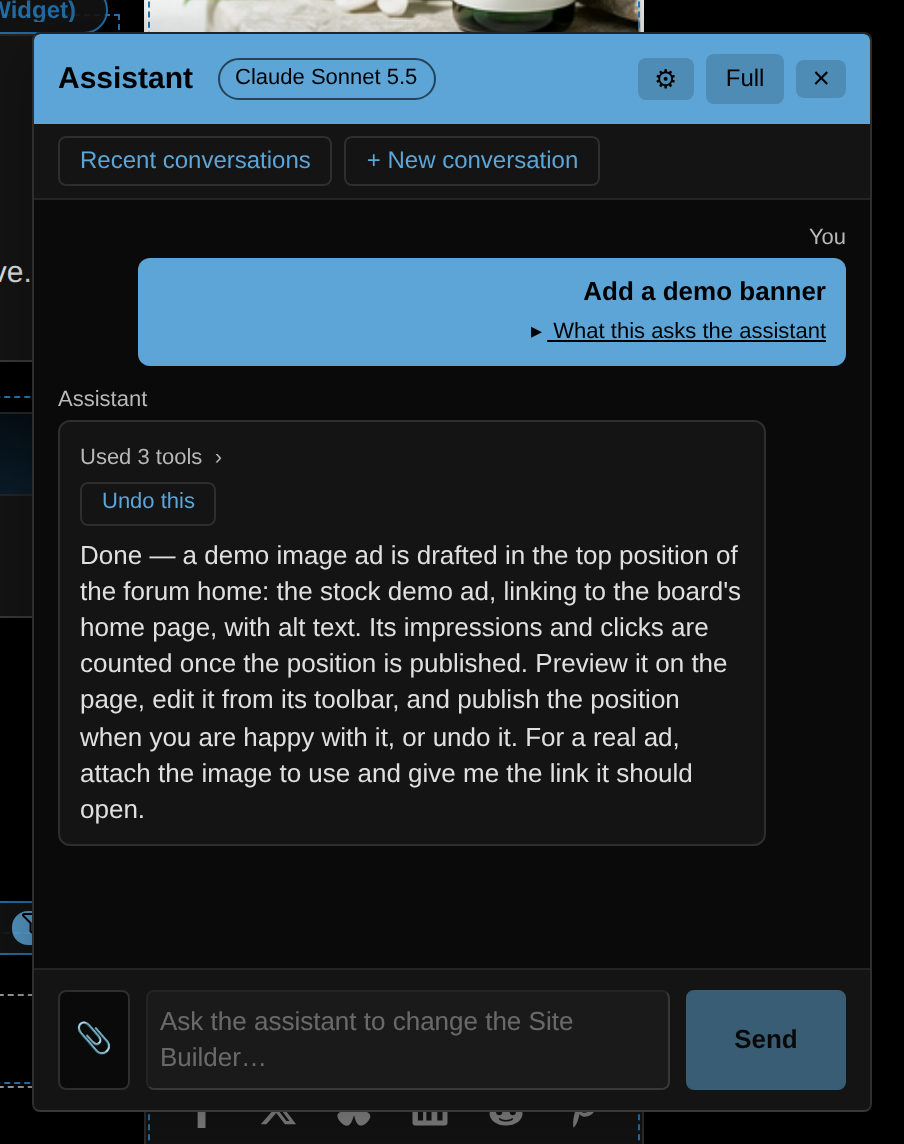
Press a card and the assistant makes the change, then tells you what it drafted and where. Results differ from run to run, so the screenshots below show one example.
Asking for a banner
- Switch to Full mode and press Add a demo banner.
- The assistant picks a banner position on the page you are on and drafts an ad in it: an image banner made from a demo ad the add-on ships, linking to your board's home, with alt text. Banner positions are for ads — an image that links somewhere — and once the ad is live, its impressions and clicks are counted.
- The banner is a draft. The position shows the Unpublished changes badge, and visitors do not see the banner until you publish it.
The demo ad is only a starting point. For a real ad, type your own request: attach the image you want to use and give the assistant the link a click should open. You can also keep asking in the same conversation to change what it drafted.
You can attach a video the same way. It is stored as a public file of your board, and the assistant can place it in any HTML it writes for you: "put this video in an HTML widget in the forum list sidebar."
A request works best when it names the position: "draft an HTML banner in the banners above the content, with the headline Welcome to the community, a line of text and a button linking to the welcome page."
Asking for a welcome message
- Press Add a welcome message. The assistant picks a widget position on the page you are on and drafts an HTML widget in it: a headline, a line of text and a button to the forums.
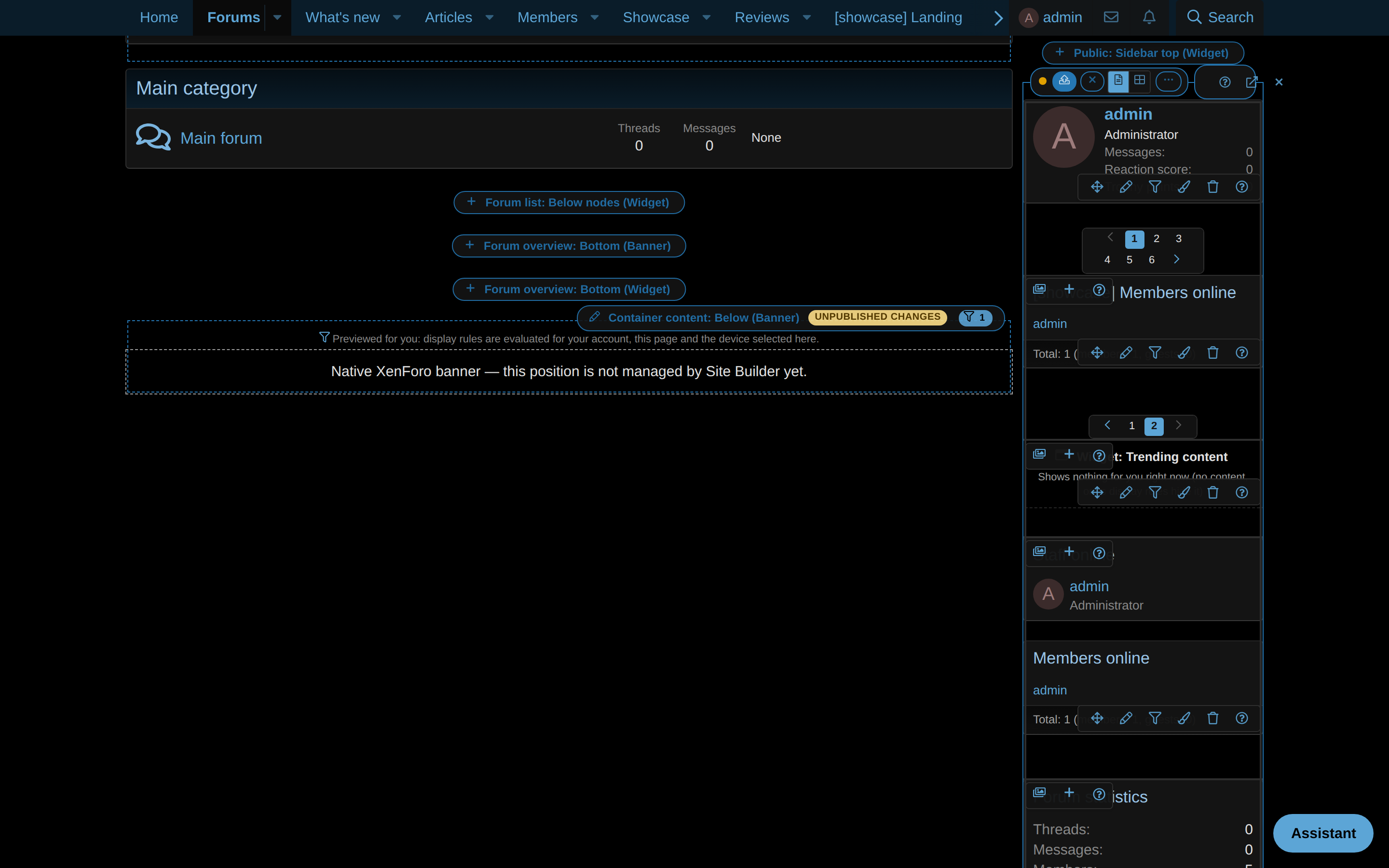
- The widget uses your XenForo style's own look, so it follows your style and its dark variation.
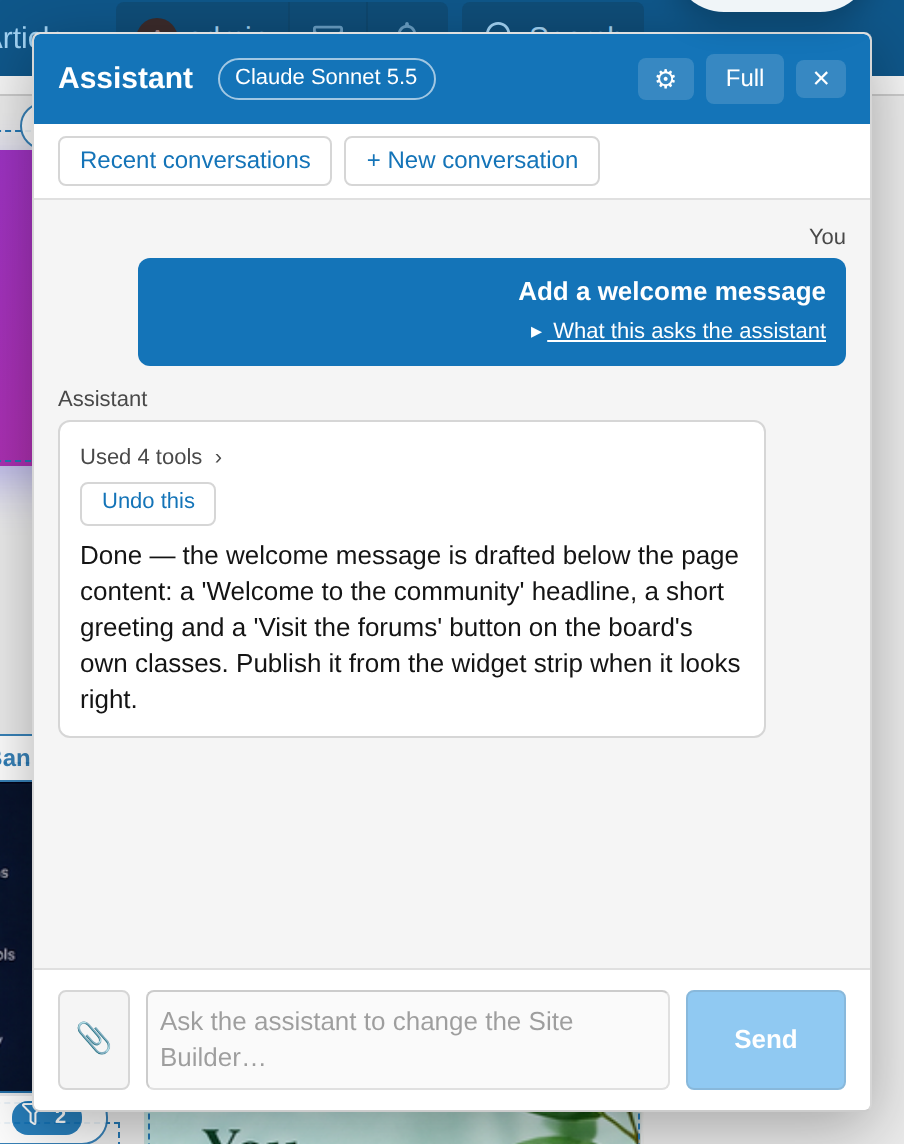
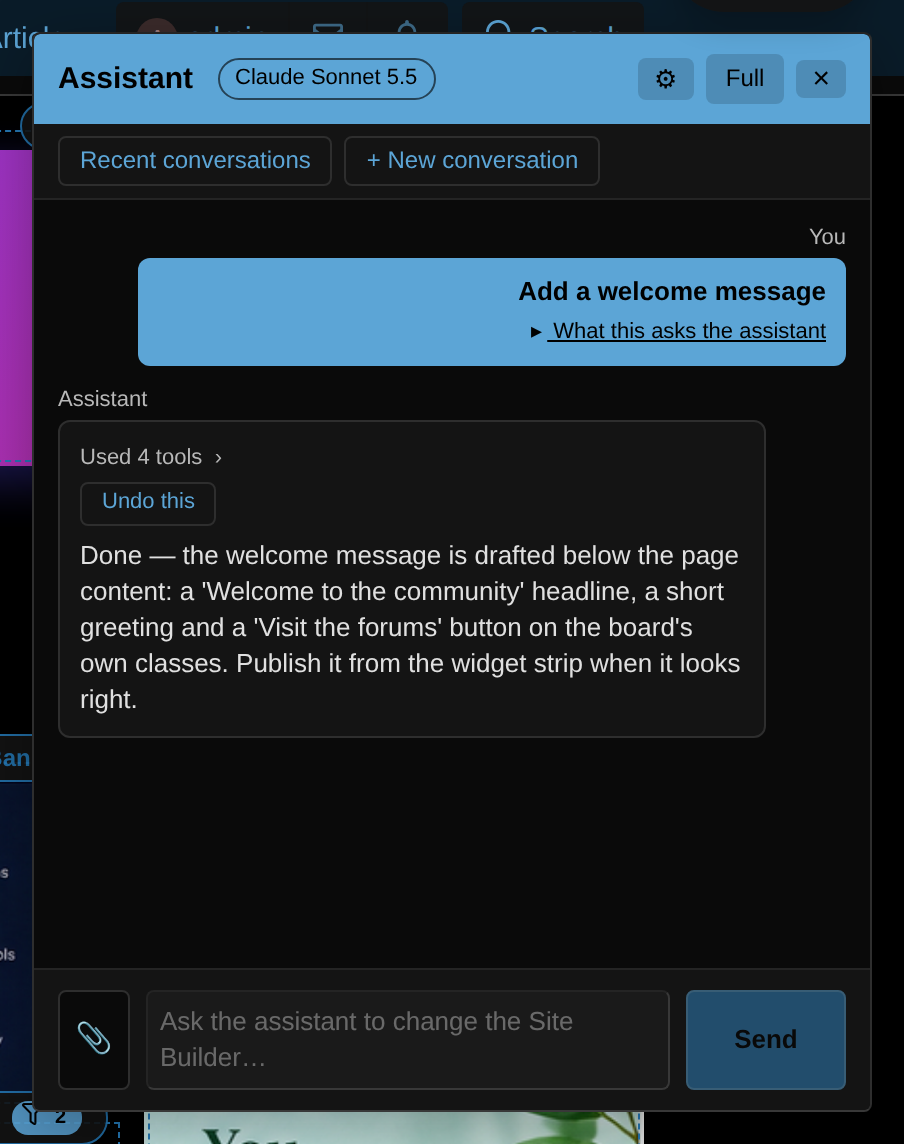
- Publish the position, and visitors see the message:


Asking for a widget
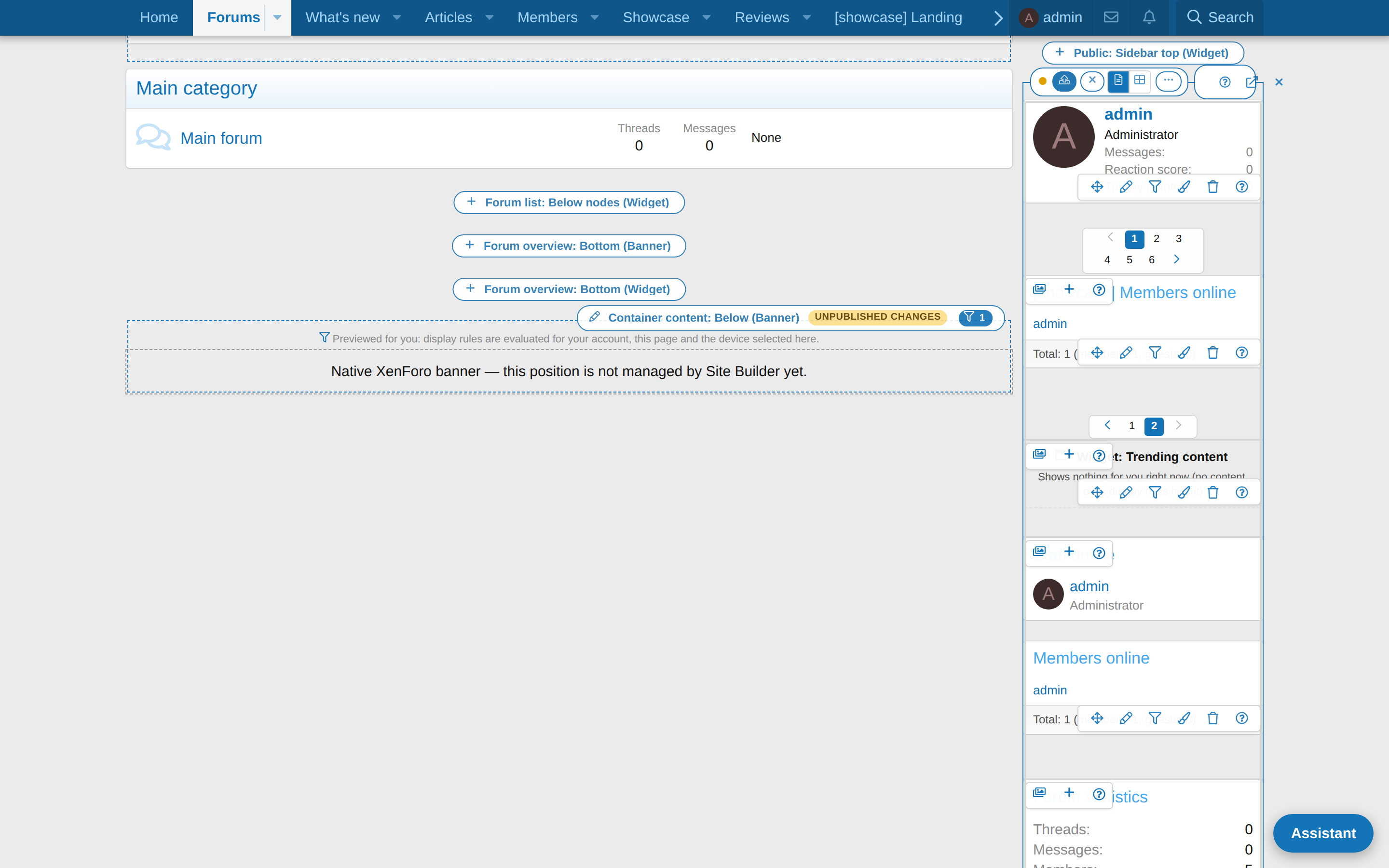
- Press Add a widget. The assistant drafts a XenForo widget in a sidebar position and tells you which one.
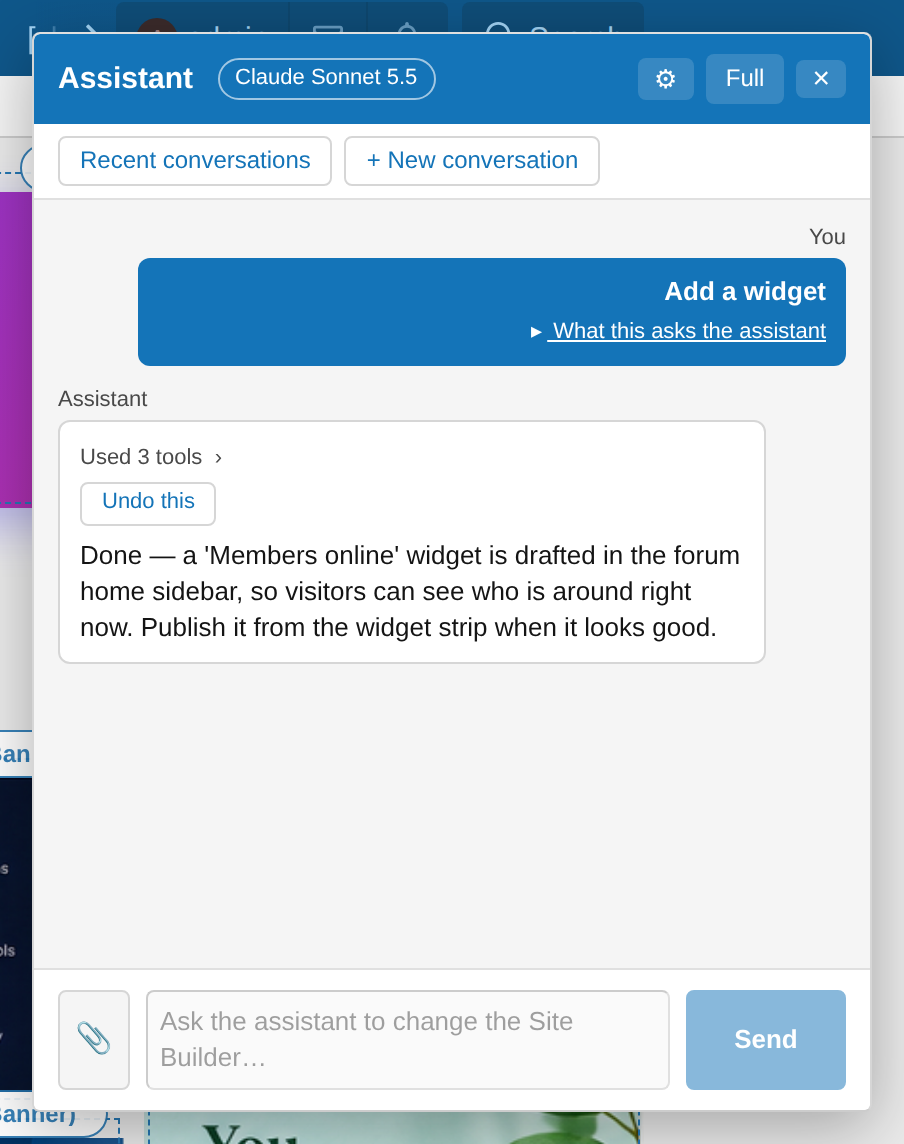
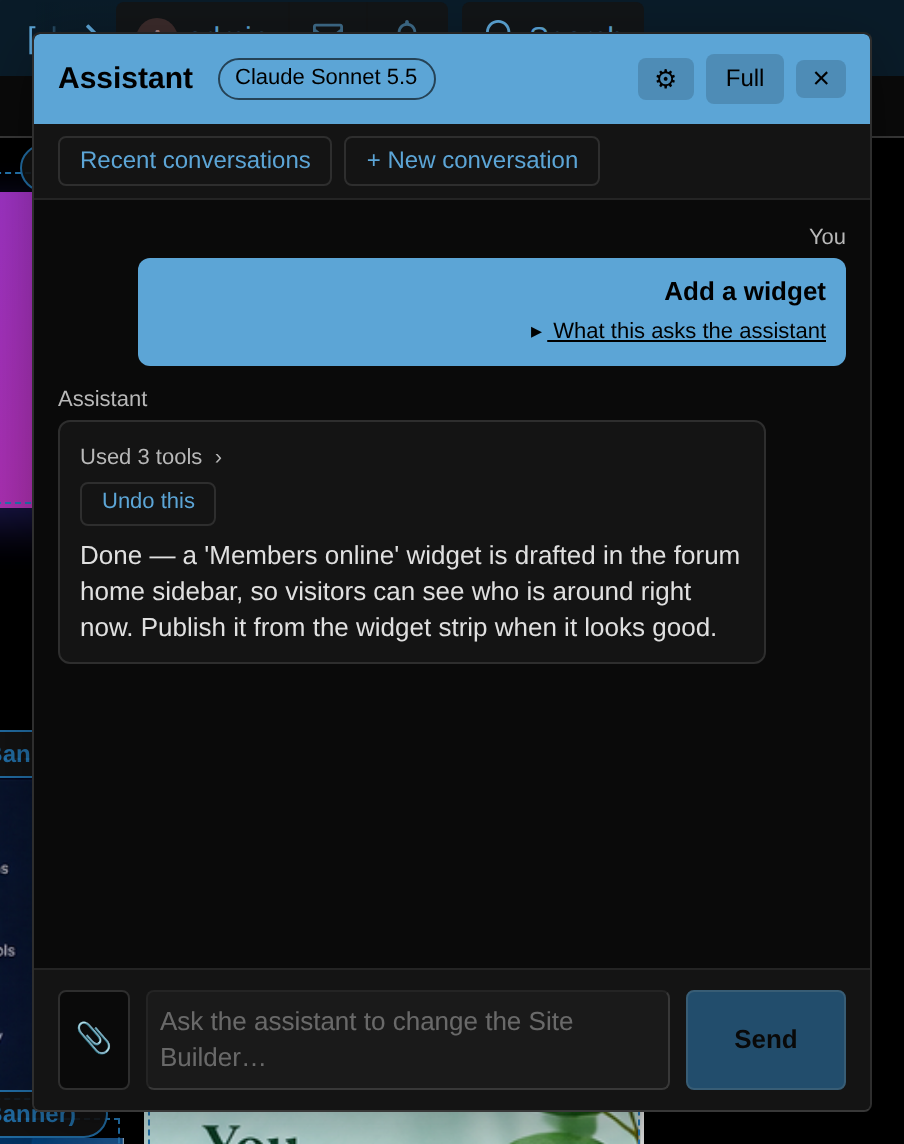
- Open the position. It shows the mark for unpublished changes, with the new widget below it. If the cell already held a widget, use the pager under it — 1, 2 — to switch between them.
Asking for a page
- Press Create an About page. The assistant creates the page and writes its content: an intro, a list and a contact button.
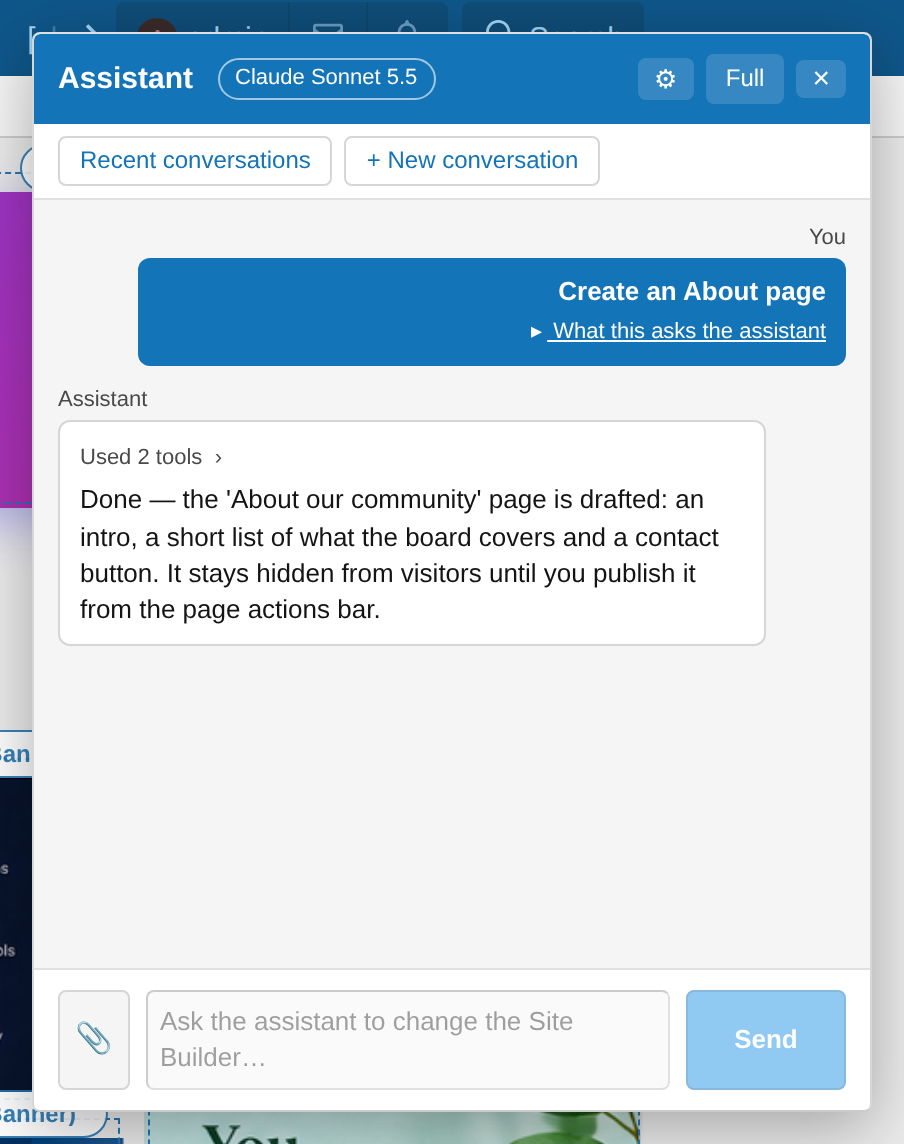
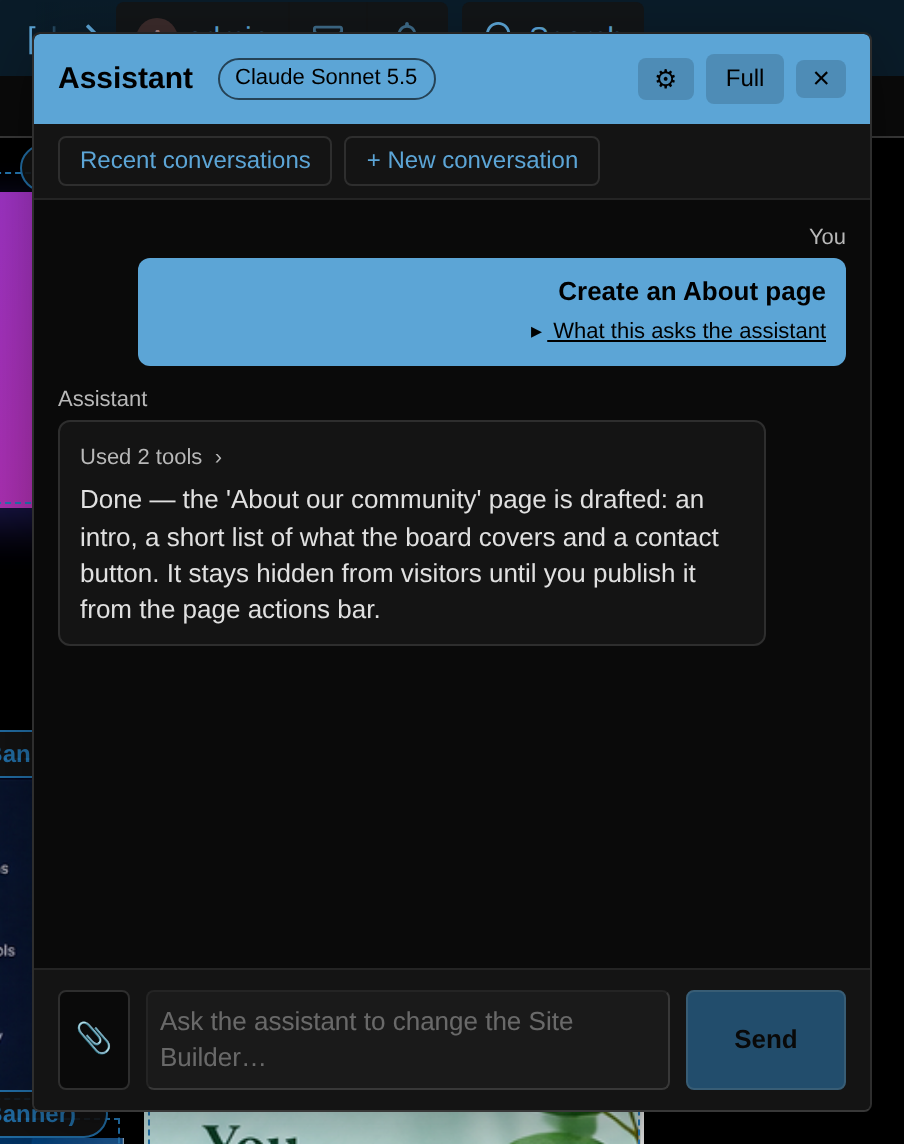
- The new page is not published. Visitors who open its address get "page not found", and in manage mode the page shows a Page not published label.


When the assistant changes a page, the chat offers a button that opens the page's preview. Open it to check the page before you publish.
Publishing a page is covered in Pages.
Correcting an answer while it runs
You don't have to wait for an answer to finish. While the assistant works, keep typing and press Send: the message is queued. It shows under the working line, marked Queued, until the assistant reads it at its next step. The assistant then carries on with your message in mind, in the same answer. Use this to correct the assistant ("only the footer pages") or to add to what you asked.
- Several messages sent this way reach the assistant together, in the order you sent them.
- If the answer finishes before the assistant reads them, they start the next answer on their own. You don't need to send them again.
- Press the × on a queued message (Remove this queued message) to take it back before the assistant reads it.
- Stop ends the answer and does not send the queued messages. They go back into the message box, so you can edit them or send them again. The same happens when an answer fails because it stopped responding.
- A queued message does not answer a question or a Confirm card. If the answer ends on a card, your queued messages wait. They reach the assistant in the next answer, after you answer the card.
- Up to five messages can wait at once.
- The mode toggle applies to the next answer, not the one running. A message you send in Read only while a Full answer runs steers that answer but does not take its write access away; press Stop for that. If it starts the next answer, that answer runs in Read only.
Questions and confirmations
Questions. When your request can be read in more than one way, the assistant asks. The question appears as a card with the choices as buttons, and an Other… button for an answer of your own. Answering a question changes nothing by itself.
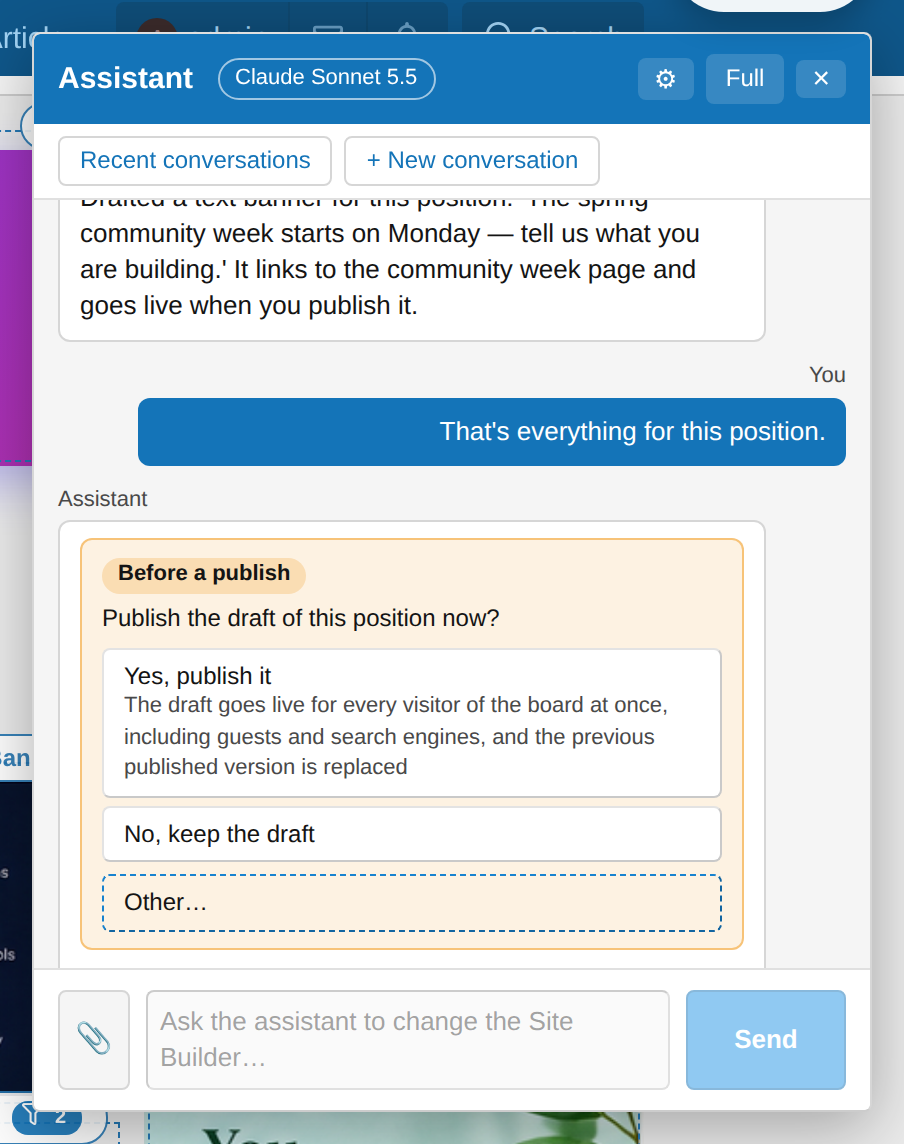
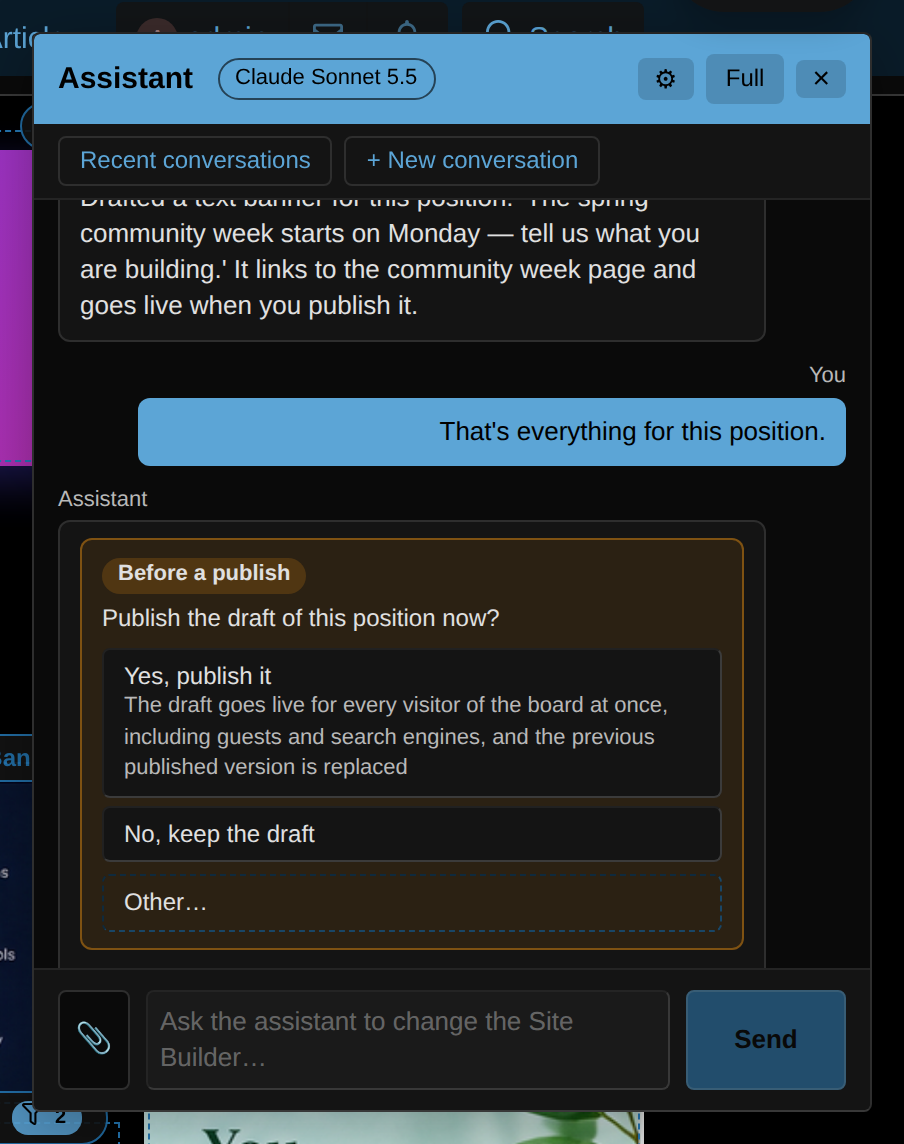
Confirmations. Before the assistant does any of the following, the chat shows a Confirm card that names the action:
- publishing a draft — the card reminds you that everything in the draft goes live, earlier changes included;
- deleting something, or discarding a draft;
- changing the order of a position's items, or changing display rules that go live at once, or reverting a page's template.
Saving HTML or template text into a draft needs no Confirm: it stays in the draft, and publishing it is what asks.
Press Confirm and that one action runs. Press Cancel and nothing changes.
Safety limits
- Images from the web. The assistant downloads an image only from an address you typed in a message yourself. You can also attach the image.
- Your session. Security tokens and draft preview links are never sent to the AI provider.
- Your permission. If your Site Builder permission is removed, a running answer stops.
- Two answers at a time. You can have two answers running at once, in different conversations. Wait for one to finish, or stop it, before you start another. A message you send while an answer runs in the same conversation is queued for it and does not count.
- Spending. Site Builder does not limit what you spend with the provider. Set a spending limit in your provider account.
Drafts and publishing
Everything the assistant makes is a draft, pages included. You review it and publish it the same way as a change you made yourself.
- Open the position. It shows the Unpublished changes badge with Publish and Reset beside it.

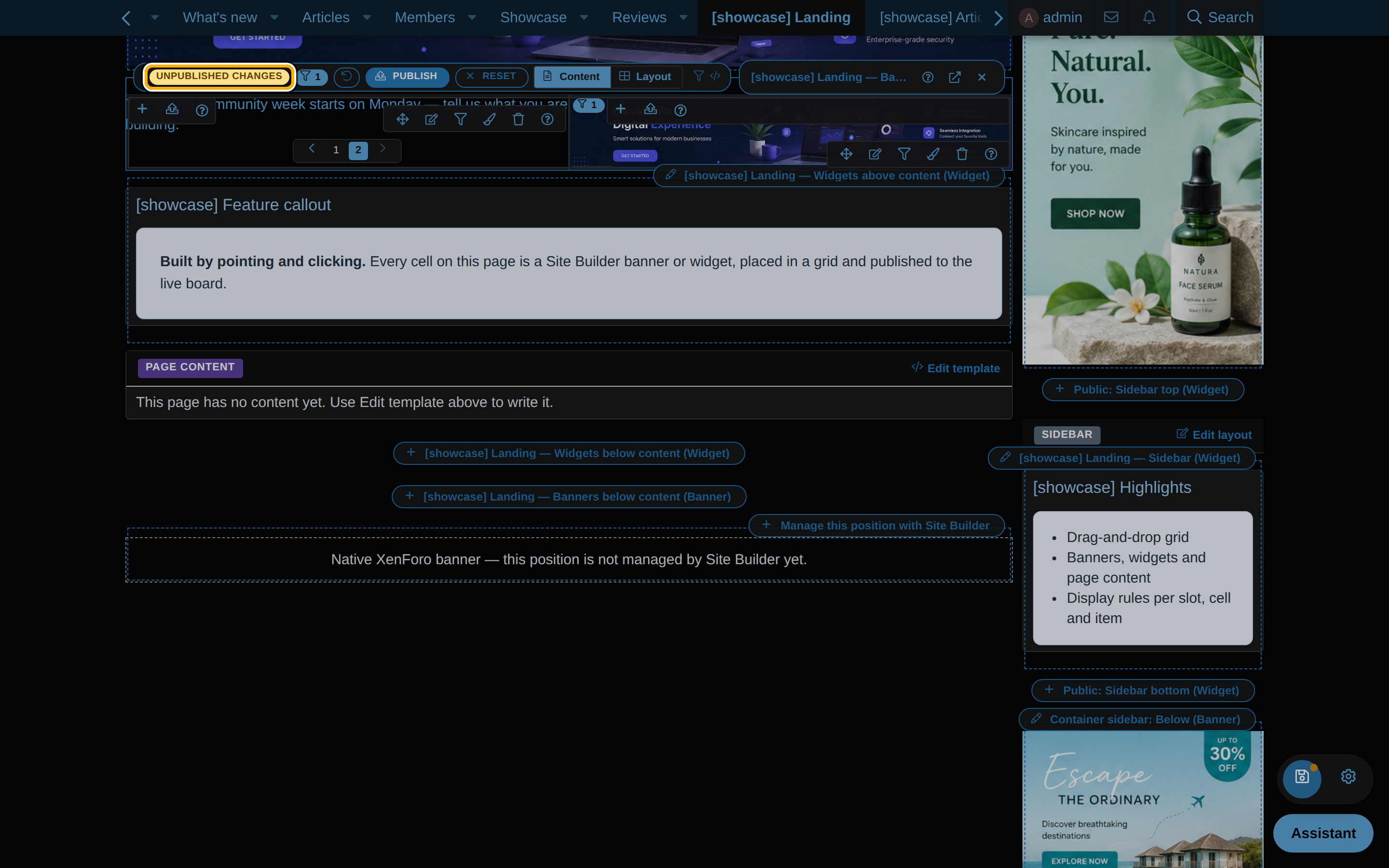
- Press Publish. The change goes live at once and the badge disappears.
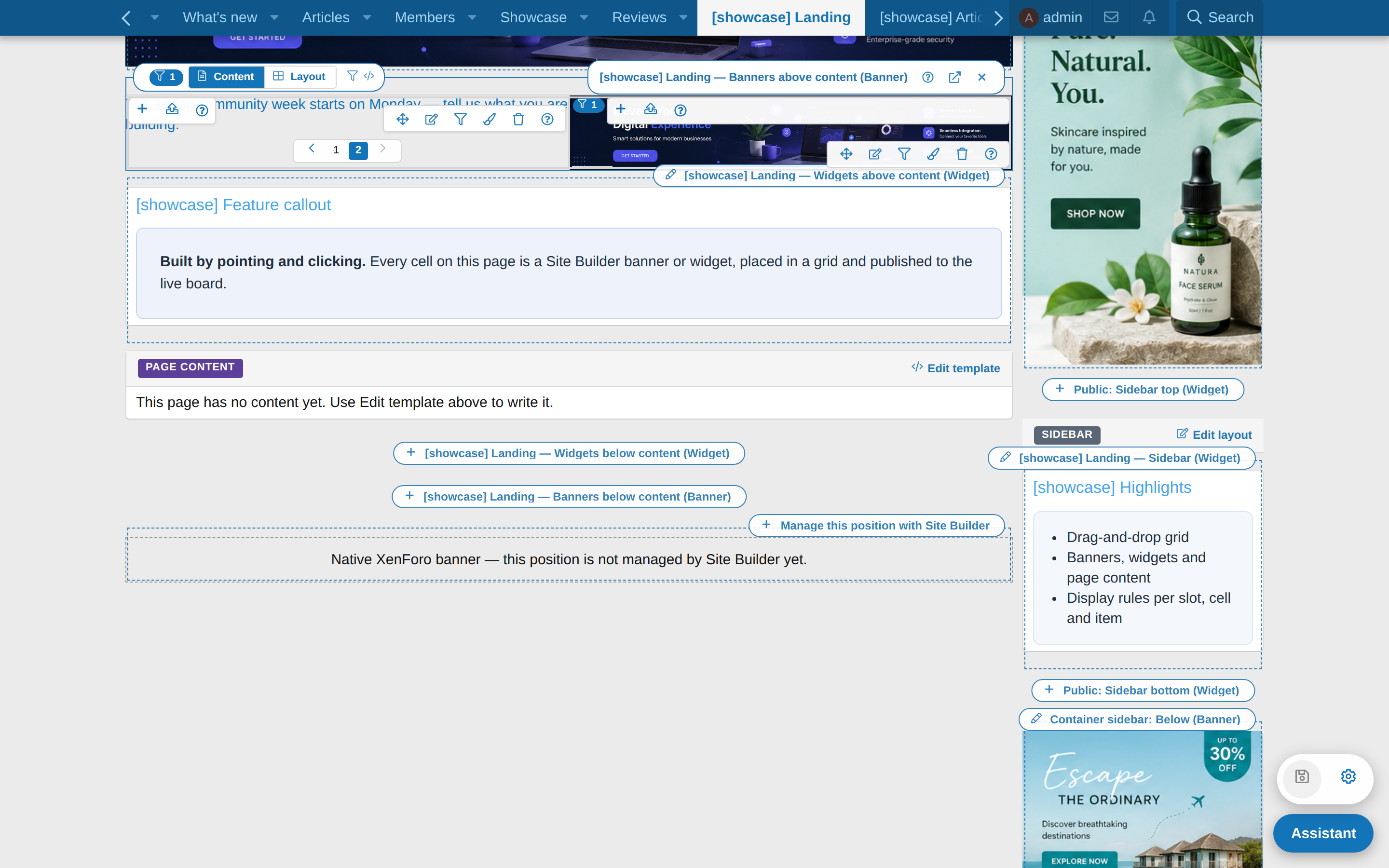
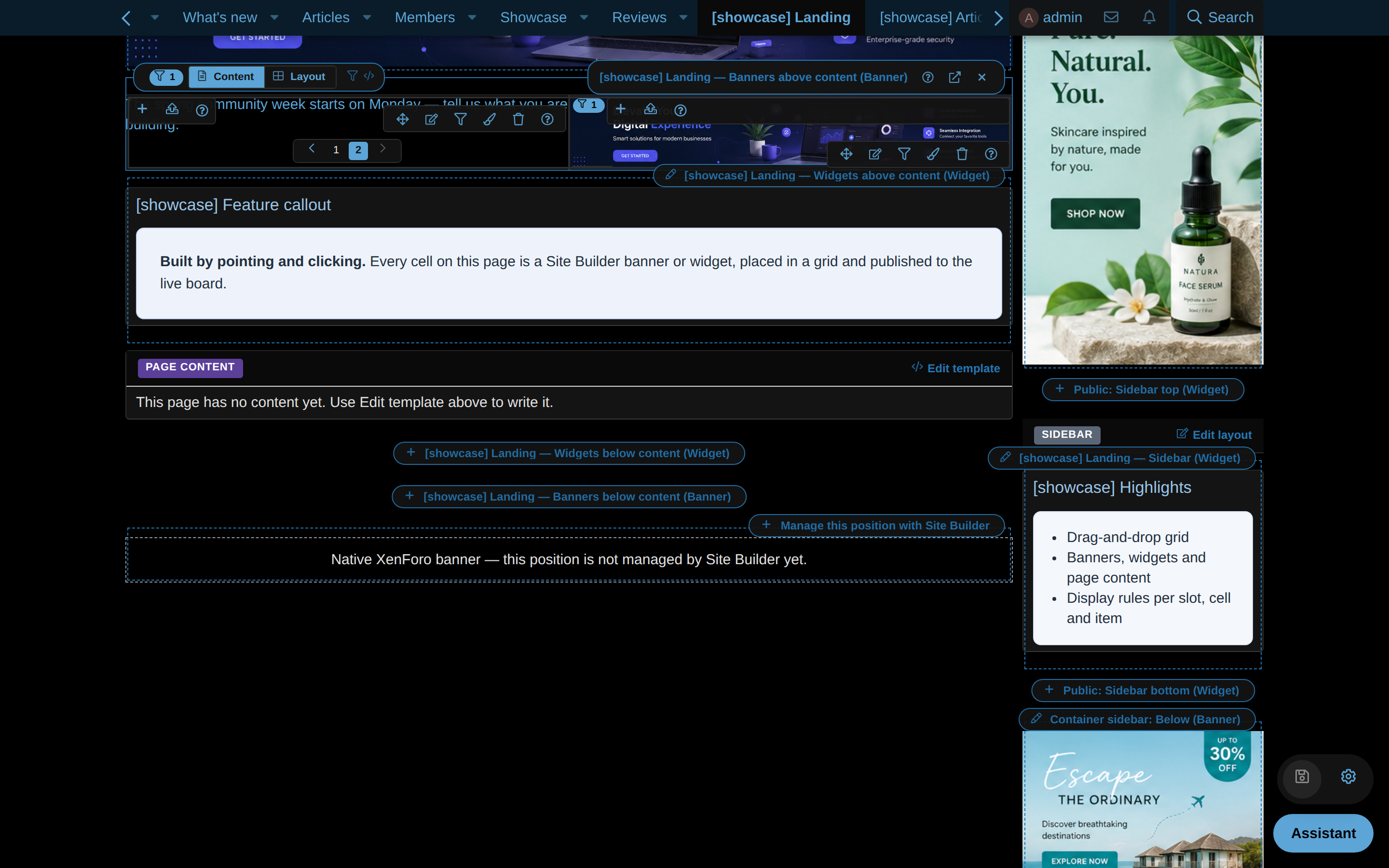
Not happy with a draft? Ask the assistant to change it, press the undo arrow on the position, or press Reset to discard the draft.
Review before you publish
Check what the assistant drafted, and read its report if you are unsure. Anything you publish — drafted by the assistant or by hand — is visible to your visitors at once.