Drafts, publish and undo
Nothing you change in the editor is visible to visitors until you publish it. Every change — a split cell, a new item, a setting — is saved in a draft, and visitors keep seeing the published version.
Each section of a position — its banners or its widgets — has its own draft, and so does each page. You publish or reset each one separately.
Ask the assistant
"Publish the draft" or "undo the last change in this position" — the assistant runs the same publish and undo this page describes. See The assistant.
Where a draft shows up
- In the position's editor: an Unpublished changes badge, with Publish and Reset beside it.
- On a closed position: the same badge on the button that opens the position.
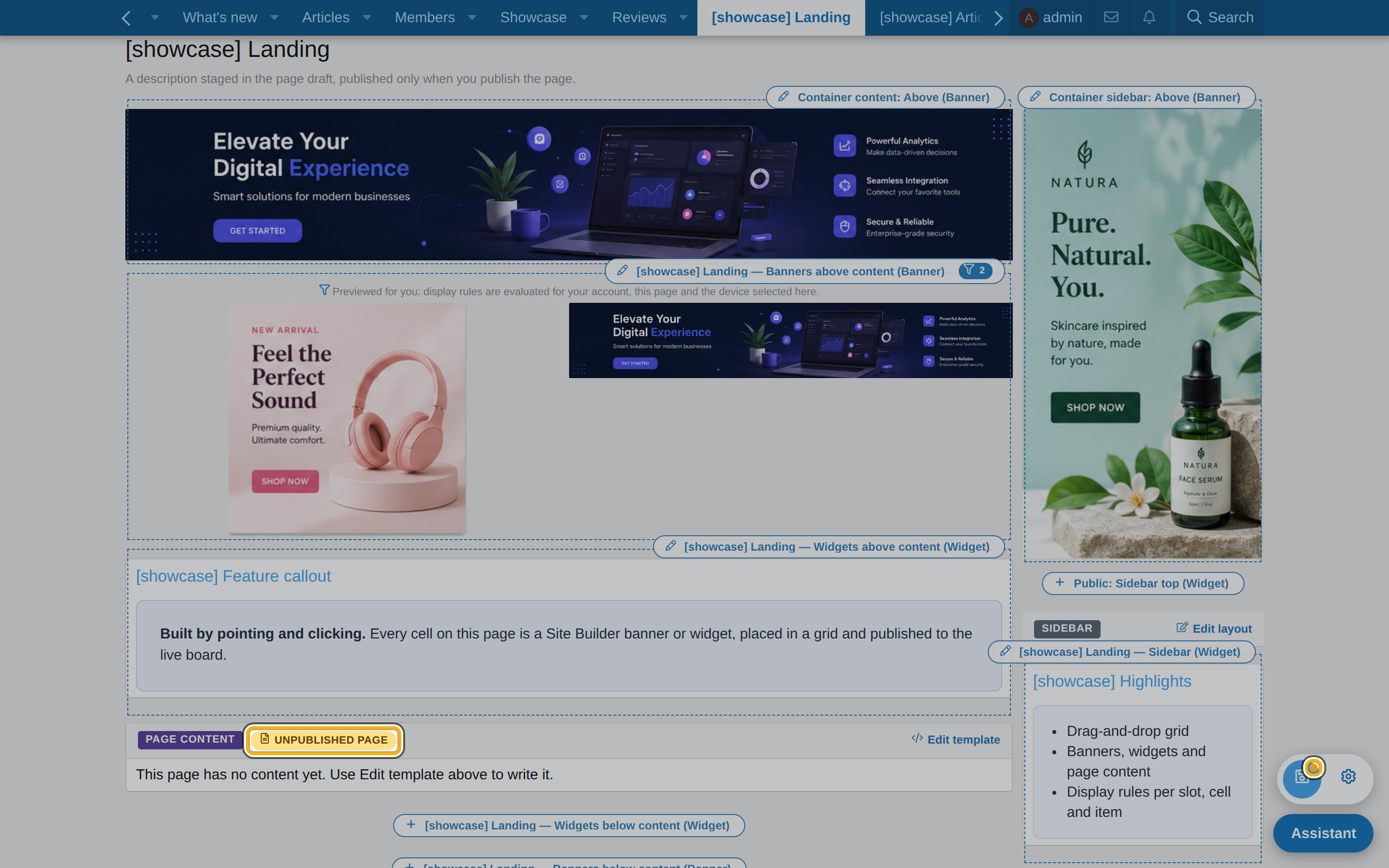
- On a page: an Unpublished page badge on the Page content bar and in the Edit Page form, and a dot on the page's floating bar. A page that was never published reads Page not published.
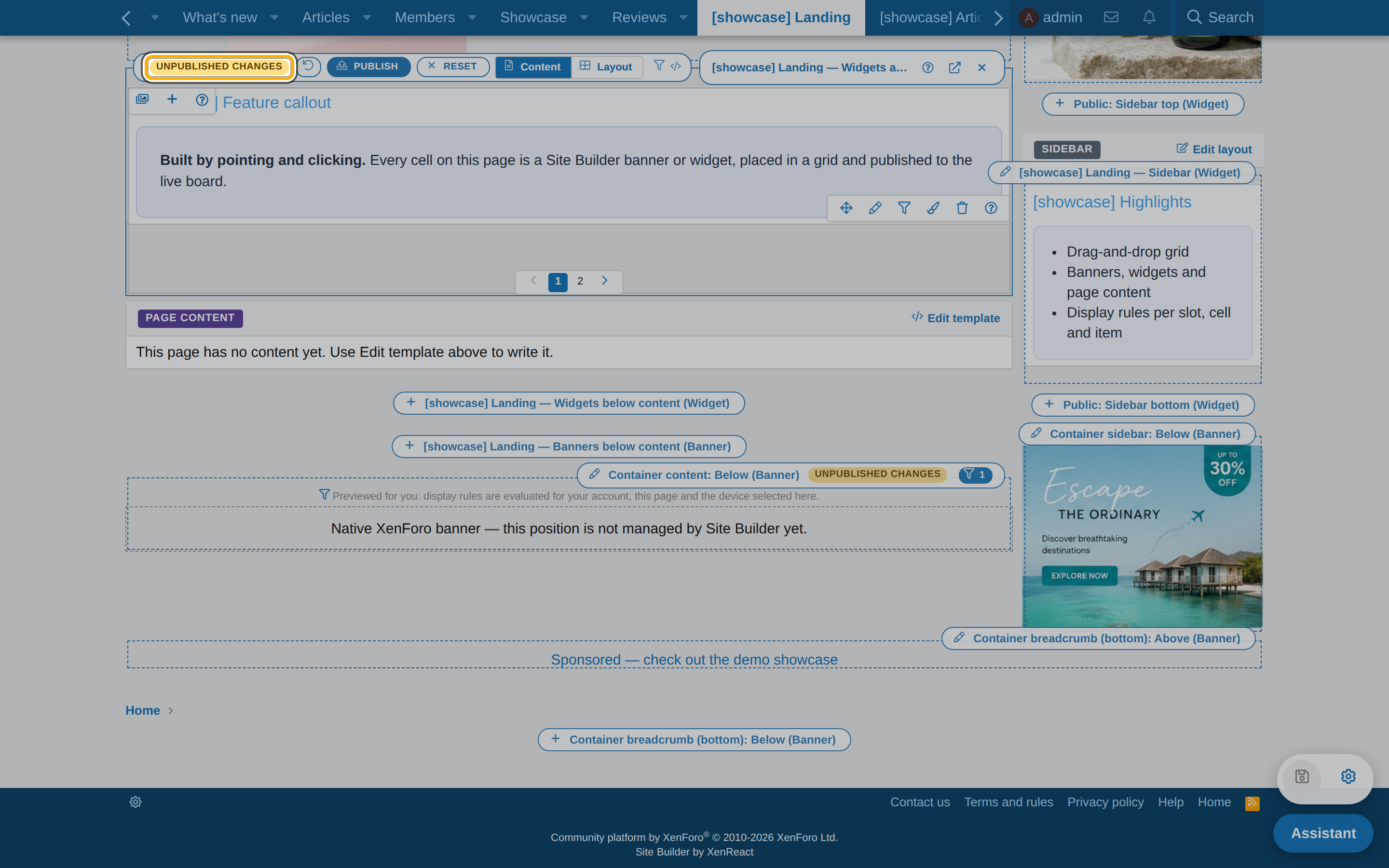
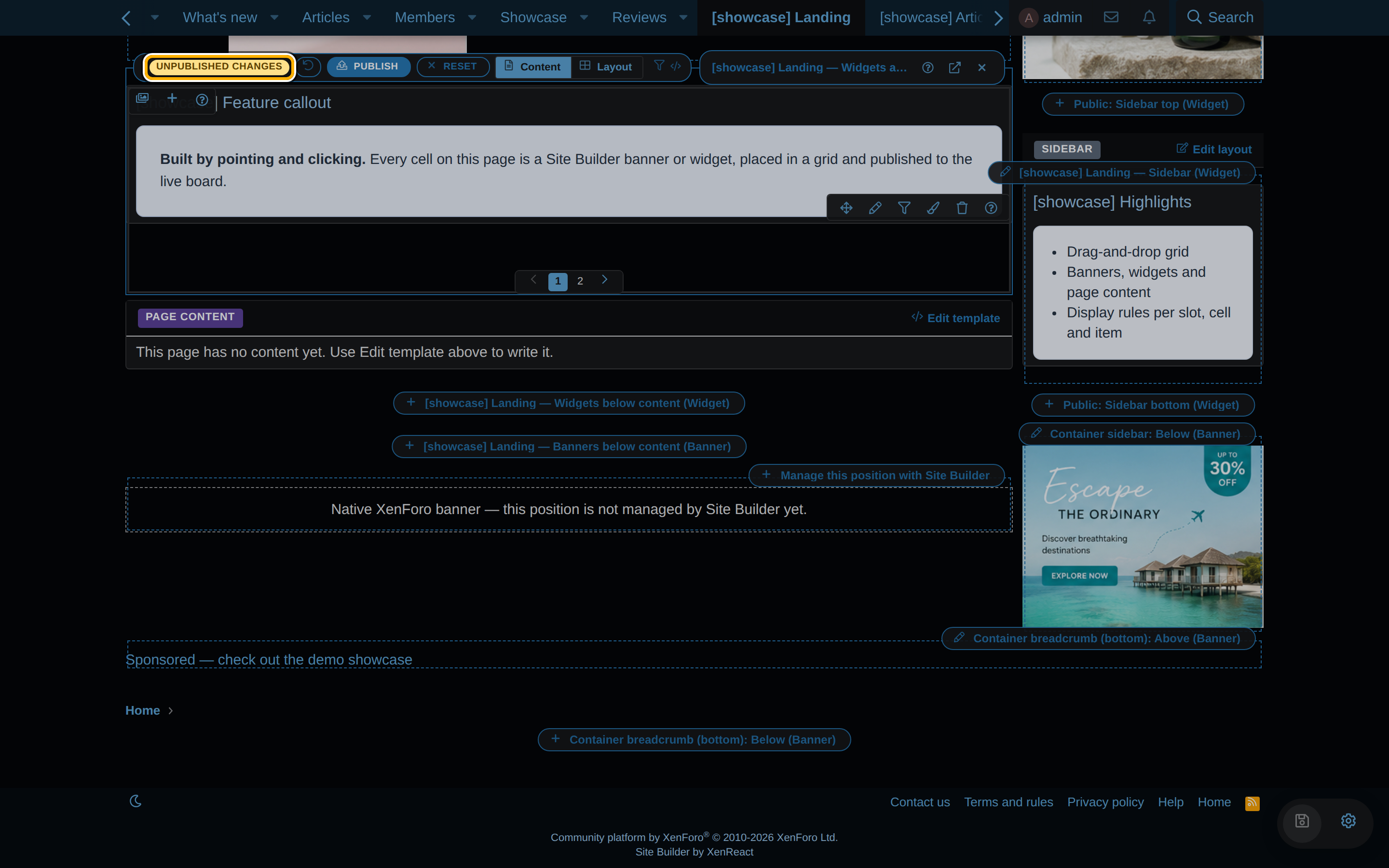
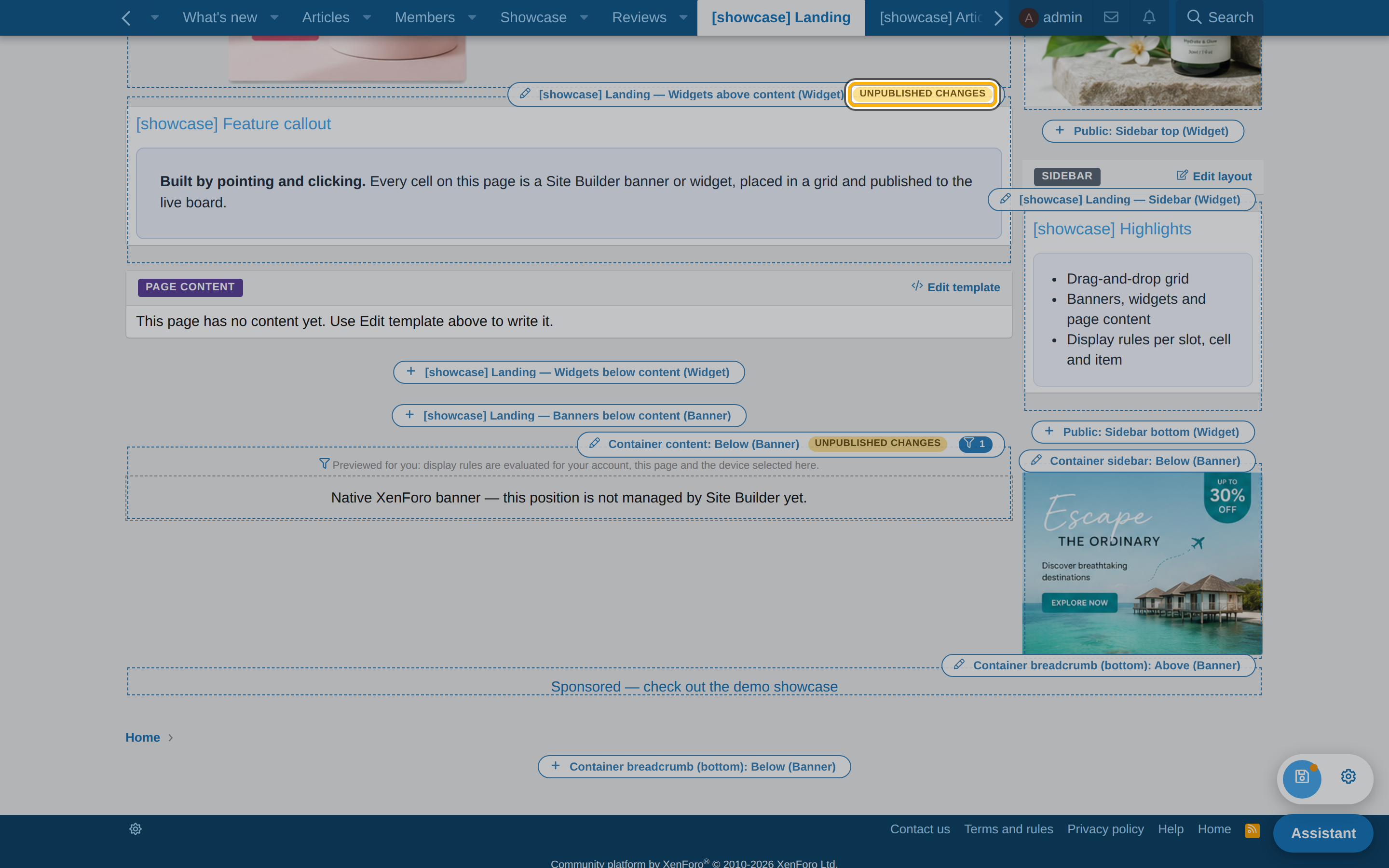
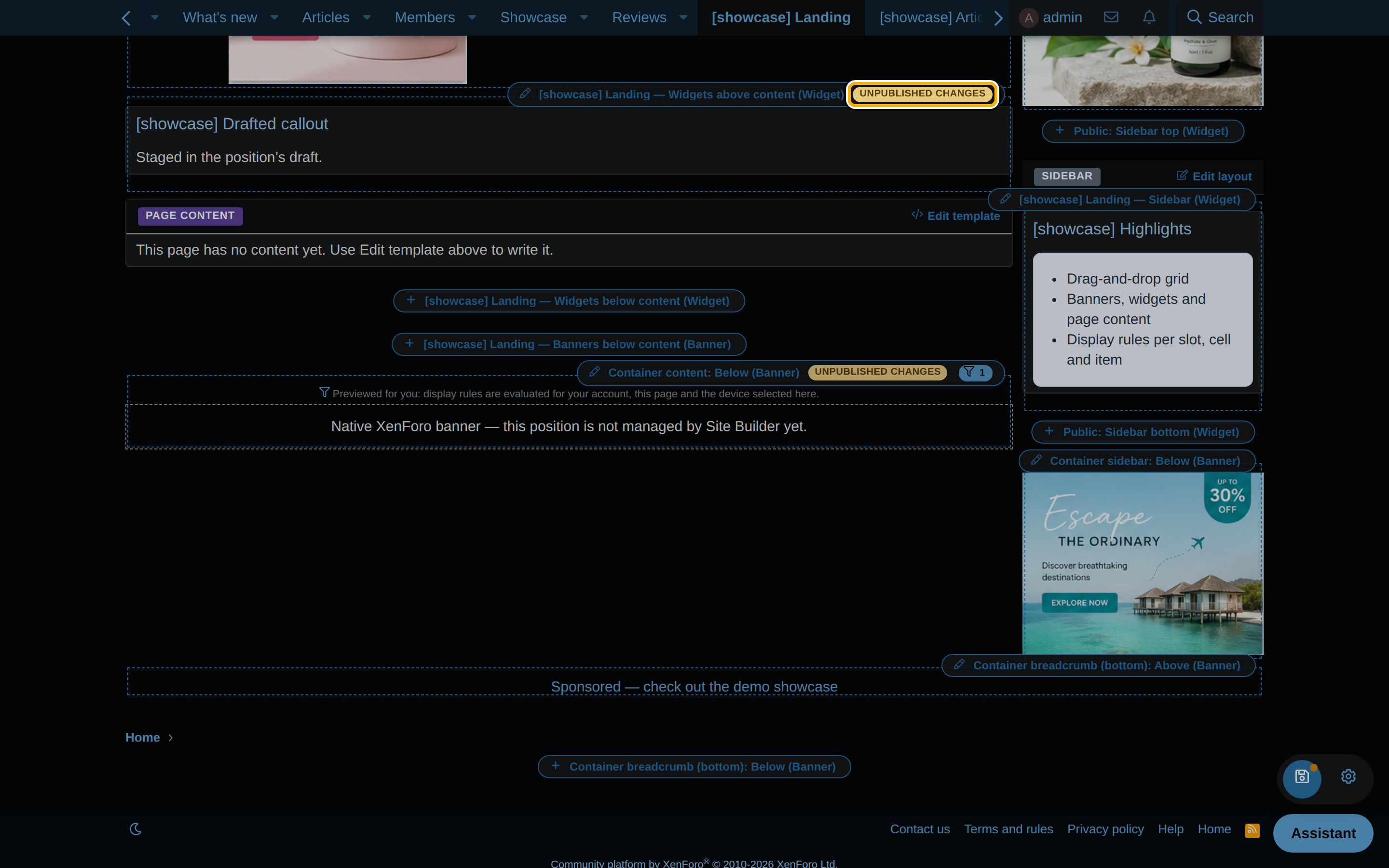
A page with a draft carries the badge on its Page content bar, and the floating bar's save icon carries a dot:

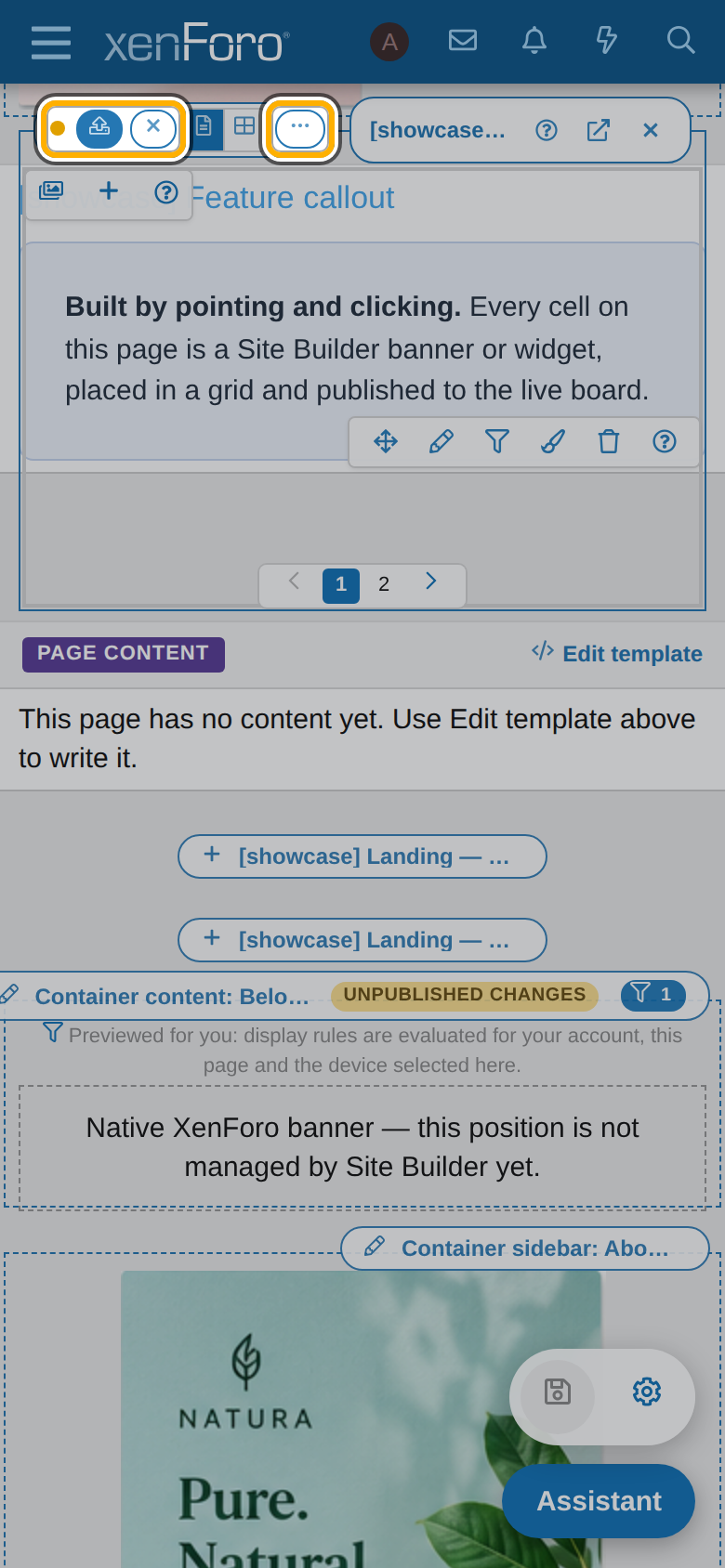
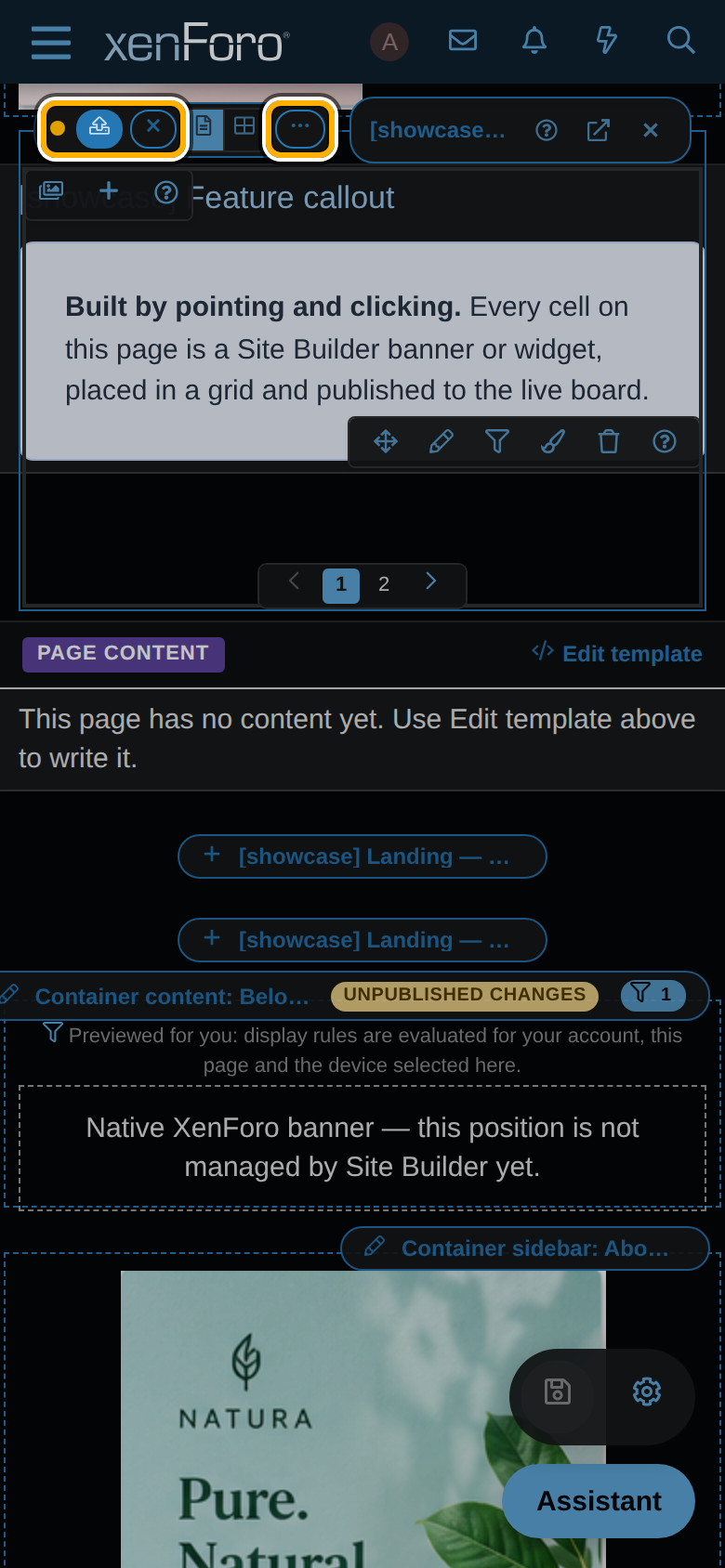
When the position is narrow, the badge is a dot, and Publish and Reset lose their labels: the upload icon (Make this position's changes live for visitors.) and the cross. Undo and Redo move behind the … icon (More actions for this position). An open position on mobile:
Publish a position
- Open manage mode from the staff bar and open the position's editor.
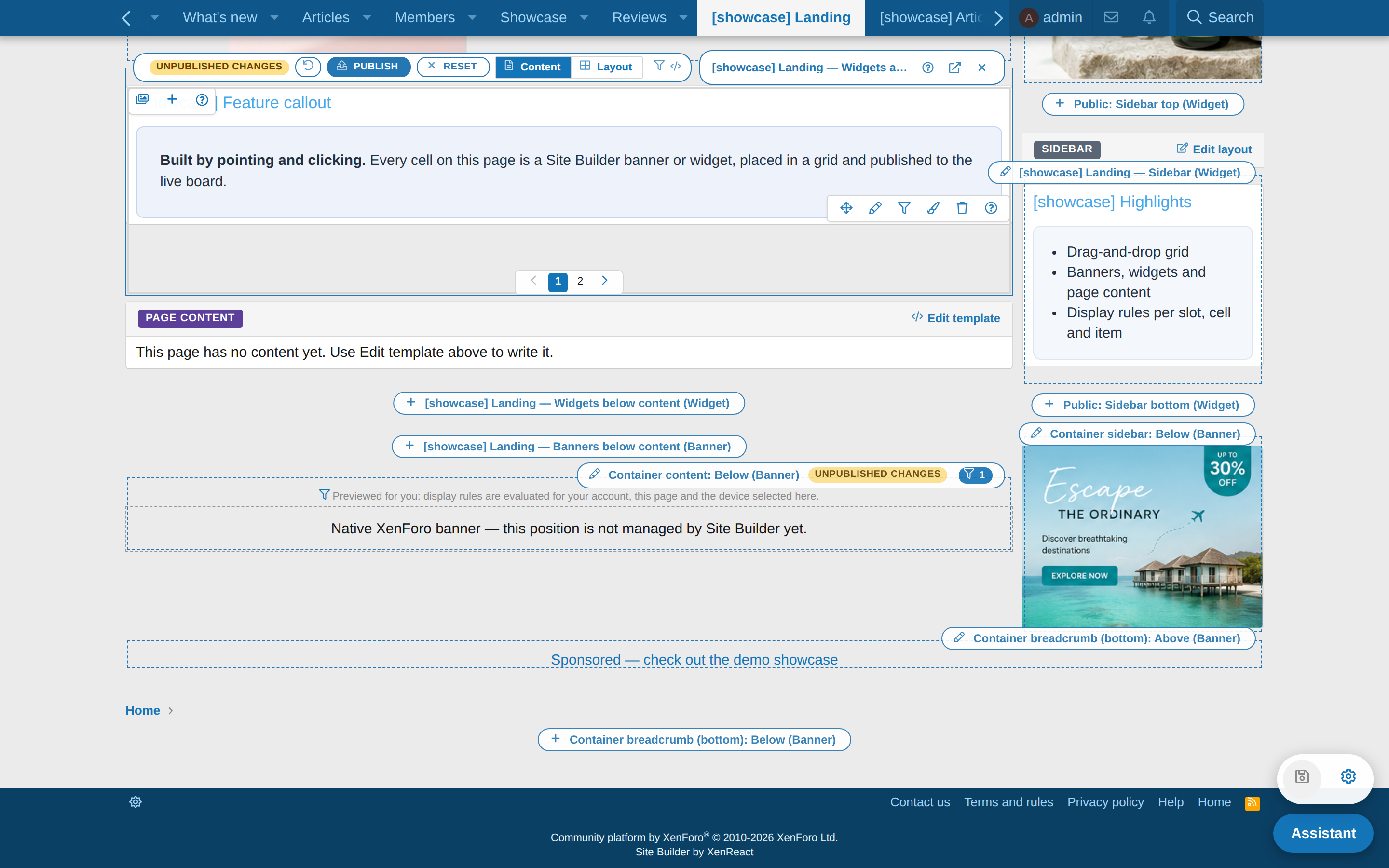
- Make your changes. The badge reads Unpublished changes.
- Press Publish. The changes go live at once and the badge disappears.
Each position is published separately. To publish a page and its positions together, see Publish a page.
Undo and redo
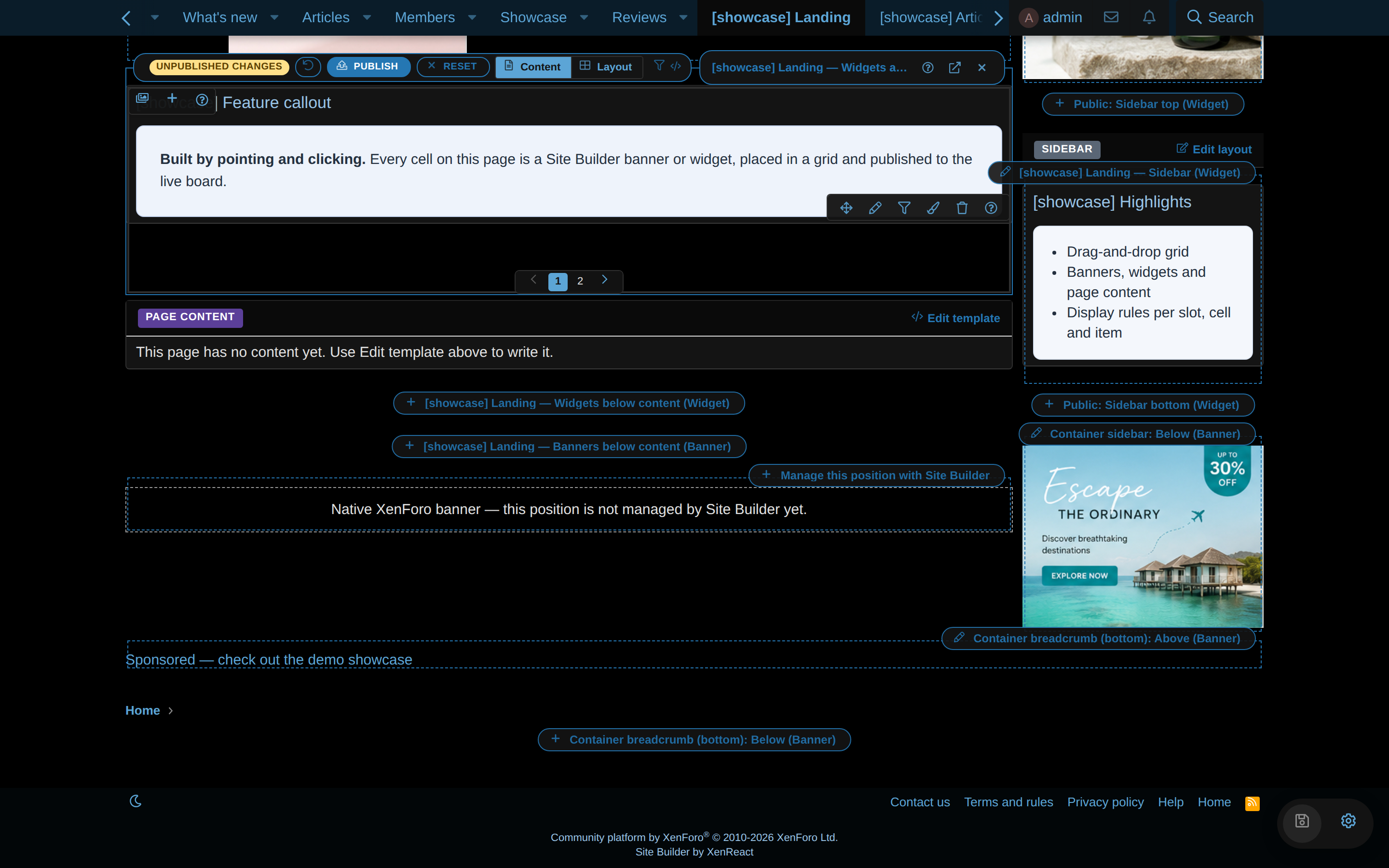
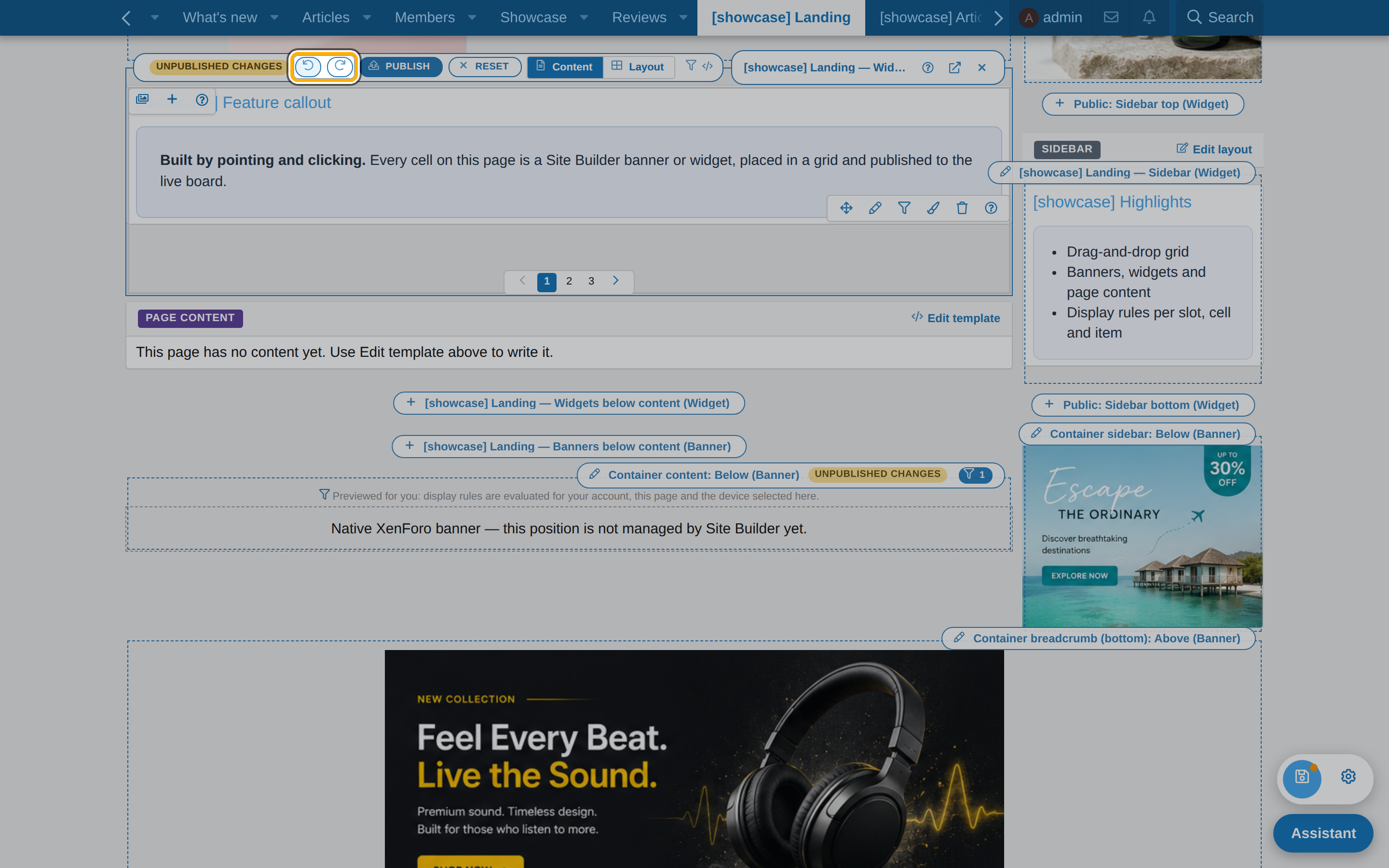
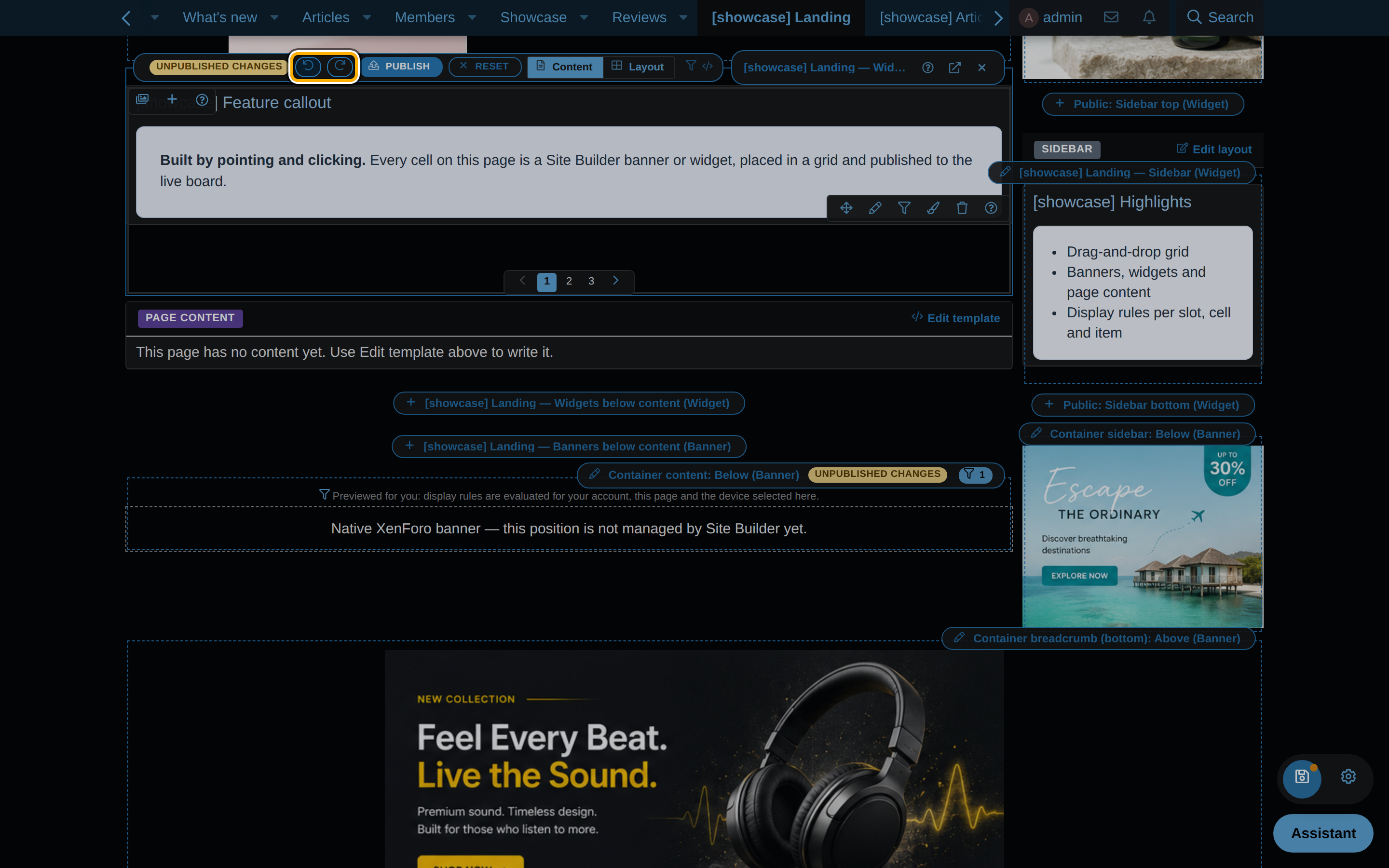
Undo and redo are the two curved arrows left of Publish: the undo arrow (Take back this position's last change (Ctrl+Z / ⌘Z).) and the redo arrow (Make the change you took back again (Ctrl+Shift+Z / ⌘⇧Z).). They step through that position's draft, back to its first change, and they show only when there is something to undo or redo.
| Action | Shortcut |
|---|---|
| Undo | <kbd>Ctrl</kbd>+<kbd>Z</kbd> or <kbd>⌘</kbd>+<kbd>Z</kbd> |
| Redo | <kbd>Ctrl</kbd>+<kbd>Shift</kbd>+<kbd>Z</kbd>, <kbd>⌘</kbd>+<kbd>⇧</kbd>+<kbd>Z</kbd> or <kbd>Ctrl</kbd>+<kbd>Y</kbd> |
The shortcuts work on every position you have opened since the page loaded, even one you closed again.
Undo never changes what is published. It only steps back through your draft.
Reset a position
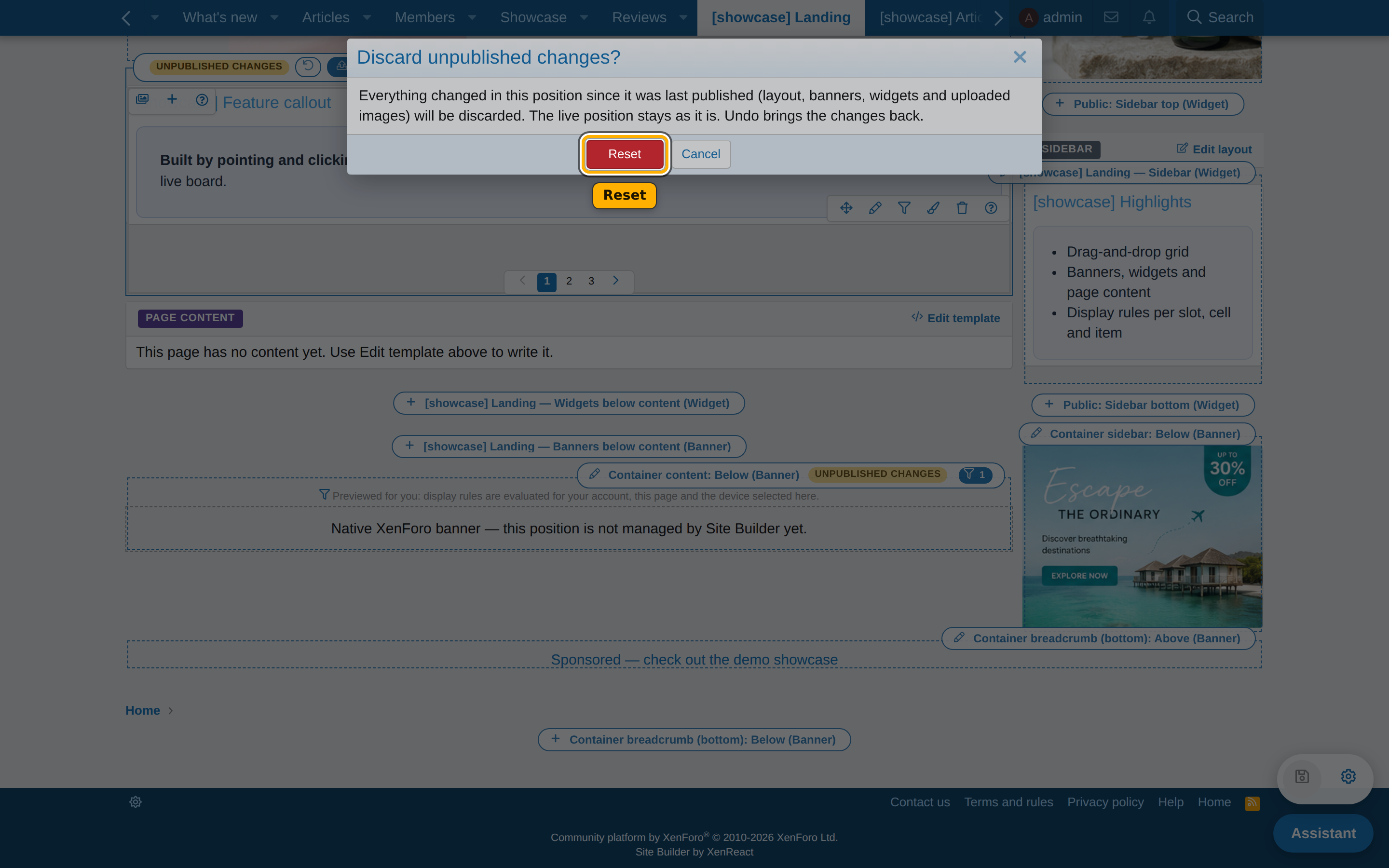
Reset discards the whole draft in one step. To take back one change, use the undo arrow instead.
- Open the position's editor and press Reset.
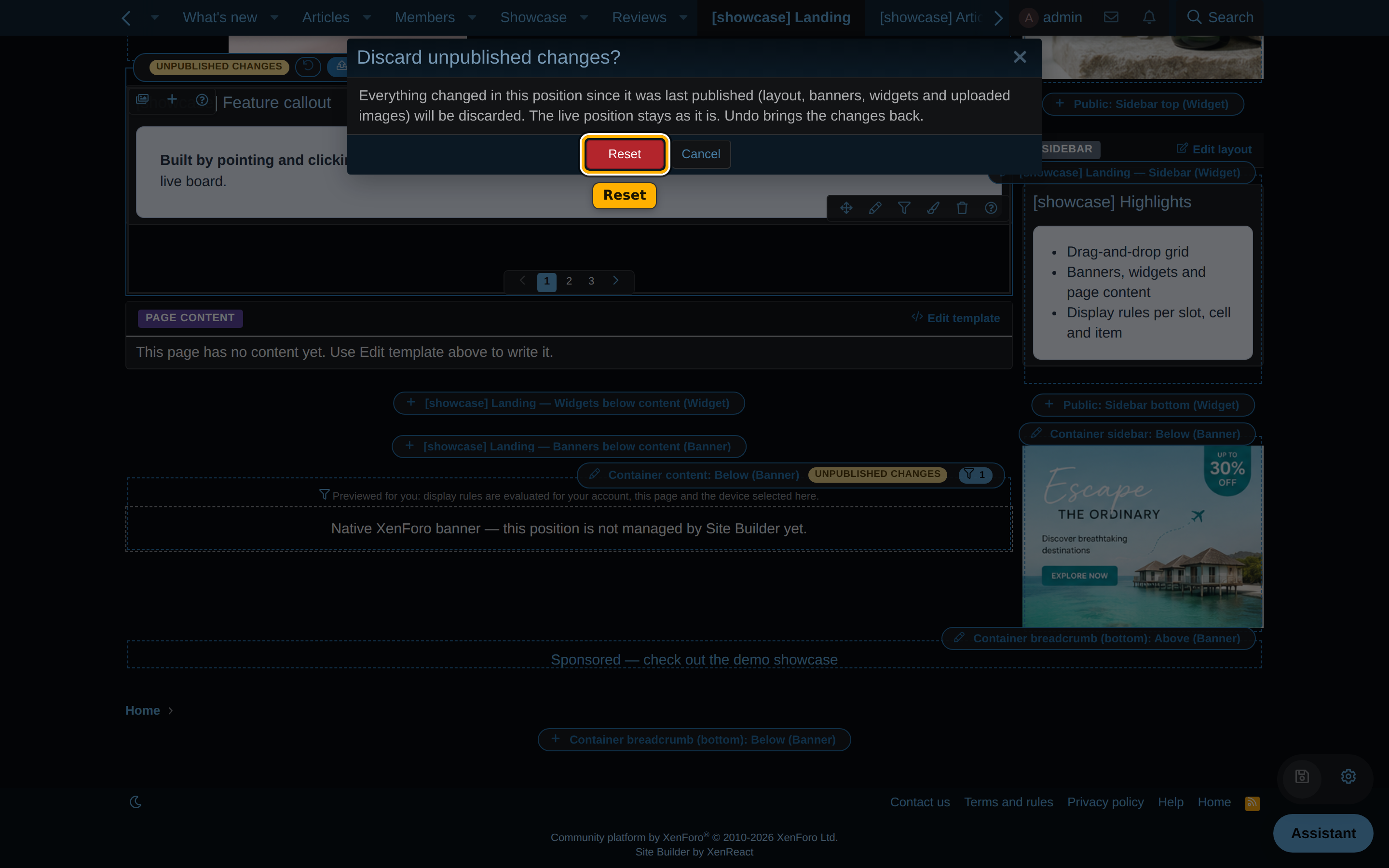
- Confirm in the dialog — Discard unpublished changes? — with Reset.
Reset does not change the published position. It discards every change in the draft, including items you created in it.
- Items moved between positions. If you dragged an item from one position to another, the dialog names the other position: the reset takes that move back in both.
- A reset can be undone. Press the undo arrow right after it and the whole draft is back.
One position, two tabs
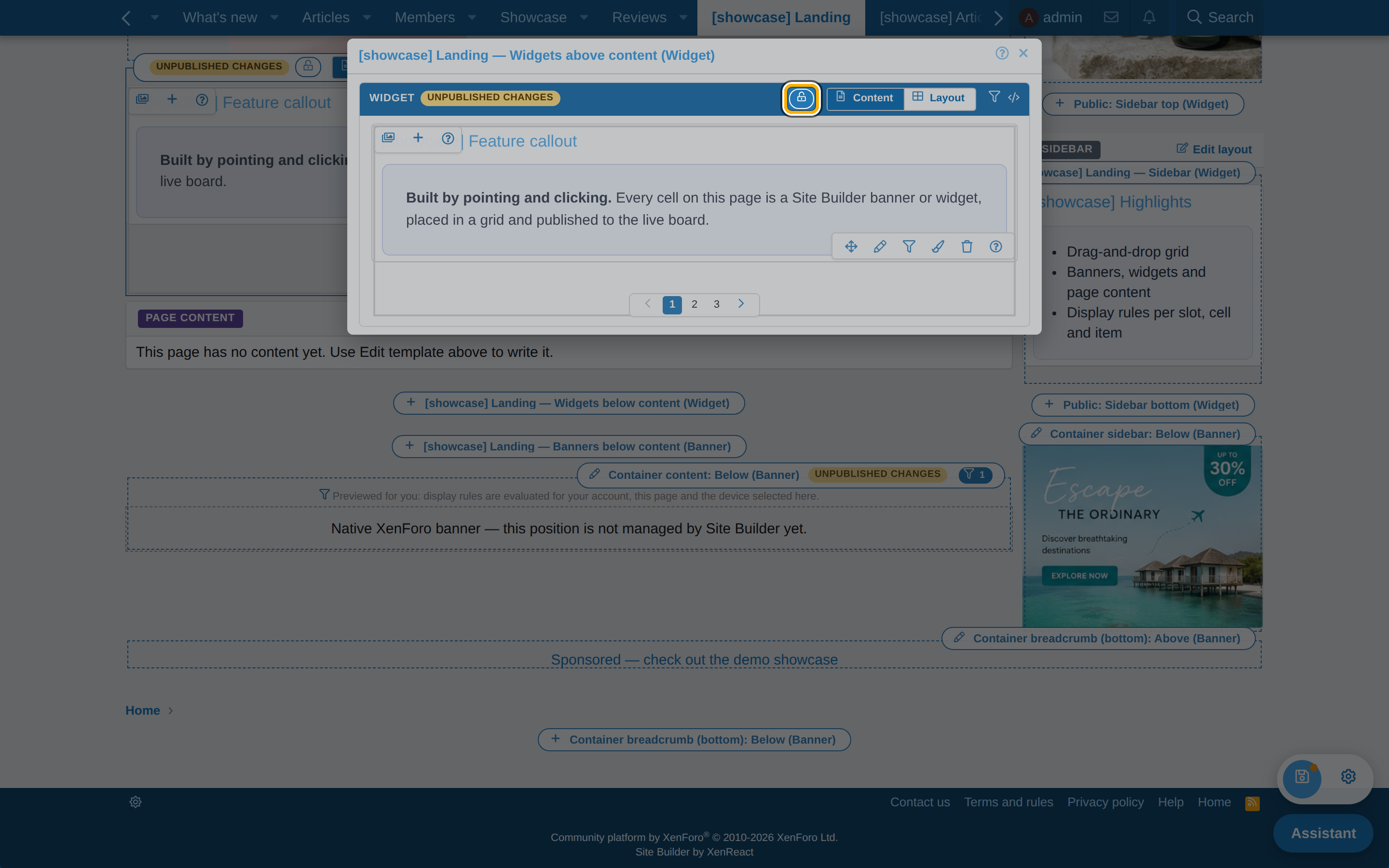
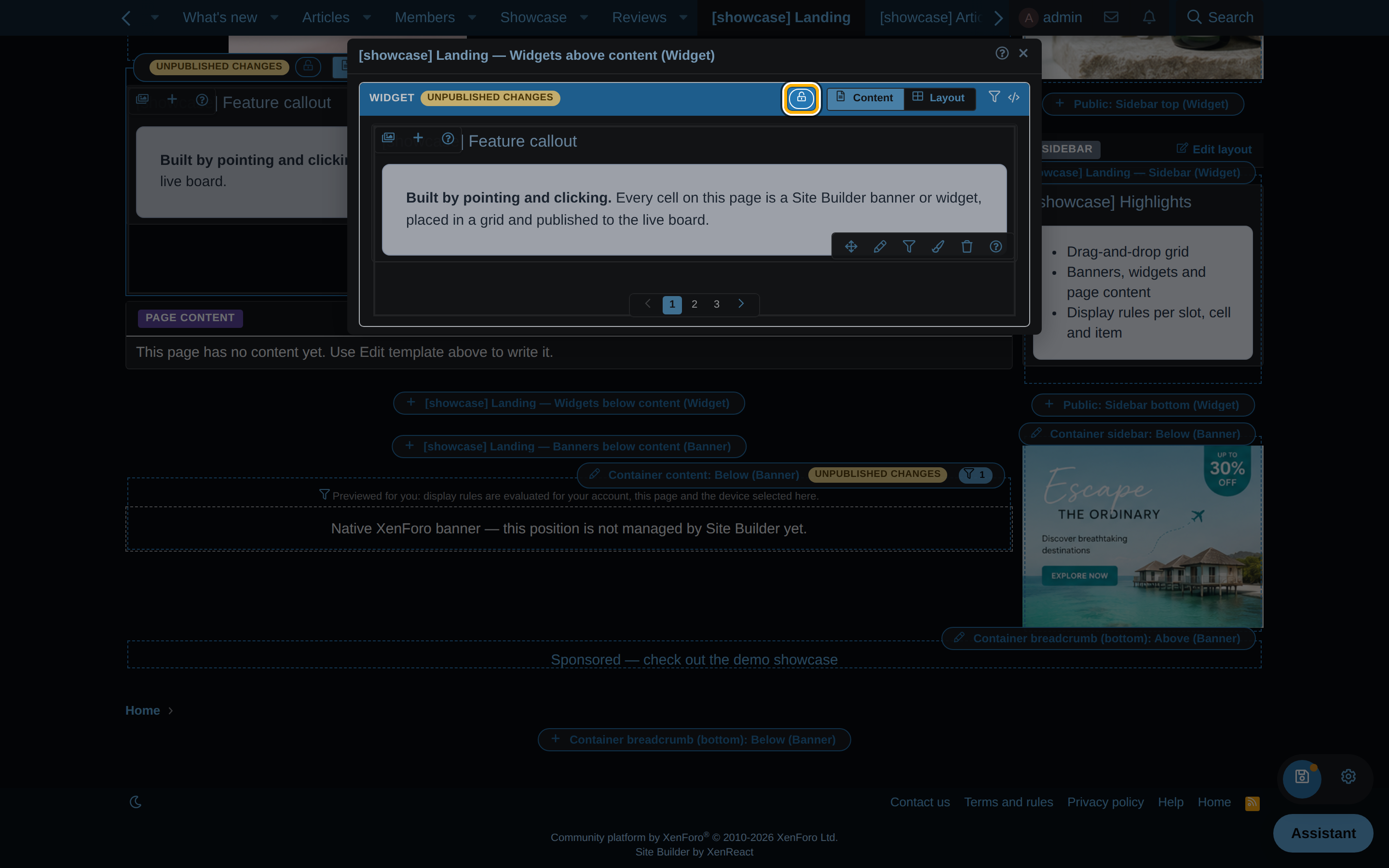
Only one browser tab edits a position at a time. The first tab that changes a position holds it. In every other tab — your own or another administrator's — the position is read-only, and Publish, Reset and the undo and redo arrows are hidden.
The position is free again when the tab that holds it publishes or resets it, or about a minute after that tab is closed.
To edit the position anyway, press the unlock icon — an open padlock — on it. Its tooltip says who holds the position and when they last changed it, and ends in Take over, or Edit here instead when the other tab is yours. Confirm with the dialog's button of the same name. The other tab becomes read-only, and nothing it changed is lost.
Publish a page
A page's settings, its content template and its social image are saved in the page's own draft. The floating bar over the page has two icons: the save icon — a floppy disk (Publish this page) — which publishes, and the cog (Page settings), which opens the Edit Page form. A dot on the save icon means there is something to publish.
- Press the save icon in the floating bar.
- Read the confirmation — These changes go live: — which lists the changed settings, the content template and the positions that go live with the page.
- Press Publish.
Publishing a page also publishes the drafts of the positions on it. The dot shows when only a position has changes, too.
The Edit Page form has the same button. It reads Save and publish when the form has unsaved changes, and Publish otherwise.
When there is nothing to publish, the save icon is disabled and its tooltip reads No unpublished changes.


Reset a page
- Open Edit Page for the page.
- Press Reset in the form's footer.
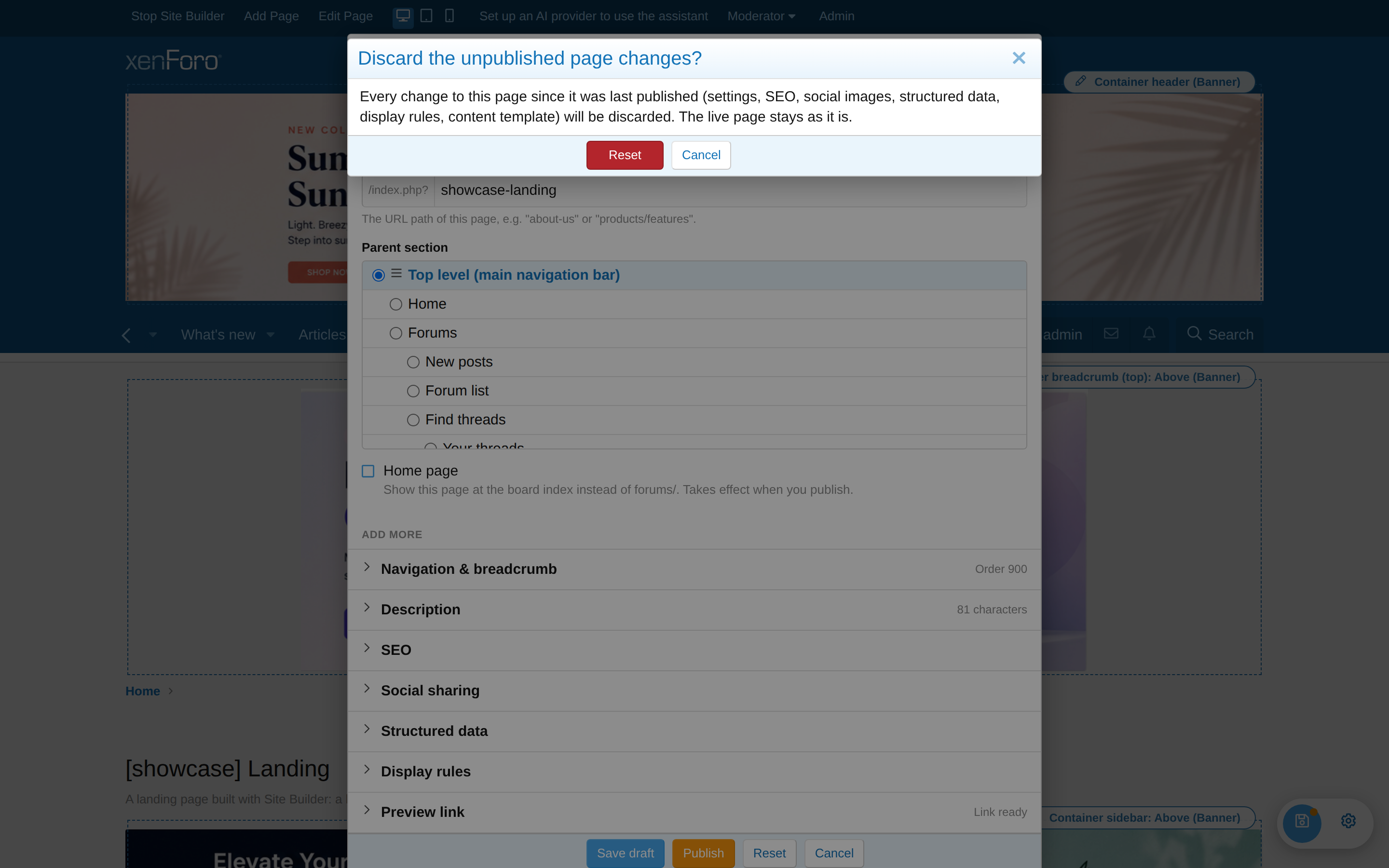
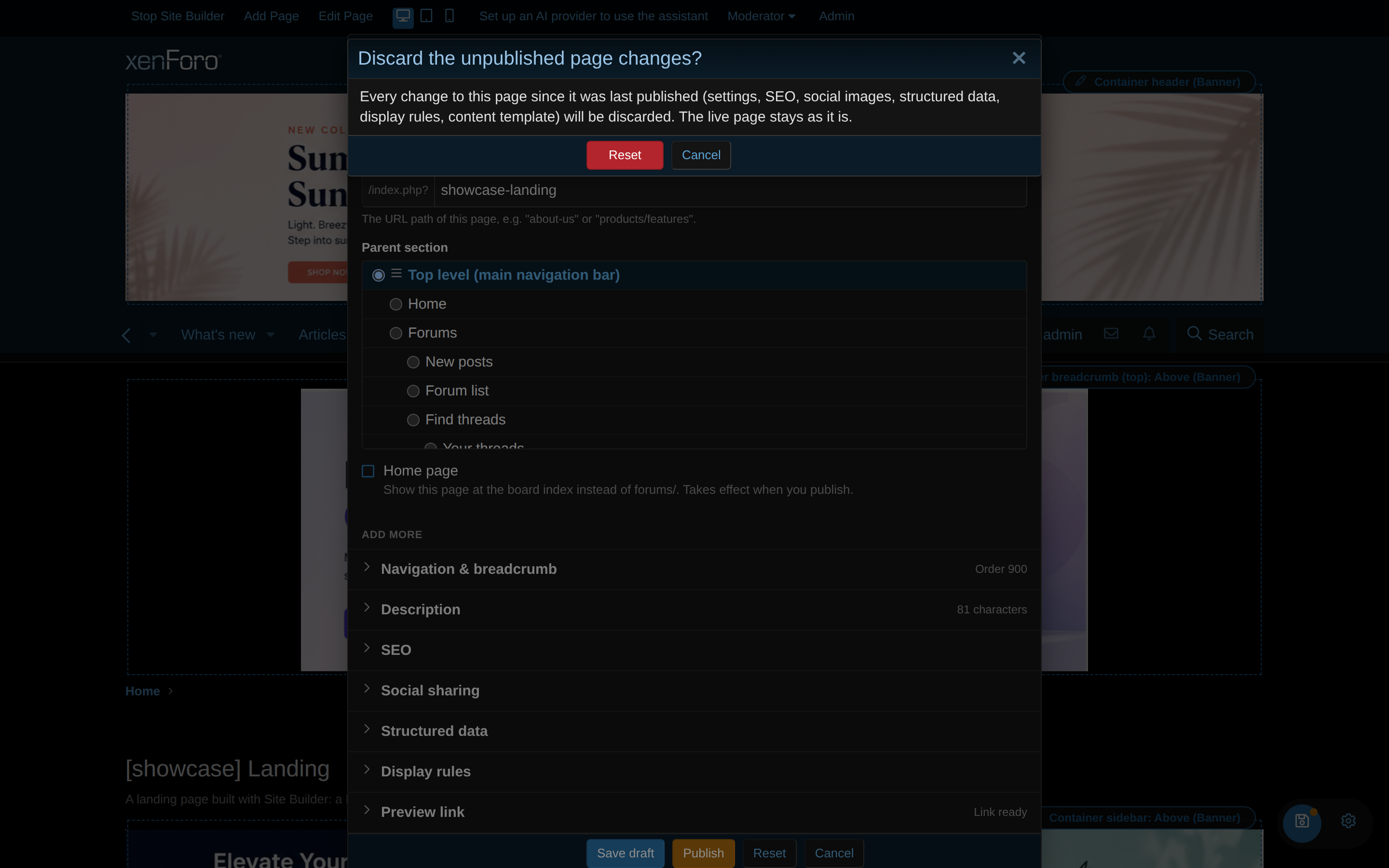
- Confirm — Discard the unpublished page changes? — with Reset.
This discards the page's unpublished settings, template and social image. The positions on the page keep their drafts: publish or reset each of them in its own editor.
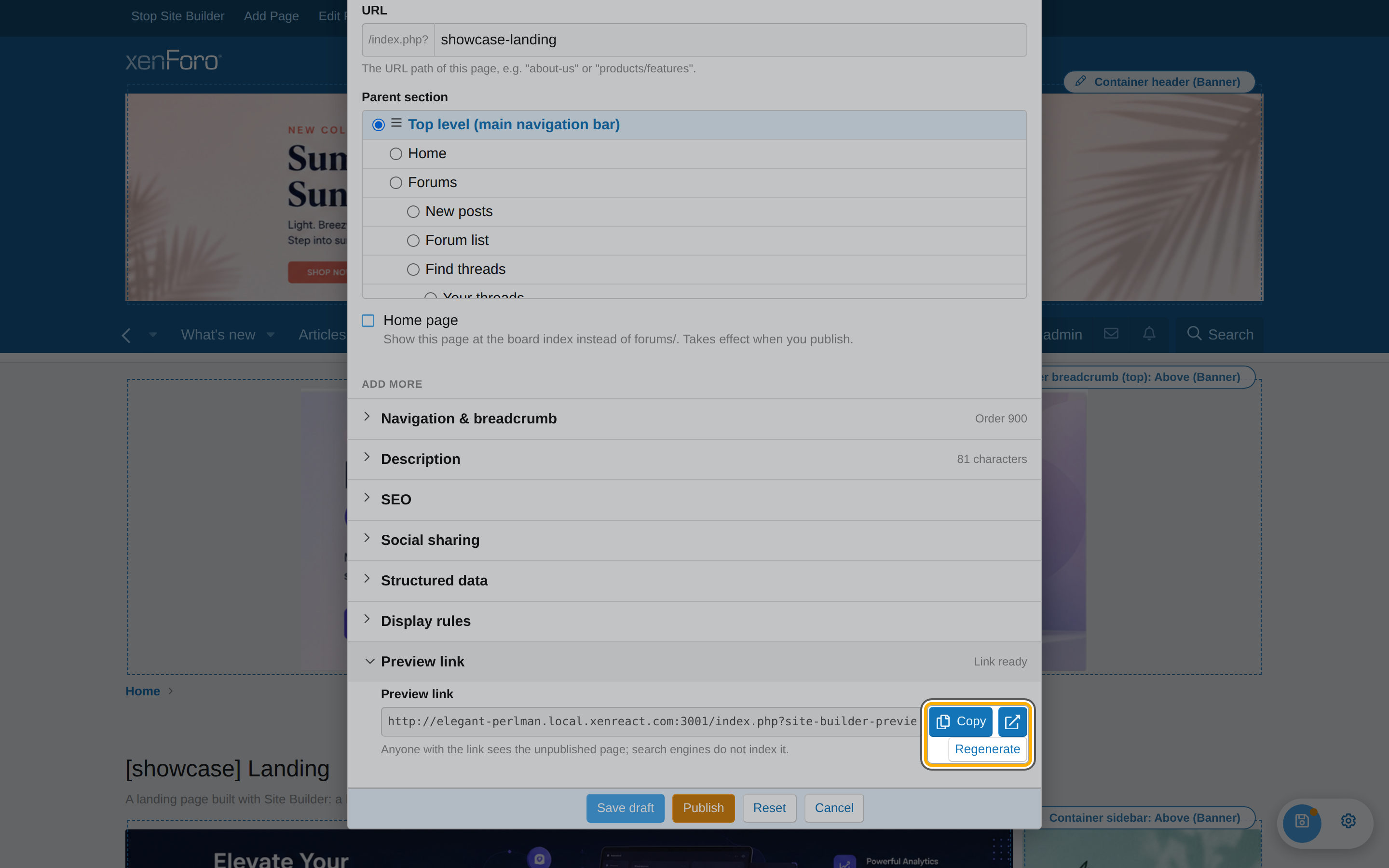
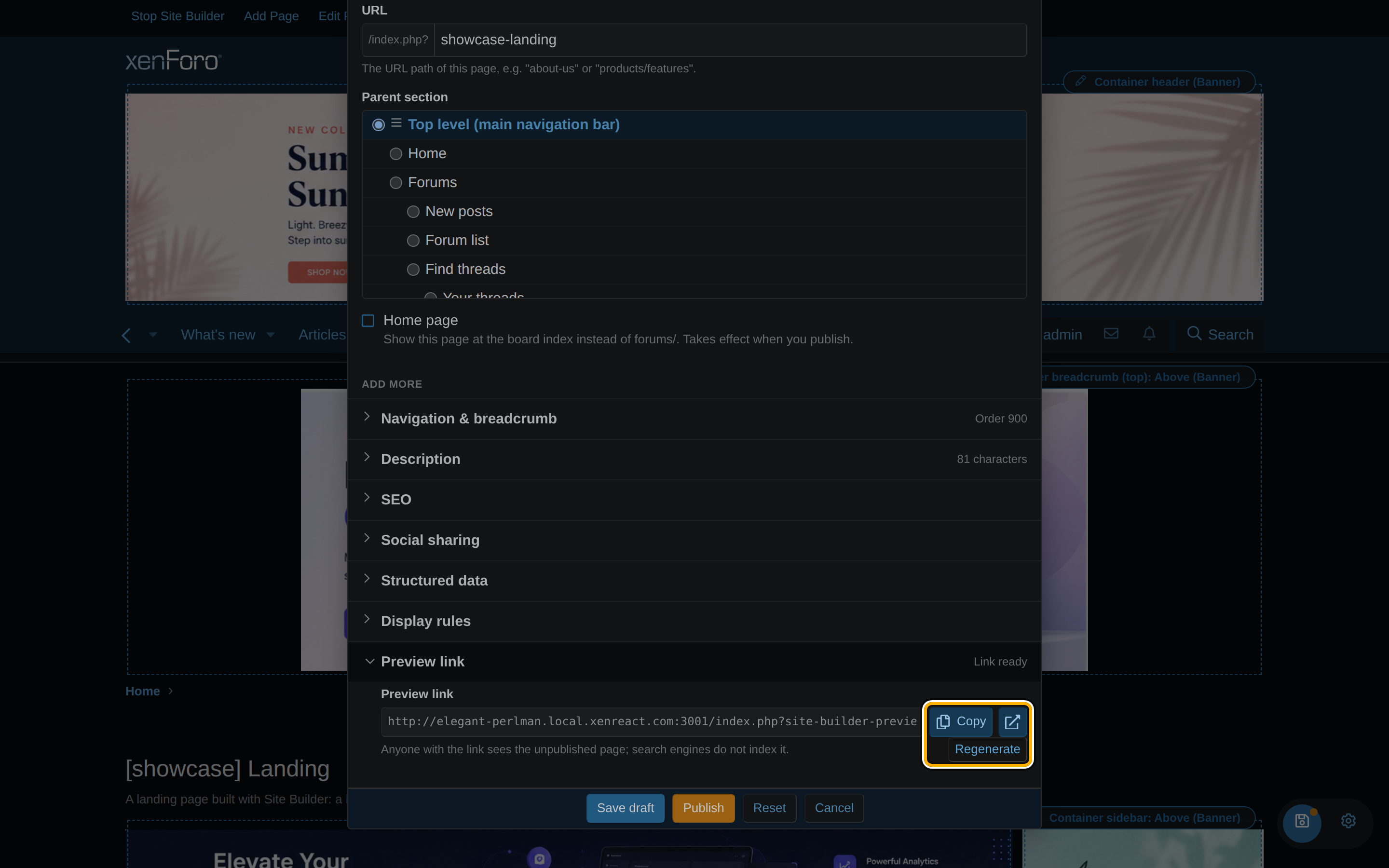
The preview link
A preview link shows a page with its unpublished changes: the settings, the template and the positions' drafts. It is in the Edit Page form, in the Preview link section, while the page has unpublished changes.
Copy the link and open it in a signed-out window to see what a visitor will get once the page is published.
Anyone who has the link can see the draft, so share it with care. Search engines are told not to index it. Regenerate makes a new link and the old one stops working at once. Publishing or resetting the page ends the link.
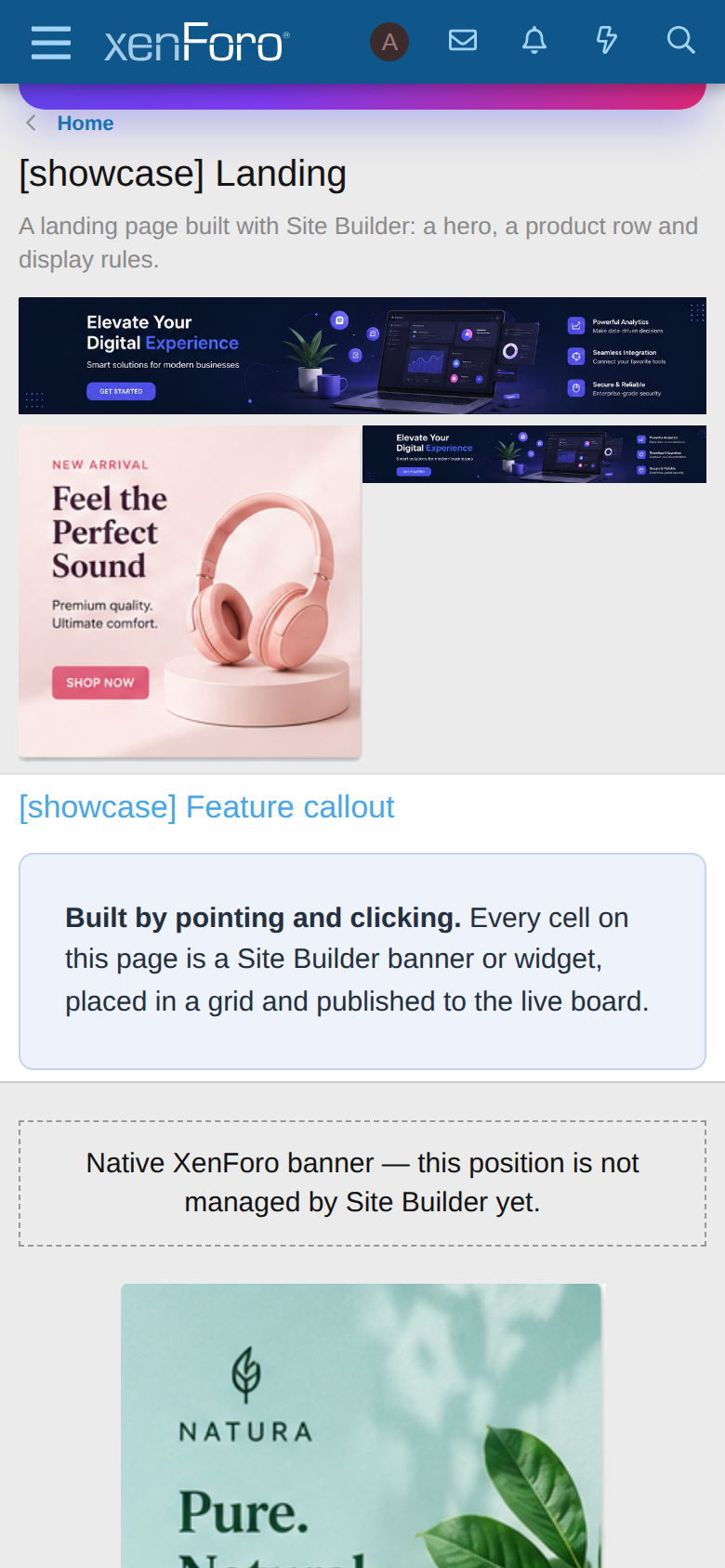
The finished page
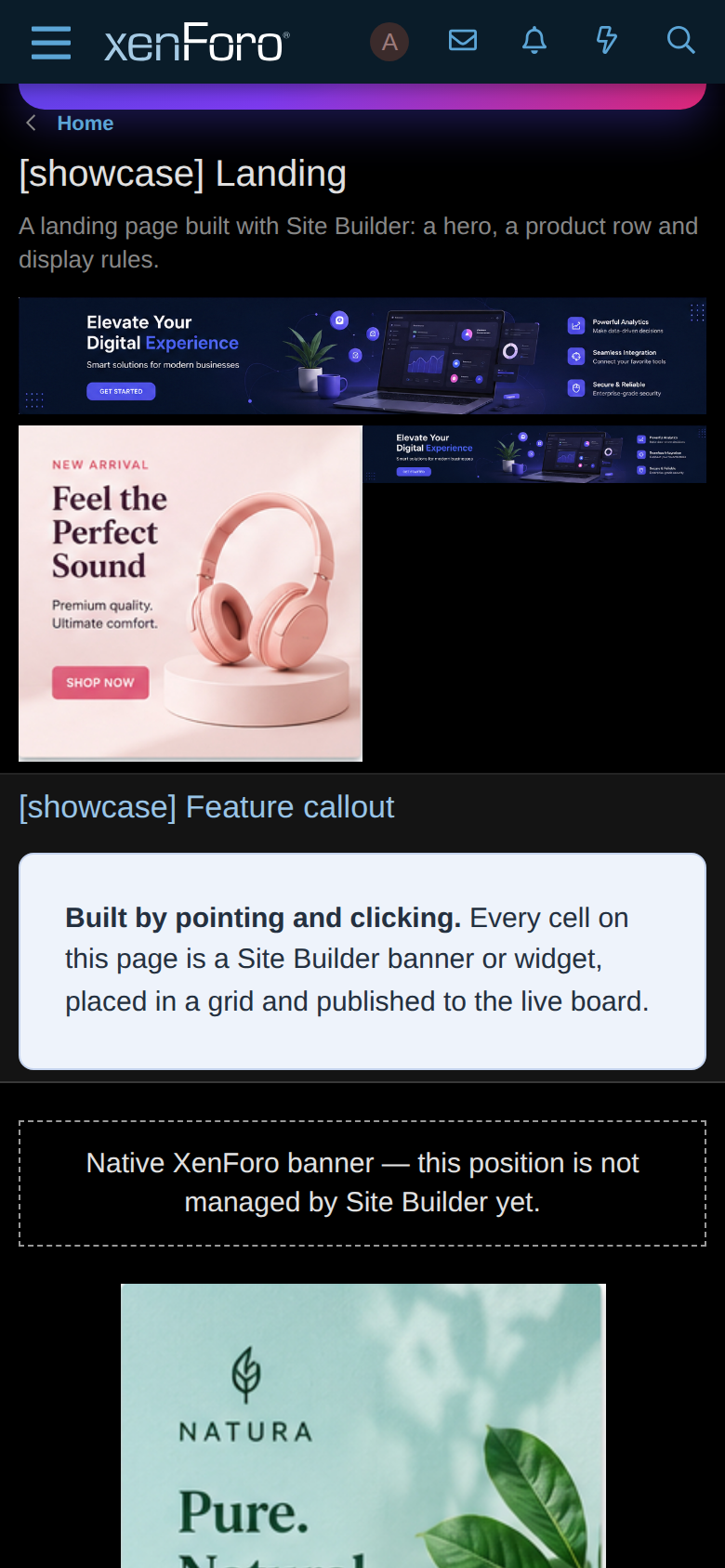
With everything published and manage mode off, visitors see the page without any editor controls — on a desktop and on mobile:


Good to know
- Publishing a page has no undo. Undo and redo belong to a position's draft. Check a page with its preview link before you publish it.
- A page is reset from the Edit Page form, not from the floating bar.
- Positions that XenForo fills. A position that shows ads or widgets from XenForo's own admin pages keeps showing them until you publish your first change to it in the editor. From then on, Site Builder shows the position.